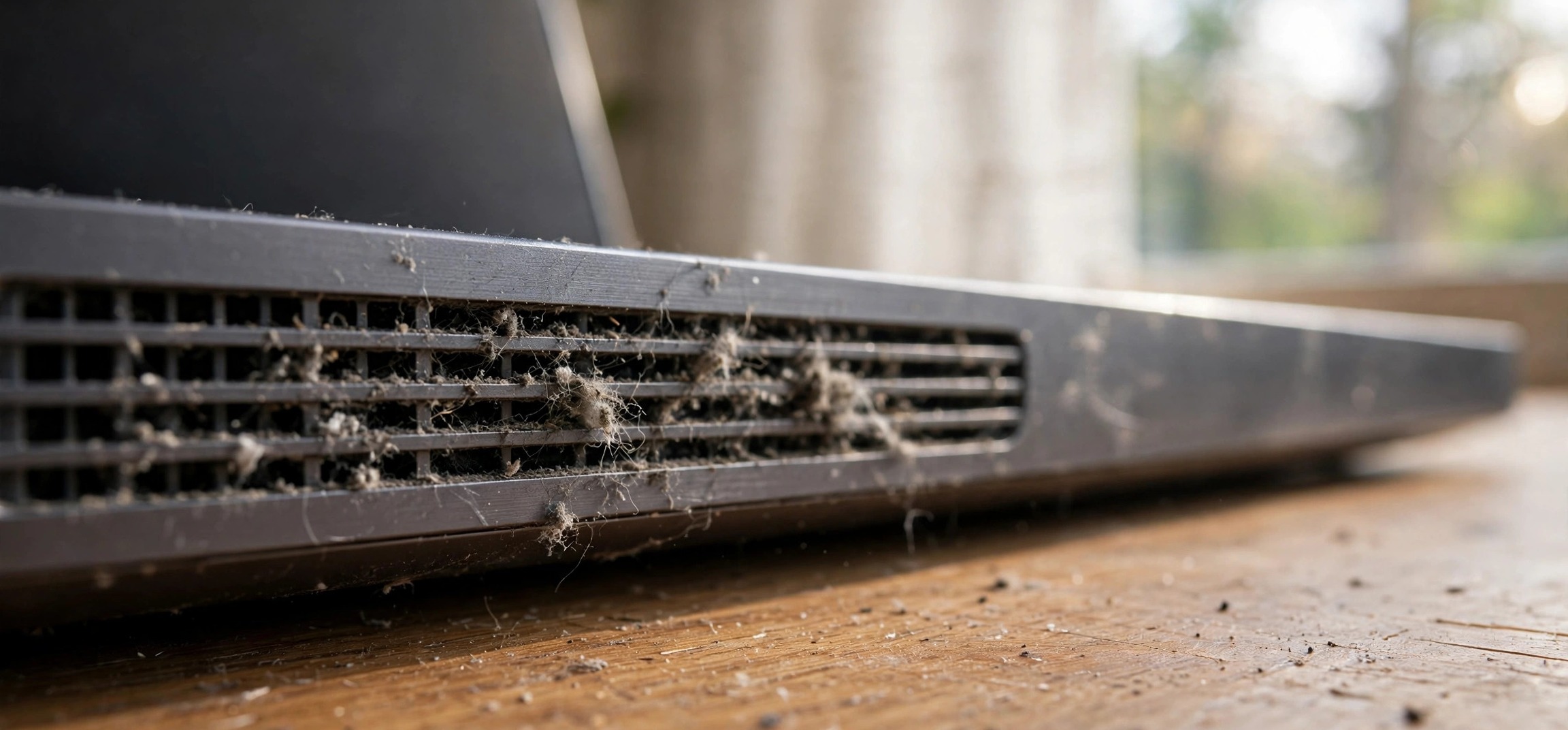
When your laptop keyboard has some keys not working on Windows, the pattern of dead keys tells you almost everything about the cause. A single dead key is usually debris or a failed switch. A whole row of dead keys points to the ribbon cable. Random keys misbehaving after an update points to software. And keys typing the wrong characters point to a language setting. These nine fixes are ordered from the five-minute software checks to the hardware solutions, so work through them in order and stop when your keys come back to life.
Table of Contents
- First: Read the Pattern of Dead Keys
- 1. Restart and Test in the BIOS Screen
- 2. Turn Off Filter Keys and Sticky Keys
- 3. Check the Keyboard Language and Layout
- 4. Update or Reinstall the Keyboard Driver
- 5. Clean Under the Dead Keys
- 6. Test With an External Keyboard
- 7. Reseat the Keyboard Ribbon Cable
- 8. System Restore or Windows Update Rollback
- 9. Replace the Keyboard (or Use a Workaround)
- Frequently Asked Questions
First: Read the Pattern of Dead Keys
Before changing anything, open a text editor and press every key, noting exactly which ones fail. The pattern is diagnostic. One or two scattered dead keys usually mean physical debris under the keycap or a worn-out individual switch. A full horizontal or vertical row of dead keys strongly suggests the keyboard’s ribbon cable — keyboards are wired in a matrix, and one broken trace kills a whole row or column. Keys that work intermittently or type double characters point to a failing membrane or a driver issue. Number keys dead but everything else fine may just be Num Lock.
Also note the timing: did keys die after a Windows update, after a spill, after the laptop was dropped, or gradually over months? Update-related death is software; spill-related death is hardware; gradual death of heavily used keys (E, A, spacebar) is worn switches. Your answers here determine which of the fixes below is most likely to work.
1. Restart and Test in the BIOS Screen
Start with the oldest trick because it resolves a real share of cases: do a full shutdown (not sleep, not hibernate), wait ten seconds, and power back on. Windows’ fast startup feature can leave drivers in a bad state across reboots, and a true shutdown clears it. To be thorough, hold Shift while clicking Shut down — this forces a full shutdown even with fast startup enabled.
Next, determine whether Windows is even involved. Restart and press the BIOS/UEFI key for your brand (usually F2, Del, or Esc) to enter the firmware setup screen, then try the dead keys there. If the keys work in BIOS but not in Windows, the hardware is fine and the problem is 100% software — skip ahead to the driver and settings fixes. If the keys are dead in BIOS too, no Windows setting will save them; focus on the cleaning and hardware fixes.
2. Turn Off Filter Keys and Sticky Keys
Windows’ accessibility features are a notorious stealth cause of “broken” keys. Filter Keys ignores brief or repeated keystrokes — designed for tremor, but if enabled accidentally it makes keys feel dead or unresponsive. Sticky Keys changes how modifier keys behave and can make Shift/Ctrl/Alt combinations act strangely.
Go to Settings > Accessibility > Keyboard and make sure Sticky Keys, Filter Keys, and Toggle Keys are all off. Also uncheck “Allow the shortcut key to start Filter Keys” — the classic accident is holding the right Shift key for eight seconds, which enables Filter Keys with a single confirmation dialog that is easy to dismiss without reading. If your keys started misbehaving after a long gaming session or a child used the laptop, this is the prime suspect.
3. Check the Keyboard Language and Layout
If keys “work” but produce the wrong characters — @ and ” swapped, or letters turning into accented characters — your keyboard layout changed, not your keyboard. This happens easily: Windows + Space switches input languages, and laptops with certain regional settings love to flip layouts after updates.
Check the language indicator in the taskbar (next to the clock). It should show your expected language and layout (e.g., ENG / US). Go to Settings > Time & language > Language & region, and remove any keyboard layouts you do not use — extra layouts are just future accidents waiting to happen. While here, verify the layout matches your physical keyboard: a US-layout setting on a UK physical keyboard (or vice versa) swaps several symbol keys.
4. Update or Reinstall the Keyboard Driver
A corrupted keyboard driver can kill keys selectively — it sounds odd, but the driver translates scancodes, and corruption can drop specific codes. Open Device Manager, expand Keyboards, right-click your keyboard (usually “Standard PS/2 Keyboard” on laptops), and choose Update driver.
If updating does nothing, uninstall the device instead: right-click, Uninstall device, then restart. Windows reinstalls a fresh keyboard driver automatically on boot. This clears corrupted driver states completely. If the keys died immediately after a Windows update, also check Settings > Windows Update > Update history > Uninstall updates — rolling back the offending update has fixed many sudden keyboard deaths. Microsoft documents driver troubleshooting steps on Microsoft Support if you need the official walkthrough.
While in Device Manager, glance at the Human Interface Devices section for any yellow warning icons — a flagged entry there can indicate the deeper controller problem behind dead keys.
5. Clean Under the Dead Keys
For one or two dead keys, the cause is usually physical: crumbs, dust, pet hair, or dried liquid under the keycap preventing the switch from actuating. Power the laptop off first. Hold it upside down at an angle and tap the bottom gently — you will be amazed what falls out. Then use compressed air with the straw nozzle, blowing at an angle under the dead keys (short bursts, can upright, to avoid propellant spray).
For stubborn keys, you can carefully pry off the keycap on most laptop keyboards — use a plastic spudger or an old credit card, lifting from one corner gently. Underneath you will find a scissor mechanism and a rubber dome. Clean with a dry cotton swab; for sticky residue, barely dampen the swab with isopropyl alcohol and let it dry fully before reattaching the keycap (press straight down until it clicks). Take a photo before removing anything — scissor mechanisms are fiddly to reassemble blind.
If the dead keys followed a liquid spill, power off immediately and do not turn the laptop back on until it is fully dry (24–48 hours, upside down in a tent position). Sugary drinks leave conductive residue that keeps killing keys until properly cleaned — that may need professional ultrasonic cleaning of the keyboard assembly.
6. Test With an External Keyboard
Plug in any USB keyboard (or connect a Bluetooth one) and test the same keys. If the external keyboard works perfectly, you have confirmed the laptop’s built-in keyboard hardware is at fault — not Windows, not drivers, not settings. If the external keyboard shows the same dead keys, the problem is software-level (driver, layout, or a deeper OS issue), and hardware surgery will not help.
This test also gives you your workaround: a compact USB or wireless keyboard keeps the laptop fully usable while you decide on repair. For a laptop that mostly lives on a desk, many people just adopt the external keyboard permanently and skip the repair entirely — a legitimate, zero-cost resolution.
7. Reseat the Keyboard Ribbon Cable
Laptop keyboards connect to the motherboard via a thin, flat ribbon cable with a locking latch. Heat cycling, drops, and vibration can walk it slightly loose, and a partially seated ribbon kills exactly the kind of row/column key patterns described earlier. Reseating it is the highest-value hardware fix.
Power off, unplug, and remove the battery if it is removable (for internal batteries, disconnect it after opening). Remove the bottom panel — keep screws organized, since lengths vary. Locate the keyboard’s ribbon cable (wide, flat, usually running from under the keyboard area to a connector near the center). Flip up the locking latch gently — these latches are fragile — slide the cable out, check the gold contacts for dirt or corrosion, then slide it back in evenly and lock the latch. Reassemble and test.
On some laptops the keyboard is only accessible from the top (requiring palm-rest removal); check a disassembly guide for your exact model before starting. If the warranty is active, consider letting the manufacturer handle it — but out of warranty, this is a ten-minute job. The same careful-disassembly principles apply as in our laptop display cable guide, which walks through safe laptop opening in detail.
8. System Restore or Windows Update Rollback
If the keys died at a specific moment — after an update, a new program install, or a settings change — System Restore can rewind Windows to before the problem. Search for “Recovery” in Settings, open System Restore, and pick a restore point dated before the keys failed. Your personal files are untouched; only system files, drivers, and settings roll back.
No restore point? Check installed updates as described in fix 4 and uninstall the most recent ones. Also think about recently installed software: keyboard-macro tools, gaming overlays, and some “keyboard enhancer” utilities hook keystrokes at a low level and can swallow specific keys. Uninstall anything keyboard-related that arrived around the time the problem started.
9. Replace the Keyboard (or Use a Workaround)
If cleaning, reseating, and drivers all failed and the keys are dead even in BIOS, the keyboard membrane itself has failed — usually a broken matrix trace, which is not repairable at home. Replacement keyboards are model-specific parts, generally inexpensive for common laptops, and replacement difficulty ranges from “five screws under the bottom panel” to “full top-case disassembly” depending on the design. Search your exact model plus “keyboard replacement” for a video guide before deciding.
Weigh the cost: on an older budget laptop, a shop’s labor plus the part can approach the machine’s resale value. In that case the pragmatic answers are a good external keyboard (fix 6’s workaround becomes the solution) or remapping the dead keys to keys you never use with a free tool like Microsoft’s Keyboard Manager (part of PowerToys). For a laptop used mostly docked at a desk, either workaround is completely livable. And if the machine has other hardware quirks, our touchpad auto-disable guide and SSD/HDD check guide are handy companions for a full laptop tune-up.
Frequently Asked Questions
Why are some keys on my laptop keyboard not working?
The most common causes are: Filter Keys accidentally enabled (software), debris under the keycaps (physical), a corrupted keyboard driver, or a loose keyboard ribbon cable inside the laptop. The pattern matters — a dead row suggests the ribbon cable, scattered dead keys suggest debris, and sudden death after an update suggests software.
How do I fix laptop keys that type the wrong characters?
That is a keyboard layout issue, not broken keys. Press Windows + Space to cycle input languages, check the taskbar language indicator, and go to Settings > Time & language > Language & region to remove layouts you do not use. Make sure the layout matches your physical keyboard (US vs UK layouts swap several symbol keys).
Can I fix a laptop keyboard without replacing it?
Often, yes. Cleaning under the keys, disabling Filter Keys, reinstalling the driver, and reseating the ribbon cable resolve the majority of cases without new parts. Replacement is only necessary when the keyboard’s internal membrane or matrix traces have physically failed — typically confirmed when keys stay dead in BIOS and after reseating.
What does it mean if keys work in BIOS but not in Windows?
It means the keyboard hardware is fine and Windows is the problem — a driver, a layout setting, Filter Keys, or interfering software. Focus entirely on the software fixes (driver reinstall, layout check, accessibility settings, update rollback) and skip the hardware disassembly.
Is it safe to remove laptop keycaps for cleaning?
Generally yes, with care. Use a plastic tool, lift gently from a corner, and photograph the scissor mechanism before removal so you can reassemble it. Let any moisture dry completely before reattaching. The main risk is snapping the tiny plastic scissor clips — work slowly and never force a keycap that resists.
How much does laptop keyboard replacement cost?
The part itself is usually modest for common models, with rarer or backlit keyboards costing more. Professional labor adds a flat fee that varies by how deeply the keyboard is buried in the chassis. Get a quote first — on older budget machines, an external keyboard or key remapping is often the more sensible spend.
A laptop keyboard with some keys not working is rarely a death sentence for the machine. Read the pattern, rule out software with the BIOS test, try the quick fixes, and only open the chassis when the evidence points to hardware. Most dead-key cases end at step 2, 4, or 5 — fixed in minutes, with no parts ordered.