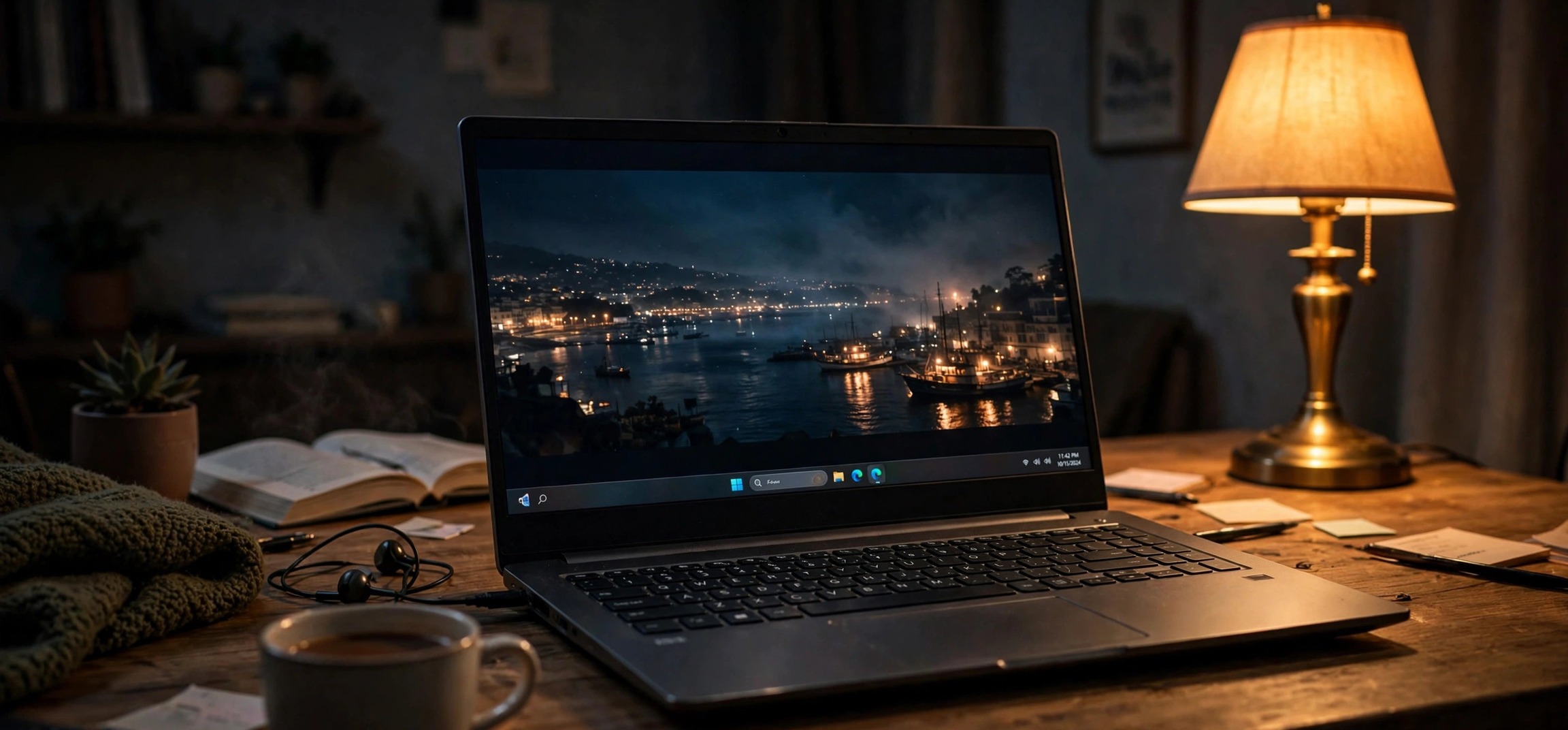
Nothing breaks immersion like taskbar not hiding in fullscreen windows 11 striking right when your movie, game, or presentation starts. You press F11 or hit the fullscreen button, and that thin strip of icons stubbornly stays glued to the bottom of your screen, covering subtitles, game HUD elements, or slide controls. The good news is that this is almost never a serious problem — it is usually a stuck Windows Explorer process, a notification-hungry app, or a single misconfigured setting. Below are seven fixes, ordered from quickest to most thorough, that will get your taskbar out of the way again.
Table of Contents
- Taskbar Not Hiding in Fullscreen Windows 11: What Causes It
- Fix 1: Restart Windows Explorer
- Fix 2: Enable “Automatically Hide the Taskbar”
- Fix 3: Stop App Notifications From Waking the Taskbar
- Fix 4: Close Overlays and Background Apps
- Fix 5: Make Sure You’re in True Fullscreen Mode
- Fix 6: Reset Taskbar Behaviors in Settings
- Fix 7: Update Windows and Your Graphics Driver
- Taskbar Not Hiding in Fullscreen Windows 11: Last-Resort Options
- Frequently Asked Questions
Taskbar Not Hiding in Fullscreen Windows 11: What Causes It
When the taskbar refuses to disappear, it is because Windows still considers something on your screen to need attention. Windows 11 is designed so that a fullscreen window sits “above” the taskbar, but any application that flashes a notification badge, demands focus, or draws an overlay can pull the taskbar back into view. Common culprits include chat apps with unread message badges, antivirus software popping up alerts, and game launchers running in the background.
Another frequent cause is a glitch in the Windows Explorer process itself. Explorer is the process that draws your desktop, taskbar, and Start menu. When it gets stuck — which can happen after sleep, hibernation, or a long uptime — the taskbar can stop responding to fullscreen requests even when nothing is actually demanding attention. The taskbar not hiding in fullscreen on Windows 11 is also sometimes triggered by the taskbar’s own behavior settings being toggled off, particularly after a major Windows update resets preferences.
Finally, the issue can be app-specific. Some browsers, video players, and games use a “maximized window” mode that looks like fullscreen but is not the same thing. In those cases the taskbar is behaving correctly — the app simply has not asked Windows for true fullscreen. Understanding which of these scenarios you are in makes the fixes below much faster to apply.
Fix 1: Restart Windows Explorer
Restarting Windows Explorer is the single most effective fix for the taskbar not hiding in fullscreen on Windows 11, and it takes about ten seconds. This refreshes the process that renders the taskbar without rebooting your computer or closing your open programs.
Press Ctrl + Shift + Esc to open Task Manager. If you see a simplified view, click “More details” at the bottom. Scroll down to the “Windows processes” section, find Windows Explorer, right-click it, and choose Restart. Your screen will flicker for a moment as the taskbar and desktop reload — that is normal.
Once the desktop comes back, switch to your fullscreen app and check whether the taskbar is gone. In many cases this alone resolves the problem because it clears whatever stuck state was keeping the taskbar visible. If the taskbar is still there, leave Task Manager closed and move on to the next fix — but keep this trick in your back pocket, since it is the fastest thing to try whenever the issue returns.
Fix 2: Enable “Automatically Hide the Taskbar”
Windows 11 has a built-in setting that hides the taskbar whenever you are not actively using it. When this is turned on, the taskbar slides away in fullscreen and only reappears when you move your mouse to the bottom edge of the screen. If it got switched off — sometimes by a Windows update — the taskbar will stay visible everywhere.
Right-click an empty area of the taskbar and select Taskbar settings. Scroll down and expand Taskbar behaviors. Check the box labeled “Automatically hide the taskbar”. Test your fullscreen app again immediately.
One thing to watch: with auto-hide enabled, moving your cursor to the bottom of the screen in a game or video will summon the taskbar back. That is by design, not a bug. If you find it distracting during gaming, you may prefer to leave auto-hide off and rely on the other fixes — but for movies and presentations, auto-hide is the most reliable way to guarantee a clean fullscreen view.
Fix 3: Stop App Notifications From Waking the Taskbar
When an app wants your attention — a new message, a completed download, a security alert — Windows flashes its taskbar icon and can pull the entire taskbar into view, even over fullscreen content. If the taskbar not hiding in fullscreen on Windows 11 started happening while a particular program was running, notifications are the prime suspect.
Open Settings > System > Notifications. Look through the list of apps and turn off notifications for anything that does not need to interrupt you, especially chat apps, email clients, and download managers. Alternatively, turn on Do not disturb before starting your movie or game — you will find it in the same Notifications page or by clicking the date/time area and toggling the bell icon.
Pay special attention to apps with persistent badge icons, since those are the ones Windows treats as “needing attention.” After silencing the noisy apps, restart Windows Explorer once more using Fix 1, then test fullscreen again. For most people, combining notification control with auto-hide ends the problem permanently.
Fix 4: Close Overlays and Background Apps
Overlays are windows that sit on top of everything else: game launchers with in-game overlays, screen recording toolbars, Discord overlays, and even some antivirus “gaming mode” widgets. Because these overlays technically sit above your fullscreen app, Windows keeps the taskbar visible to accommodate them.
Check your system tray (the small arrow near the clock) and close anything you do not need: game clients, recording software, chat apps, and cloud storage sync tools. Then open Task Manager with Ctrl + Shift + Esc, go to the Processes tab, and end any obvious overlay or helper processes you recognize.
Test fullscreen after each round of closing apps so you can identify the culprit. Once you find it, look inside that app’s own settings for an option like “in-game overlay” or “show toolbar” and disable it — that way you can keep the app installed without it hijacking your fullscreen sessions. If you use multiple displays, our guide on fixing a second monitor not detected after sleep covers related display-focus quirks.
Fix 5: Make Sure You’re in True Fullscreen Mode
Sometimes the taskbar not hiding in fullscreen on Windows 11 is not a Windows problem at all — the app is simply not in true fullscreen. A maximized browser window looks fullscreen but still leaves the taskbar visible. The difference matters.
In browsers like Chrome and Edge, press F11 to enter true fullscreen; press it again to exit. In video players such as VLC, use the fullscreen button or press F. In games, check the display settings for the difference between “Fullscreen,” “Borderless Windowed,” and “Windowed” modes. Borderless windowed is convenient for alt-tabbing but can leave the taskbar visible on some setups — switching to exclusive fullscreen usually fixes it.
For YouTube and other web video, click the fullscreen icon in the video player itself rather than just maximizing the browser. If the taskbar hides in some apps but not others, you have confirmed the issue is app-specific, and the right fix is inside that app’s display settings rather than in Windows.
Fix 6: Reset Taskbar Behaviors in Settings
If none of the quick fixes worked, it is worth resetting the taskbar’s behavior settings to a clean state. Misbehaving third-party customization tools — taskbar tweakers, Start menu replacements, and some “Windows 11 classic” utilities — can hook into the taskbar and break its hide logic.
Go to Settings > Personalization > Taskbar and review each section. Under Taskbar behaviors, make sure “Automatically hide the taskbar” matches your preference and that “Show badges on taskbar apps” is off if you suspect notification badges. If you have any taskbar customization software installed, temporarily uninstall it and test again — these tools are a well-known source of taskbar glitches after Windows updates.
While you are in the taskbar settings, you can also clean up which icons appear, which reduces the chances of a stray icon demanding attention. Fans of taskbar customization may also enjoy our guide on how to pin the Recycle Bin to the taskbar — just make sure any customization tool you use is updated for your current Windows build.
Fix 7: Update Windows and Your Graphics Driver
Persistent taskbar glitches sometimes trace back to bugs in Windows itself or in the graphics driver that manages how windows are drawn. Microsoft has fixed several taskbar-related issues in cumulative updates, so running an outdated build can leave you stuck with a bug that is already solved.
Open Settings > Windows Update and click Check for updates. Install everything offered, including optional updates, then restart your computer — a restart (not just sleep or hibernate) is important here because it clears the Explorer state completely.
Next, update your graphics driver. The safest route is your laptop or GPU manufacturer’s support site, or Windows Update’s optional driver section. If you recently updated the driver and the problem started right after, consider rolling it back: open Device Manager, expand Display adapters, right-click your GPU, choose Properties > Driver > Roll Back Driver. For official guidance on keeping Windows current, see Microsoft’s Windows support pages.
Taskbar Not Hiding in Fullscreen Windows 11: Last-Resort Options
If the taskbar not hiding in fullscreen on Windows 11 has survived all seven fixes, a few deeper options remain. First, try creating a new local user account (Settings > Accounts > Other users) and test fullscreen there — if the taskbar behaves on the new account, your main user profile has a corrupted setting, and migrating to a fresh profile is the cleanest fix.
Second, run the System File Checker to repair damaged Windows files: open Terminal or Command Prompt as administrator and run sfc /scannow, then restart. Third, as a workaround rather than a fix, you can set the taskbar to auto-hide (Fix 2) combined with Do not disturb (Fix 3) — this combination masks the problem so effectively that most people stop noticing it entirely.
Only consider a Windows reset or reinstall if the problem appears on a fresh user account too, which points to system-level corruption. And if the issue started immediately after a specific Windows update, you can uninstall that update from Settings > Windows Update > Update history > Uninstall updates as a temporary measure while waiting for Microsoft’s fix. If your laptop has other input quirks, our guide on disabling the touchpad when a mouse is connected is another handy Windows 11 tweak.
Frequently Asked Questions
Why does my taskbar show in fullscreen only sometimes?
Intermittent appearances almost always mean an app is demanding attention at that moment — a message arriving, a download finishing, or a background program flashing its icon. Enable Do not disturb before fullscreen sessions and the random appearances should stop.
Does auto-hide slow down my computer?
No. Automatically hiding the taskbar has no measurable performance impact. It simply slides the taskbar off-screen until your cursor approaches the screen edge. It is safe to leave on permanently.
The taskbar hides in games but not in my browser. Why?
Your browser is probably maximized rather than in true fullscreen. Press F11 in Chrome or Edge to enter real fullscreen mode. Games typically request exclusive fullscreen from Windows, which is why the taskbar behaves differently there.
Will restarting Windows Explorer close my programs?
No. Restarting Windows Explorer only refreshes the desktop shell — the taskbar, Start menu, and File Explorer windows. Your open applications, browser tabs, and unsaved work are untouched. It is completely safe.
Can a second monitor cause the taskbar to stay visible?
Yes. If a window on your second monitor demands attention, the taskbar can appear on both screens. Check the “Show my taskbar on all displays” option under Taskbar behaviors, and quiet the app on the other screen using Do not disturb.
Is this a known Windows 11 bug?
There have been several taskbar-related bugs in Windows 11’s history, most fixed by cumulative updates. If your system is fully updated and the problem persists, it is far more likely to be an app or setting than an unresolved Windows bug.
Dealing with taskbar not hiding in fullscreen windows 11 is annoying, but it is one of those problems that almost always yields to the simple fixes: restart Explorer, enable auto-hide, and silence attention-seeking apps. Work through the seven fixes in order, and you should be back to clean, edge-to-edge fullscreen in a matter of minutes.