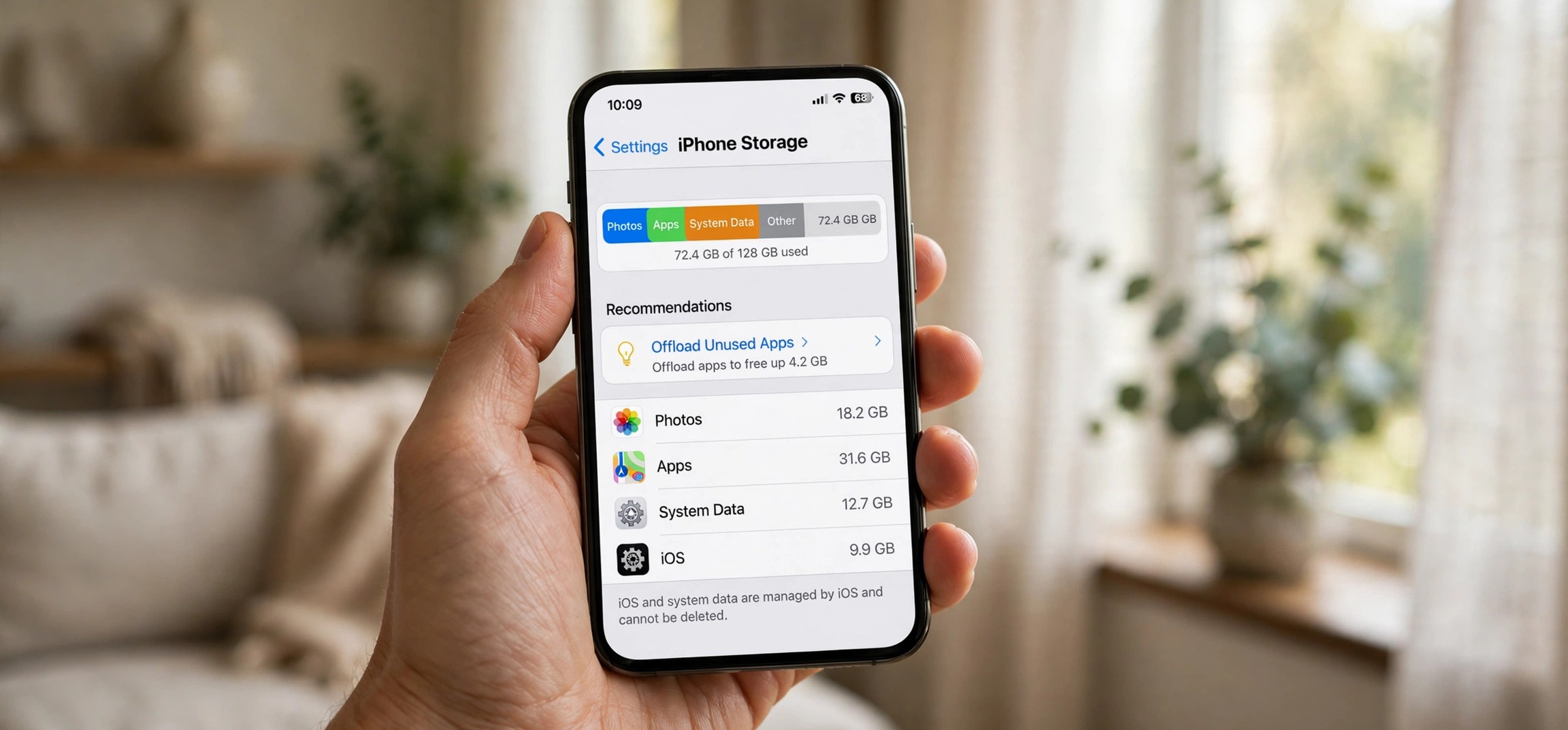
It feels like a contradiction: the classic iphone storage full icloud has space paradox — your iPhone storage is full, yet iCloud has plenty of space. You are paying for cloud storage — maybe even the 2 TB plan — and your phone still refuses to take a photo or update an app. The confusion comes from a simple fact that Apple does not advertise loudly enough: iCloud storage and iPhone storage are two completely separate things. iCloud space in the cloud does nothing for a full phone until you actually move data off the device. Here are seven fixes that bridge that gap and free up real space on your iPhone — without deleting your photos.
Table of Contents
- iPhone Storage Full iCloud Has Space: Why It Happens
- Fix 1: Turn On “Optimize iPhone Storage”
- Fix 2: Offload Unused Apps Automatically
- Fix 3: Shrink the Messages App
- Fix 4: Move Files to iCloud Drive (Properly)
- Fix 5: Clear Bloated App Data
- Fix 6: Remove Downloaded Media You Forgot About
- Fix 7: Back Up, Then Clean House
- iPhone Storage Full iCloud Has Space: Understanding the Difference
- Frequently Asked Questions
iPhone Storage Full iCloud Has Space: Why It Happens
Your iPhone has two storage buckets. The first is the physical storage inside the phone — 64 GB, 128 GB, 256 GB, whatever you bought. The second is iCloud, Apple’s cloud storage, which lives on Apple’s servers. Apps, photos, and system files must live in the first bucket to work; iCloud is a backup and sync service, not an extension of your phone’s drive.
So when iPhone storage is full but iCloud has space, nothing is actually broken — the two were never connected the way you assumed. Your 200 GB iCloud plan happily holds backups and synced photos while your 128 GB phone chokes on the local copies of those same photos, plus apps, messages, and downloads. iCloud only helps when you actively use its features to move data off the device.
The other half of the puzzle: iCloud features like iCloud Photos can actually make the phone feel fuller before they make it emptier. If “Download and Keep Originals” is enabled, every synced photo keeps a full-resolution copy on the phone. The fixes below flip these settings to work in your favor.
Fix 1: Turn On “Optimize iPhone Storage”
This single setting is the highest-impact fix for most people. It keeps lightweight, device-sized versions of your photos on the iPhone while storing the full-resolution originals in iCloud — freeing gigabytes without deleting a single memory.
Go to Settings > [your name] > iCloud > Photos and make sure Sync this iPhone is on. Then select Optimize iPhone Storage instead of “Download and Keep Originals.” Your phone will gradually replace full-resolution photos with smaller versions as space gets tight, downloading the original instantly whenever you view, edit, or share a photo.
Two requirements: you need enough iCloud space for your photo library (this is where that empty iCloud space finally earns its keep), and the initial sync needs Wi-Fi and time — plug in overnight and let it work. Once optimized, photo libraries commonly shrink to a fraction of their former size on-device. If your photos are not syncing at all, our guide on iPhone photos not backing up to iCloud walks through the stalled-backup fixes.
Fix 2: Offload Unused Apps Automatically
iOS can automatically remove apps you rarely use while keeping their data and documents intact. The app icon stays on your home screen with a small cloud badge; tapping it re-downloads the app instantly with everything as you left it.
Enable it at Settings > App Store > Offload Unused Apps. For immediate relief, do it manually: go to Settings > General > iPhone Storage, wait for the list to load, tap any large app you have not used lately, and choose Offload App (not Delete — Delete removes the data too).
The iPhone Storage screen is worth studying in general. It shows exactly how much space each app uses, split between the app itself and its documents and data. Games, video editors, and navigation apps with offline maps are often shockingly large. Offloading five unused apps can easily free 5–10 GB in two minutes.
Fix 3: Shrink the Messages App
Messages is a stealth storage hog. Every photo, video, GIF, and voice message you have ever sent or received lives inside the Messages app’s storage — including content from years-old conversations you will never open again. It is common to find Messages occupying 10–20 GB.
The fastest fix: go to Settings > General > iPhone Storage > Messages. You will see the app’s storage broken down by category — Photos, Videos, GIFs, and more. Tap into each category and delete bulk content, starting with videos (the largest) and the “oldest” conversations.
For prevention, go to Settings > Messages > Keep Messages and change it from “Forever” to 1 Year or 30 Days. iOS will automatically purge older message attachments going forward. Your recent conversations stay intact; only ancient history gets cleaned. This one setting prevents the problem from ever recurring.
Fix 4: Move Files to iCloud Drive (Properly)
iCloud Drive is the correct tool for getting files off your phone — but only if you remove the local copies afterward. Simply saving a file to iCloud Drive does not free phone space; the Files app may keep a local copy for offline access.
Open the Files app and review On My iPhone. Move important documents, PDFs, and project files into iCloud Drive, then delete the local copies from On My iPhone. For large video files — screen recordings, downloaded videos, project exports — upload them to iCloud Drive (or another cloud service) and delete the device copy.
Also check Settings > [your name] > iCloud and review which apps sync to iCloud Drive. Apps like Pages, Numbers, and third-party editors can store significant data locally that also exists in the cloud. The goal is simple: one copy in the cloud, zero copies eating phone storage. Apple documents the available iCloud storage plans and features at Apple Support if you need to check what your plan covers.
Fix 5: Clear Bloated App Data
Unlike Android, iOS does not offer a universal “clear cache” button — but apps still accumulate bloated data. Streaming apps with downloads, podcast apps with auto-downloaded episodes, and social apps with endless cached media are the usual suspects.
Check Settings > General > iPhone Storage and look at the “Documents & Data” figure for your biggest apps. For streaming apps (Netflix, Spotify, YouTube, Apple Music), open the app and manage downloads inside it — delete downloaded playlists, episodes, and movies you have already watched. For podcast apps, turn off automatic downloads and cap the number of kept episodes.
For social apps with no in-app cache control, the iOS solution is blunt but effective: delete the app and reinstall it. A fresh install of a social app is often hundreds of megabytes smaller than one that has been accumulating cached media for a year. Your account data lives on the service’s servers, so you lose nothing but the bloat — just make sure you know your login credentials first.
Fix 6: Remove Downloaded Media You Forgot About
Downloaded media hides in more places than people realize. Beyond the obvious streaming apps, check Apple Music and Podcasts for downloads, the TV app for purchased or downloaded movies, and Safari’s download list for files you grabbed and forgot.
In the Files app, check the Downloads folder under iCloud Drive and On My iPhone. Safari downloads, email attachments you opened, and documents from messaging apps all land here and never leave on their own. Sort by size and clear ruthlessly.
Voice Memos is another forgotten hog — old recordings, accidental pocket recordings, and memos you meant to transcribe months ago. Open the app, delete what you do not need, then empty its “Recently Deleted” folder, which holds deletions for 30 days before actually freeing the space. The same 30-day trash delay applies to Photos: after deleting photos, open Photos > Albums > Recently Deleted and tap Delete All to reclaim the space immediately.
Fix 7: Back Up, Then Clean House
If the phone is still critically full after the fixes above, it is time for a deliberate cleanup session — with a safety net. First, confirm your backup is current: go to Settings > [your name] > iCloud > iCloud Backup and run Back Up Now. This is where your empty iCloud space does its most important job.
With a fresh backup in place, you can clean aggressively: delete apps you have not opened in months (reinstallable anytime), remove old podcast episodes and downloaded music, clear out the Recently Deleted albums in Photos and Files, and delete large message threads after saving any important photos from them to your library.
As a last resort for mysterious “System Data” bloat (the gray segment in the storage bar), a backup followed by Settings > General > Transfer or Reset iPhone > Erase All Content and Settings and then restoring from the iCloud backup gives you a clean system. System Data often shrinks dramatically after a fresh restore. It takes an hour or two, but it is the definitive fix when nothing else dents that gray bar.
iPhone Storage Full iCloud Has Space: Understanding the Difference
To permanently avoid this confusion, internalize the relationship: iCloud is a sync and backup service, not extra phone storage. Buying more iCloud space gives you room for backups, synced photos, and iCloud Drive files — it does not add a single gigabyte to your iPhone’s usable storage.
The features that actually relieve a full phone are the ones that move data off the device: Optimize iPhone Storage for photos, Offload Unused Apps, iCloud Drive for files, and streaming instead of downloading media. Each of them uses your iCloud space as the destination — which is why having empty iCloud space is genuinely useful, just not in the automatic way people expect.
When buying your next iPhone, let this experience guide the storage tier you choose. Cloud services reduce the pressure, but a phone that starts with comfortable headroom — and the habits above — will never show you that dreaded “Storage Almost Full” banner again. If you also move files between iPhone and PC, our guide on iPhone not showing in Windows File Explorer covers the connection fixes.
Frequently Asked Questions
Will upgrading my iCloud plan free up iPhone storage?
Not by itself. More iCloud space only helps if you use features that move data off the phone — iCloud Photos with Optimize Storage, iCloud Drive, and iCloud Backup. Without those enabled, extra iCloud space sits empty while the phone stays full.
Does “Optimize iPhone Storage” lower my photo quality?
No. The full-resolution originals stay safe in iCloud, and your phone downloads the original instantly whenever you view, edit, share, or print a photo. You will not notice any difference in daily use — the smaller on-device versions are matched to your screen.
What is “System Data” on iPhone storage?
System Data (the gray bar) includes caches, logs, Siri voices, and other system files. It grows over time and cannot be cleared directly. A backup-and-restore is the most reliable way to shrink it when it gets excessive.
Is it safe to offload apps?
Yes. Offloading removes the app binary but preserves all your data and documents. The icon remains with a cloud badge, and tapping it reinstalls the app with everything intact. It is one of the safest space-saving features iOS offers.
Why is my iPhone storage full after deleting photos?
Deleted photos sit in the Recently Deleted album for 30 days before the space is actually freed. Open Photos, go to Albums, tap Recently Deleted, and delete everything there to reclaim the space immediately.
How much free space should I keep on my iPhone?
Aim for at least 5–10 GB free, or roughly 10% of total capacity. iOS needs breathing room for updates, photo processing, and normal operation. iPhones that are constantly near-full feel sluggish and cannot install updates.
An iphone storage full icloud has space warning is not a bug — it is a sign that the bridge between the two was never built. Turn on Optimize iPhone Storage, offload the apps you do not use, shrink Messages, and move files into iCloud Drive properly, and that empty cloud space finally starts working for you. Your photos stay safe, nothing important gets deleted, and the “Storage Almost Full” banner becomes a distant memory. For the reverse headache — photos refusing to reach the cloud at all — see our guide on fixing stalled iCloud photo backups.