The dreaded laptop fan running loud windows 11 problem can turn a quiet work session into something that sounds like a small aircraft preparing for takeoff. Some fan noise is perfectly normal — fans exist to keep your processor alive — but when the fan suddenly gets louder, runs constantly, or spins up during light tasks like web browsing, something is off. Before you assume the worst and start shopping for a repair shop, work through these eight proven fixes. Most loud-fan problems come down to dust, heat, runaway background processes, or power settings, and all of them are fixable at home.
Table of Contents
- Laptop Fan Running Loud Windows 11: Why It Happens
- Fix 1: Find and Stop CPU-Hogging Processes
- Fix 2: Clean Dust From Vents and Fans
- Fix 3: Improve Airflow Around Your Laptop
- Fix 4: Switch to a Balanced Power Plan
- Fix 5: Install Windows and Driver Updates
- Fix 6: Trim Startup Programs
- Fix 7: Adjust the System Cooling Policy
- Fix 8: Consider Fresh Thermal Paste (Advanced)
- Laptop Fan Running Loud Windows 11: When to Worry
- Frequently Asked Questions
Laptop Fan Running Loud Windows 11: Why It Happens
Your laptop’s fan responds to one thing: heat. When the processor (CPU) or graphics chip (GPU) works hard, it generates heat, and the fan spins faster to push that heat out. So a laptop fan running loud on Windows 11 usually means something is making your processor work harder than it should — or that the cooling system cannot do its job efficiently.
The most common software cause is a runaway background process: Windows Update downloading in the background, an antivirus scan, a browser tab with heavy ads, or a cloud sync tool indexing files. On the hardware side, dust buildup in the vents acts like a blanket over the cooling system, forcing the fan to spin faster to move the same amount of air. Using the laptop on a bed or couch blocks the intake vents entirely, with the same effect.
Age matters too. The thermal paste between your CPU and its heatsink dries out over a few years, transferring heat less efficiently. And sometimes a Windows update changes power management behavior, leaving the processor in a high-performance state when it should be idling. The fixes below address each of these causes in order of ease.
Fix 1: Find and Stop CPU-Hogging Processes
Before touching any hardware, check what your processor is actually doing. Press Ctrl + Shift + Esc to open Task Manager, then click the CPU column header to sort processes by processor usage. Anything consistently using more than 20–30% of CPU while you are doing light work deserves a closer look.
Common offenders include Windows Update (TiWorker.exe), antimalware scans, browser processes from tabs running video ads, and cloud storage apps syncing large folders. If you spot a non-essential program eating CPU, select it and click End task. For browser tabs, consider an ad blocker — heavy ad scripts are a surprisingly common reason for a laptop fan running loud on Windows 11 during “light” browsing.
Leave system processes alone unless you know what they do. If a Windows process like “Windows Update” is the culprit, let it finish — interrupting updates can cause bigger problems. But if the same process hogs CPU every single day, that points to a stuck update, which Fix 5 addresses.
Fix 2: Clean Dust From Vents and Fans
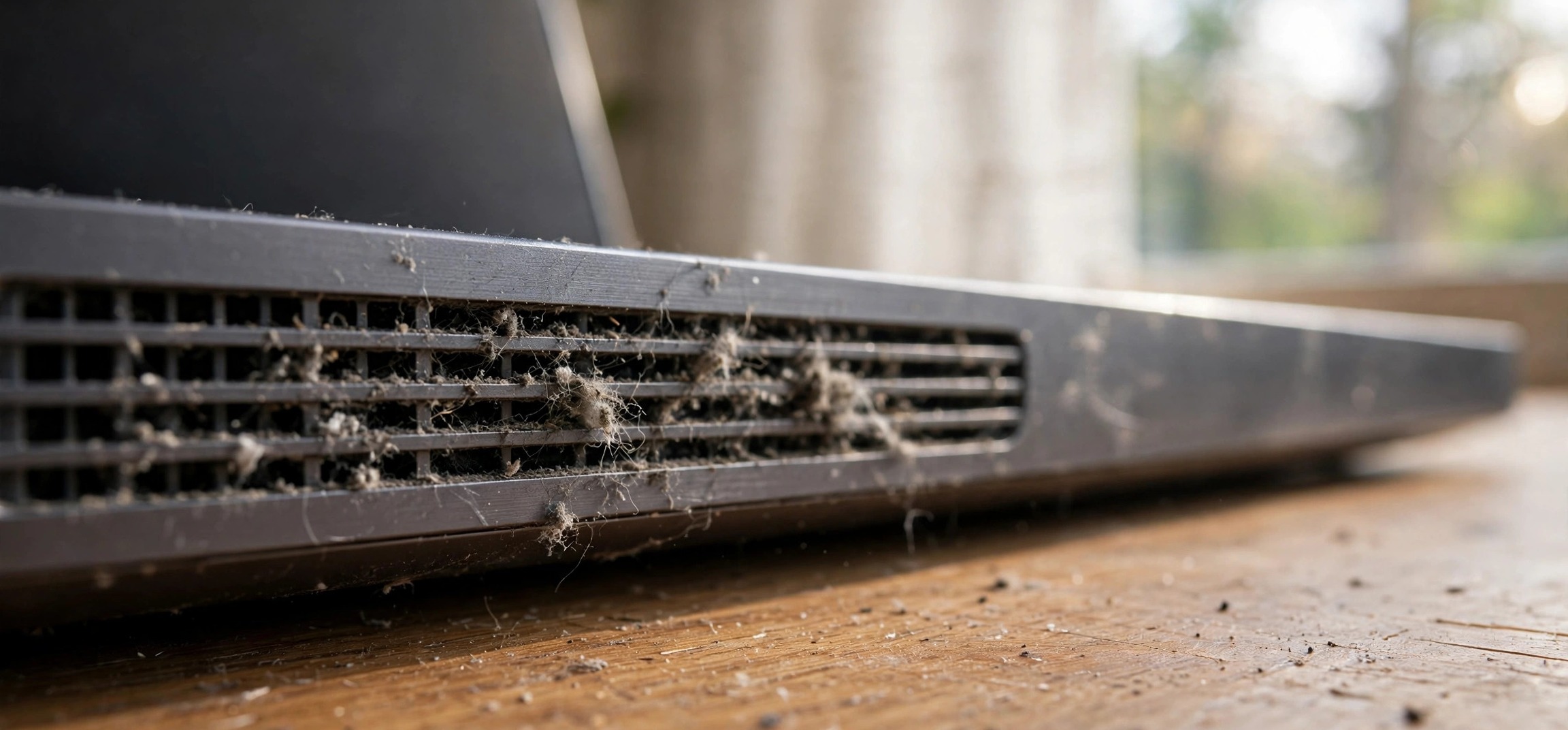
Dust is the number one physical cause of a laptop fan running loud. Over months and years, dust collects on the intake vents, the fan blades, and the heatsink fins, choking airflow. The fan then has to spin much faster to achieve the same cooling, which is exactly the roaring sound you are hearing.
For a safe external clean, shut the laptop down and unplug it. Use short bursts of compressed air (held upright, never tilted) blown into the exhaust vents to dislodge dust — do this outdoors or over a trash can. Wipe the vent grilles with a soft brush or microfiber cloth. Never use a vacuum cleaner directly on the vents; the static and uncontrolled suction can damage components.
If you are comfortable opening the bottom panel (check your warranty terms first — some manufacturers void warranties for this), you can clean the fan blades directly with a soft brush and compressed air. Hold the fan blades still while blowing air so they do not spin freely, which can damage the bearings. Even a basic external cleaning often produces a noticeable drop in fan noise.
Fix 3: Improve Airflow Around Your Laptop
Laptops breathe through vents on the bottom and sides. Using a laptop on a bed, couch, blanket, or even your lap smothers those intakes, trapping hot air underneath. The processor heats up, the fan screams, and the cycle continues. This is one of the simplest fixes and one of the most overlooked.
Always use your laptop on a hard, flat surface — a desk or table. If you like working from the couch, a lap desk or even a large hardcover book creates the air gap the vents need. Elevating the rear of the laptop by a centimeter or two (a cooling stand, or even two bottle caps under the back feet) measurably improves airflow.
Room temperature matters as well. A laptop in a hot, unventilated room has to work harder to shed heat than the same laptop in a cool room. If your workspace gets warm, even a small desk fan pointed at the laptop’s intake area can quiet things down. A dedicated laptop cooling pad with built-in fans is a worthwhile investment if you regularly do heavy work like video editing or gaming.
Fix 4: Switch to a Balanced Power Plan
Windows 11 power plans control how aggressively your processor runs. If your laptop is set to “Best performance,” the CPU stays in high gear even during light tasks, generating constant heat and constant fan noise. Switching to Balanced lets the processor idle properly.
Go to Settings > System > Power & battery and set Power mode to Balanced (or “Best power efficiency” if your priority is silence and battery life). Test for a day — most people notice the fan calming down within minutes, with no perceptible difference in everyday tasks like browsing, documents, and video calls.
Only use “Best performance” when you genuinely need maximum speed, such as rendering video or compiling code, and switch back afterward. Some manufacturer utilities (Dell Power Manager, Lenovo Vantage, ASUS Armoury Crate) have their own thermal profiles that override Windows settings — check those too, and choose “Quiet” or “Balanced” there. For more on Windows 11 power behavior, Microsoft’s Windows support documentation covers the available power modes in detail.
Fix 5: Install Windows and Driver Updates
Stuck or partially installed Windows updates are a classic hidden cause of a laptop fan running loud on Windows 11. The update service can get wedged in a loop, burning CPU indefinitely in the background while showing no obvious sign of activity.
Open Settings > Windows Update and click Check for updates. Install everything, including optional driver updates, then restart — a full restart, not sleep. After the restart, give the system 15–20 minutes to settle; Windows often does indexing and background optimization right after an update, which temporarily raises fan speed.
Pay particular attention to chipset and BIOS/firmware updates from your laptop manufacturer’s support site. BIOS updates sometimes include improved fan curves — the rules that decide how fast the fan spins at each temperature. An outdated BIOS with an aggressive fan curve can make a laptop loud for no good reason, and a firmware update is the only fix.
Fix 6: Trim Startup Programs
Every program that launches at startup adds background load, and background load means heat and fan noise from the moment you log in. Many applications sneak themselves into the startup list during installation without asking.
Open Task Manager (Ctrl + Shift + Esc), go to the Startup apps tab, and review the list. Disable anything you do not need running the instant Windows starts: game launchers, chat apps, update helpers, and manufacturer bloatware are prime candidates. Right-click each and choose Disable — this does not uninstall the program, it just stops it auto-launching.
Restart and listen. A leaner startup means less background CPU usage, lower idle temperatures, and a quieter fan. Re-enable anything you actually miss; the goal is not zero startup apps, but only the ones that earn their place.
Fix 7: Adjust the System Cooling Policy
Windows has a hidden setting called the system cooling policy that controls whether the fan or processor throttling responds first to heat. Setting it to favor passive cooling lets the CPU slow itself down before the fan ramps up, which keeps things quieter during moderate workloads.
Open Control Panel > Hardware and Sound > Power Options > Change plan settings (next to your active plan) > Change advanced power settings. Expand Processor power management > System cooling policy. Set it to Passive for both “On battery” and “Plugged in,” then click OK.
With passive cooling, Windows reduces processor speed before increasing fan speed. You might notice slightly lower performance in sustained heavy tasks, but for everyday use the difference is invisible while the noise reduction is obvious. If you do heavy gaming or rendering, switch back to Active for those sessions. If your laptop has other performance quirks, see our guide on checking whether your laptop has an SSD or HDD — an old spinning hard drive can also contribute to heat and noise.
Fix 8: Consider Fresh Thermal Paste (Advanced)
If your laptop is more than three or four years old and the fan has gradually gotten louder over time despite cleaning, the thermal paste between the CPU/GPU and the heatsink has likely dried out. Dried paste transfers heat poorly, so the chips run hotter and the fan works overtime.
Replacing thermal paste involves removing the heatsink, cleaning off the old paste with isopropyl alcohol, and applying a fresh pea-sized amount. It is a well-documented procedure, but it requires disassembly, voids some warranties, and carries risk if you have never opened a laptop before. Watch a teardown video for your exact model before deciding.
Consider this a last resort for older machines. If the laptop is still under warranty, contact the manufacturer instead — a fan that is loud due to dried paste or a failing bearing may qualify for warranty service. Never attempt this on a laptop you cannot afford to be without for a few days.
Laptop Fan Running Loud Windows 11: When to Worry
Most loud-fan situations are benign and fixable, but a few symptoms warrant professional attention. If the fan makes grinding, clicking, or rattling sounds — not just loud whooshing — a bearing may be failing. If the laptop shuts down suddenly during use, it is overheating despite the fan, which suggests blocked heatsinks or dead thermal paste.
Also watch for the fan running at full speed constantly even when the laptop is idle and cool to the touch. That can indicate a faulty temperature sensor or a BIOS issue rather than real heat. Free monitoring tools can show you actual CPU temperatures: sustained readings above 90°C under load are concerning, while 40–60°C at idle is normal.
If you have worked through all eight fixes and the fan is still screaming during light use, take it to a reputable repair shop for a professional cleaning and thermal paste replacement. It is a routine, inexpensive service. And if your laptop has developed other hardware quirks along the way, our guides on laptop screen flickering when moved and laptop keyboard keys not working cover the next most common aging-laptop issues.
Frequently Asked Questions
Is it normal for a laptop fan to be loud during gaming?
Yes, completely. Gaming pushes the CPU and GPU to their limits, generating maximum heat, and the fan responds accordingly. Loud fans during gaming or video rendering are expected. The problem is only when the fan is loud during light tasks like browsing or typing.
Can a loud fan damage my laptop?
The noise itself is harmless — it is the heat the fan is fighting that matters. As long as the laptop is not overheating to the point of shutdowns, a loud fan is just annoying. But chronic overheating can shorten component lifespan, which is why the underlying cause is worth fixing.
Will a cooling pad really help?
A decent cooling pad typically drops temperatures by a few degrees, which can be enough to keep the fan at a lower speed. It helps most when the laptop’s own intakes are starved for air. It will not fix dust-clogged heatsinks or dried thermal paste, though.
How often should I clean my laptop’s vents?
A quick external cleaning every three to six months is a good habit, more often if you have pets or live in a dusty environment. A deeper internal cleaning once a year keeps the cooling system performing like new.
Does undervolting reduce fan noise?
Undervolting — reducing the voltage supplied to the CPU — can lower heat and therefore fan noise without sacrificing performance. However, it requires third-party tools, varies by processor, and can cause instability if done wrong. It is an enthusiast tweak, not a first-line fix.
Why is my brand-new laptop’s fan loud?
New laptops often run background setup tasks — Windows updates, search indexing, antivirus initial scans — for the first day or two. If the fan is still loud after 48 hours of normal use with updates complete, check the power plan and background processes as described above.
A laptop fan running loud windows 11 complaint is your computer’s way of asking for help with heat, and in most cases the help it needs is simple: kill the runaway process, clear the dust, give it air to breathe, and let the Balanced power plan do its job. Work through these eight fixes in order and you will likely have a quiet machine again without spending a cent.