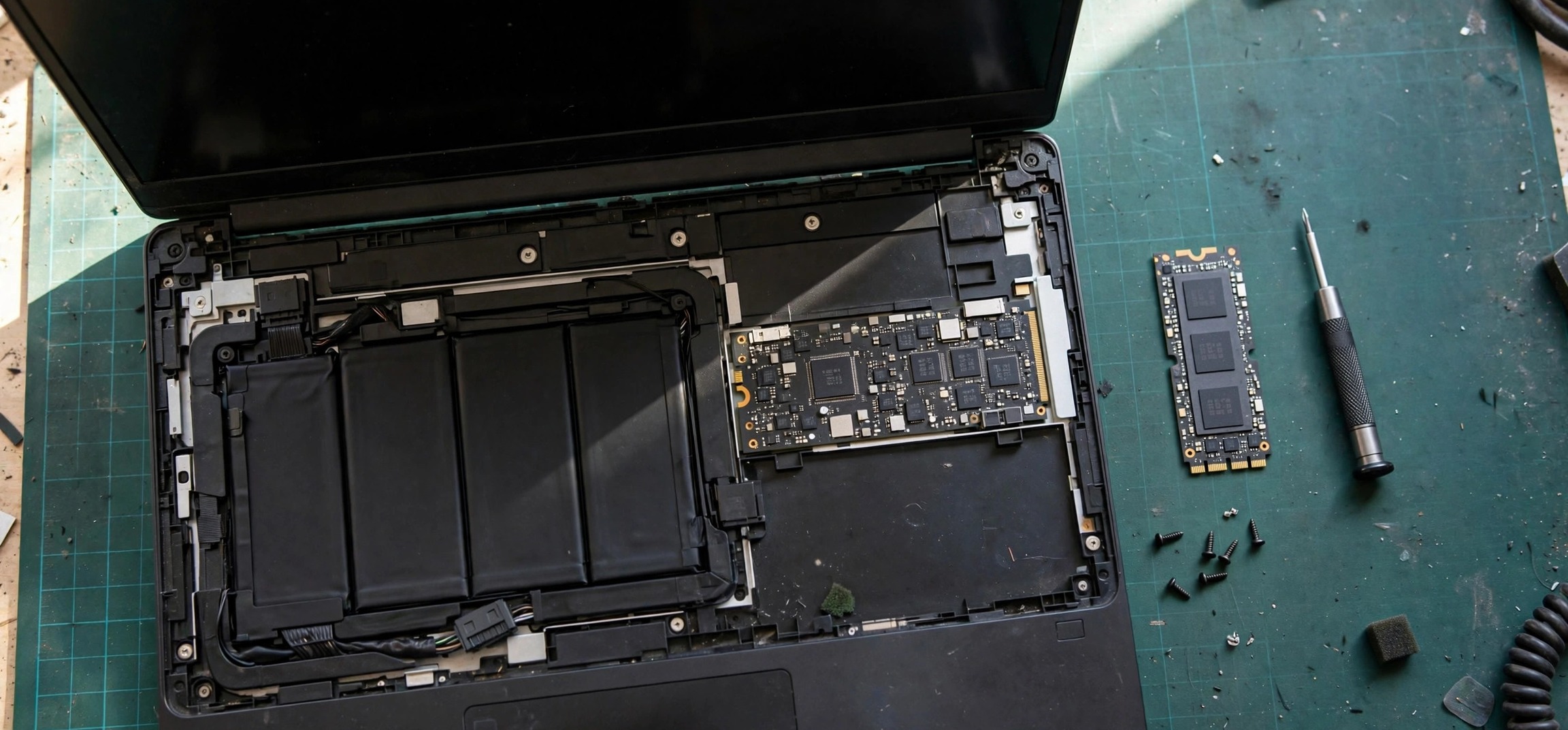
Is your laptop crawling at startup? Wondering whether an SSD upgrade is worth it — or whether you already have one? Knowing how to check if laptop has ssd or hdd windows 11 takes less than a minute, needs no screwdriver, and tells you exactly what storage hardware you are working with. Windows 11 exposes this information in several places, from beginner-friendly Settings pages to a one-line PowerShell command. Here are five reliable ways, ordered from easiest to most detailed.
- Why It Matters: SSD vs HDD in 30 Seconds
- Way 1: Task Manager Performance Tab (Easiest)
- Way 2: Settings App (Most Visual)
- Way 3: Device Manager (Shows the Model Name)
- Way 4: PowerShell Command (Fastest for Pros)
- Way 5: Optimize Drives Tool (The Hidden Gem)
- What to Do With the Answer
- Frequently Asked Questions
Why It Matters: SSD vs HDD in 30 Seconds
A hard disk drive (HDD) stores data on spinning magnetic platters with a moving read/write head — the same basic technology as decades ago. A solid-state drive (SSD) stores data in flash memory chips with no moving parts. The practical difference is enormous: SSDs boot Windows in seconds rather than minutes, launch apps near-instantly, and shrug off the bumps and drops that can kill a spinning drive.
Knowing which one you have answers several questions at once. If your laptop still has an HDD, sluggish performance is probably the drive, and an SSD upgrade is the single most cost-effective speed boost available. If you already have an SSD but things feel slow, the bottleneck is elsewhere — RAM, background apps, or thermal throttling. It also matters for maintenance: you should never defragment an SSD the way you would an HDD (Windows handles SSD optimization differently), and backup urgency is higher for aging HDDs with moving parts wearing out.
Way 1: Task Manager Performance Tab (Easiest)
This is the fastest visual method and the one to try first. Press Ctrl + Shift + Esc to open Task Manager. If it opens in compact mode, click More details at the bottom. Go to the Performance tab and click Disk in the left sidebar (if you have multiple drives, there will be Disk 0, Disk 1, and so on).
Look at the top-right corner of the Disk panel: Windows 11 plainly labels the drive type as SSD or HDD. That is your answer — no interpretation needed. The panel also shows the drive’s capacity, current read/write speeds, and active time, which is handy context: an HDD pinned at 100% active time explains a slow laptop all by itself.
If you have more than one disk listed, click through each. Many laptops ship with a small SSD for Windows plus a large HDD for storage — knowing which is which tells you where to install programs for the best speed.
Way 2: Settings App (Most Visual)
Prefer the modern Settings interface? Open Settings > System > Storage, then click Advanced storage settings > Disks & volumes. This page lists every physical disk in your laptop along with its volumes and partitions.
Click on a disk to expand its properties. Under the disk’s details you will find the Media type field, which reads SSD or HDD. This view is particularly useful because it maps disks to their drive letters and partitions — so you can see, for example, that your C: drive (where Windows lives) sits on the SSD while your D: data partition lives on the HDD.
While you are here, note each disk’s total size and free space. A nearly full SSD slows down noticeably, so if your SSD is gasping for air, freeing space is a quicker win than any hardware change. Our guide to fixing storage-full problems covers the same principles that apply on Windows.
Way 3: Device Manager (Shows the Model Name)
Task Manager and Settings tell you the type; Device Manager tells you the exact model, which is what you need when shopping for an upgrade or checking a warranty. Press Win + X and choose Device Manager, then expand Disk drives.
You will see entries like “Samsung SSD 970 EVO Plus 500GB” or “WDC WD10SPZX-00Z10T0” — the manufacturer and model number, spelled out. SSD models usually (but not always) contain “SSD” in the name; HDD models typically show only the manufacturer’s code. Copy the model name into a web search to pull up its full specifications: interface (SATA vs NVMe), capacity, and rated speeds.
This is also the place to spot problems. A yellow warning icon on the disk entry signals a driver or hardware issue worth investigating before it becomes data loss. Right-click the drive, choose Properties, and check the device status message.
Way 4: PowerShell Command (Fastest for Pros)
If you live in the terminal, one command answers the question for every drive at once. Open Terminal (or PowerShell) and run:
Get-PhysicalDisk | Select-Object FriendlyName, MediaType, Size
The output lists each physical disk with its friendly name, media type (SSD, HDD, or Unspecified), and size in bytes. It is instant, scriptable, and unambiguous — ideal when you are checking a laptop remotely or documenting hardware across multiple machines.
A simpler variant, Get-PhysicalDisk alone, dumps everything including serial numbers, bus type, and health status. The HealthStatus column is worth a glance: anything other than “Healthy” deserves immediate backup attention regardless of drive type.
For the full technical background on storage interfaces and Windows storage management, Microsoft’s documentation covers the Get-PhysicalDisk cmdlet and Disk Management in depth.
Way 5: Optimize Drives Tool (The Hidden Gem)
Windows 11 still ships the classic Optimize Drives utility (the old “Disk Defragmenter”), and its main window has a Media type column that labels each drive as “Solid state drive” or “Hard disk drive.” Press Win + S, type “defragment”, and open Defragment and Optimize Drives.
Beyond identification, this tool reveals something important: Windows already knows the difference and treats each type accordingly. It will offer to defragment HDDs but only “optimize” (TRIM) SSDs — running a traditional defrag pass on an SSD is unnecessary and adds wear, which is exactly why you should check the media type before doing any manual maintenance.
This method is a favorite of technicians because it is available on every Windows 11 machine, requires no admin rights to view, and doubles as a health check: drives listed as “Needs optimization” with high fragmentation percentages are HDDs begging for attention.
What to Do With the Answer
If you have an HDD
An SSD upgrade is the highest-value improvement you can make to an older laptop — more impactful than a RAM bump for everyday responsiveness. A 2.5-inch SATA SSD drops into the same bay as the old HDD in most laptops, and cloning software can migrate your entire Windows installation without reinstalling. Expect boot times to fall from minutes to seconds.
Before upgrading, use the Device Manager method above to note your exact drive model and interface, then check your laptop manufacturer’s specs for compatible replacements. If your laptop runs hot as well as slow, read our guide to quieting a loud laptop fan — heat and a struggling HDD often arrive together in aging machines.
If you have an SSD
Good news: your storage is not the bottleneck. If the laptop still feels slow, look at RAM usage in Task Manager, disable unnecessary startup apps (Settings > Apps > Startup), and check for thermal throttling. Also confirm the SSD is not nearly full — keep at least 15–20% free space for the drive’s garbage collection and wear leveling to work efficiently.
If you have both
Make sure Windows and your most-used apps live on the SSD. Check install locations: programs installed to the HDD will launch at HDD speed regardless of the SSD sitting next to it. Move large games and media libraries to the HDD, keep the operating system and daily apps on the SSD, and you get the best of both worlds.
Frequently Asked Questions
Can I check SSD or HDD without opening the laptop?
Yes — all five methods above are software-only. You never need to remove a panel or void a warranty sticker. The Task Manager method takes about ten seconds and is completely non-invasive.
What does “Unspecified” media type mean in PowerShell?
It usually means Windows could not query the drive’s type, which happens with some external USB drives, certain RAID configurations, and virtual disks. For internal laptop drives it is rare; if you see it, cross-check with the Task Manager or Optimize Drives method.
Is NVMe better than SATA SSD?
NVMe drives (which connect via PCIe) are several times faster than SATA SSDs on paper. In everyday use — booting, browsing, office work — the difference between any SSD and an HDD dwarfs the difference between NVMe and SATA. Both are excellent; do not pay a large premium for NVMe unless you regularly move huge files or do video editing.
How long do SSDs last compared to HDDs?
Modern SSDs typically outlast HDDs in laptops because they have no moving parts to wear out or break when dropped. SSDs do have a finite number of write cycles, but for normal consumer use the drive will be obsolete long before it wears out — most carry endurance ratings equivalent to decades of typical use.
Should I defragment my SSD?
No. Defragmentation is an HDD maintenance task. Windows automatically issues TRIM commands to SSDs, which serves the equivalent purpose without the wear. The Optimize Drives tool handles this on a schedule by itself — just confirm your drive is correctly identified as a solid-state drive and let Windows do its thing.
My laptop feels slow but I already have an SSD — what now?
Check Task Manager’s Performance tab during slowdowns: maxed-out RAM, a CPU pinned at 100%, or disk active time stuck high each point to different culprits. Common fixes include adding RAM, removing startup bloat, and checking for overheating — a loud, struggling fan often accompanies thermal throttling, which our fan-noise guide addresses.
Learning how to check if laptop has ssd or hdd windows 11 is a thirty-second skill that pays off whenever you troubleshoot, upgrade, or buy. Start with Task Manager for the instant answer, use Device Manager when you need the exact model, and let the Optimize Drives tool confirm Windows is treating your drive correctly. Whatever the answer, you now know exactly where your storage stands — and what to do next.


