Few phone frustrations match the “android phone storage full nothing to delete” dilemma: your storage is full, you open the storage settings, and there is seemingly nothing left to delete. You have already removed the obvious photos and apps, yet the phone insists it is out of space — blocking new photos, app updates, and even messages. The reason is that the biggest space hogs on Android are often invisible: cached data, thumbnail databases, forgotten downloads, and app data that never shows up in a casual glance. Here are nine fixes that dig into those hidden corners and free up gigabytes fast.
Table of Contents
- Android Phone Storage Full Nothing to Delete: Why It Happens
- Fix 1: Analyze Exactly What Is Using Your Storage
- Fix 2: Clear App Caches (the Safe Kind)
- Fix 3: Delete the Hidden Thumbnail Cache
- Fix 4: Empty the Forgotten Downloads Folder
- Fix 5: Clear Bloated App Data for the Worst Offenders
- Fix 6: Offload Photos and Videos Without Losing Them
- Fix 7: Tame WhatsApp and Telegram Media
- Fix 8: Remove Duplicates and Large Forgotten Files
- Fix 9: Android Phone Storage Full Nothing to Delete — the Nuclear Option
- Frequently Asked Questions
Android Phone Storage Full Nothing to Delete: Why It Happens
When Android says storage is full but you cannot see what to delete, the culprit is almost always data you never directly put there. Every app you use builds up a cache of temporary files — images from feeds, map tiles, video previews. Individually they are tiny; collectively they can swallow several gigabytes. Android’s storage screen lumps much of this under vague categories like “System” or “Other apps,” which is why nothing looks deletable.
Other invisible hogs include the thumbnail database (Android keeps preview images of every photo you have ever had, even deleted ones), messaging app media (WhatsApp and Telegram silently save every photo, video, and voice note sent to you), and the Downloads folder, which accumulates installers, PDFs, and attachments for years. Add offline maps, podcast episodes, and streaming app downloads, and it is easy to lose 10–20 GB without a single visible culprit.
The key insight: you do not need to delete things you care about. The fixes below target the invisible junk first, so when Android phone storage is full and there is nothing to delete, you can reclaim space without sacrificing a single precious photo.
Fix 1: Analyze Exactly What Is Using Your Storage
Before deleting anything, get a real map of your storage. Go to Settings > Storage and wait for the breakdown to load. Tap through each category — apps, images, videos, audio, documents — to see the biggest consumers. This alone often reveals a surprise, like a single game holding 8 GB or a podcast app hoarding episodes.
For a deeper view, install a storage analyzer app such as Files by Google (free, from the Play Store), which visualizes your storage as a treemap and flags large files, duplicate files, and unused apps. Sort by size and look at the top entries — the biggest wins are always at the top of that list.
Make a quick note of the two or three largest items. Those are your targets for the fixes below. Blindly clearing caches everywhere is less effective than surgically addressing the actual hogs, and it avoids wiping data you might have wanted to keep.
Fix 2: Clear App Caches (the Safe Kind)
App caches are temporary files — feed images, map tiles, profile pictures — that apps re-download as needed. Clearing them is completely safe: you will not lose logins, settings, or personal data. On modern Android, you clear caches per app rather than all at once.
Go to Settings > Apps, tap an app with a large footprint (social media, browsers, shopping apps, and streaming apps are the usual suspects), then tap Storage & cache > Clear cache. Work through your top ten largest apps. Social apps in particular can each hold a gigabyte or more of cached images and videos.
Do not confuse “Clear cache” with “Clear storage” (sometimes labeled “Clear data”) — the latter wipes the app’s settings and logins, essentially resetting it. Stick to cache only here. Repeat this every couple of months, or whenever storage gets tight; caches rebuild themselves, but slowly, so this is maintenance rather than a one-time fix. If an app keeps misbehaving after cache clears, our guide on fixing Google Play Services keeps stopping covers deeper app-troubleshooting steps.
Fix 3: Delete the Hidden Thumbnail Cache
This is one of Android’s best-kept storage secrets. Every time you view a photo, Android generates thumbnail previews and stores them in a hidden .thumbnails folder. Over time — especially if you have ever had thousands of photos — this folder can balloon to multiple gigabytes, and it survives even after you delete the original photos.
Open your file manager app and enable Show hidden files in its settings. Navigate to DCIM > .thumbnails and delete the contents of that folder. (On some phones the path is under Pictures or in the Android data directories; a storage analyzer app can locate it.) Your gallery app will regenerate thumbnails as needed, so you lose nothing except wasted space.
Also check for a .trash or recycle bin in your gallery and file manager apps. Deleted photos often sit in a trash folder for 30 days before actually freeing space — emptying it manually reclaims that space immediately.
Fix 4: Empty the Forgotten Downloads Folder
The Downloads folder is where files go to be forgotten. App installers (APKs), PDF attachments, memes saved from chats, documents opened once from email — they accumulate silently for years because nobody ever looks in there.
Open your file manager, go to Downloads, sort by size, and be ruthless. Old APK files are safe to delete once the app is installed. Documents you opened once from an email can go — the email still has them. Anything you are unsure about, move to cloud storage instead of deleting.
While you are in the file manager, check for other forgotten folders: voice recordings, screen recordings, and “Sent” folders from messaging apps. Sort every folder by size at least once — you will almost certainly find a multi-hundred-megabyte file you had completely forgotten about.
Fix 5: Clear Bloated App Data for the Worst Offenders
Sometimes the problem is not the cache but the app’s actual data. Offline maps, downloaded playlists, saved streaming videos, and podcast episodes can each consume gigabytes inside an app’s private storage. Unlike cache, this data will not rebuild itself — but if you no longer need it, it is pure waste.
Go to Settings > Apps, sort by size, and investigate the biggest ones. Open each app and look for its own download management: Spotify and YouTube Music have download settings, Google Maps has offline maps, podcast apps have auto-downloaded episodes. Delete downloads inside the app rather than using Android’s “Clear storage,” which would log you out and wipe settings.
For apps you rarely use anymore, the nuclear version is fine: uninstall them. Check Settings > Apps sorted by “Last used” if your phone offers it. An app you have not opened in six months is not earning its gigabytes. You can always reinstall later — the Play Store remembers your purchases.
Fix 6: Offload Photos and Videos Without Losing Them
Photos and videos are usually the single largest category on any phone. You do not have to delete them — you just have to move them somewhere cheaper than your phone’s internal storage.
If you use Google Photos, open it, tap your profile picture, and choose Free up space. This deletes the device copies of photos and videos that are already safely backed up to the cloud. (Verify the backup is complete first — look for the “Backup complete” status.) Similar features exist in other gallery apps; Samsung Gallery, for instance, works with OneDrive or Samsung Cloud.
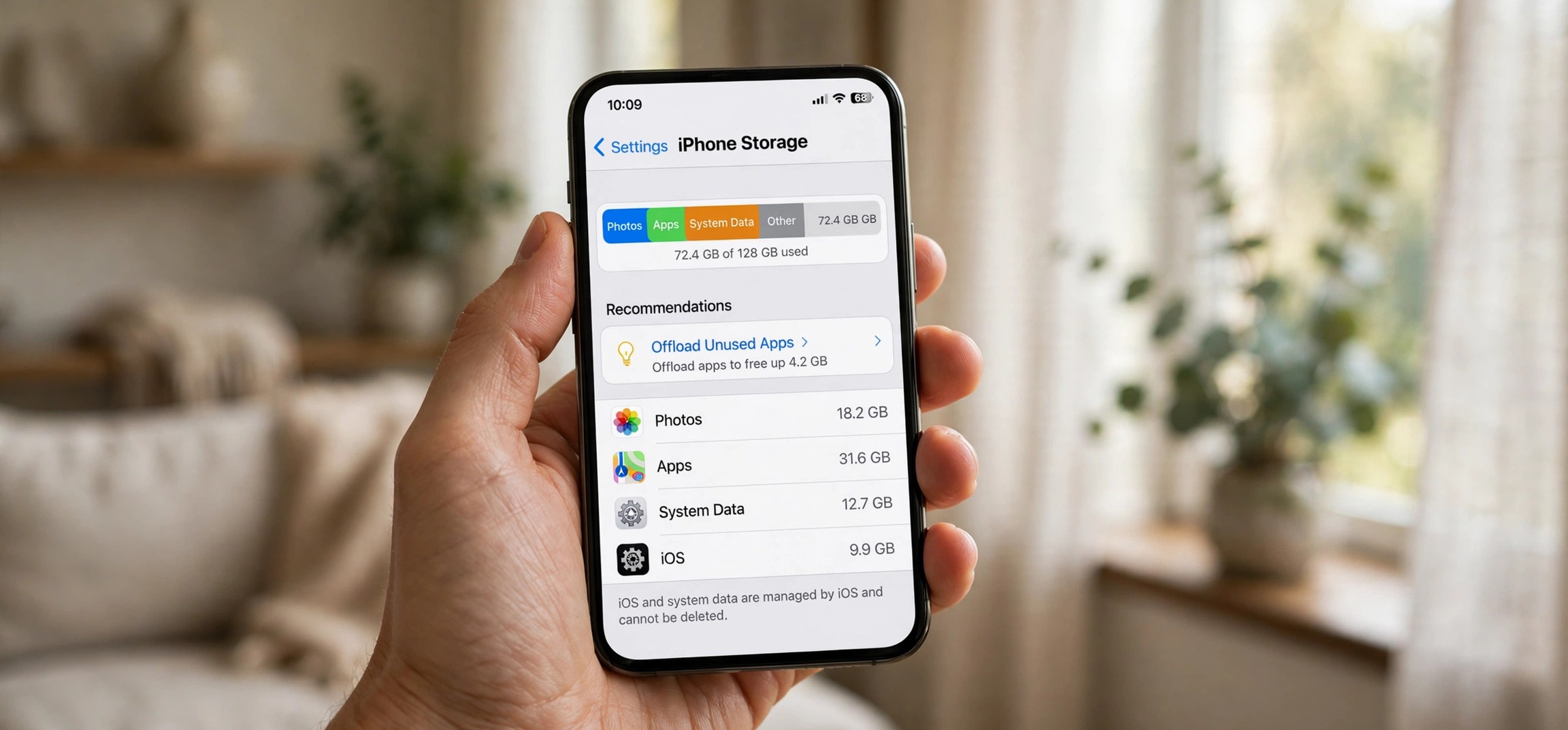
Videos deserve special attention: a few minutes of 4K video can exceed a gigabyte. Either back them up and remove device copies, or change your camera settings to record in 1080p instead of 4K going forward — the quality difference on a phone screen is minimal, and the storage savings are enormous. For iPhone users with the mirror-image problem, see our guide on iPhone storage full while iCloud has space.
Fix 7: Tame WhatsApp and Telegram Media
Messaging apps are silent storage killers. Every photo, video, voice note, and document anyone sends you gets saved to your phone — including content from groups you barely read. A few active groups can easily account for 5–10 GB.
In WhatsApp, go to Settings > Storage and data > Manage storage. You will see exactly how much space WhatsApp uses, broken down by chat, with large files and forwarded-many-times media flagged at the top. Delete freely — the chat text remains; only the media files go. Then go to Settings > Chats and turn off Media visibility (or set auto-download to Wi-Fi only / never) so the flood stops.
Telegram is even more aggressive: it caches everything you merely view. Go to Settings > Data and Storage > Storage Usage and clear the cache, then set Keep Media to a short period like 1 week. These two apps alone often free more space than everything else combined.
Fix 8: Remove Duplicates and Large Forgotten Files
Duplicate photos — burst shots, near-identical selfies, screenshots you took and forgot — quietly multiply your photo library’s footprint. Files by Google has a built-in duplicate finder under its “Clean” tab that groups similar images for easy review.
Screenshots deserve their own purge. Most people have hundreds of screenshots they needed for about ten seconds: QR codes, memes, error messages, order confirmations. Open your Screenshots folder, sort by date, and delete everything older than a month without mercy.
Also hunt for large video files hiding outside the camera folder: screen recordings, downloaded videos, and video attachments saved from chats. Sort your entire storage by file size in your file manager and review everything over 100 MB. Each one you remove is meaningful space reclaimed.
Fix 9: Android Phone Storage Full Nothing to Delete — the Nuclear Option
If you have done everything above and Android phone storage is still full with nothing left to delete, years of accumulated system cruft may be the problem. A factory reset returns the phone to a clean state and is the definitive fix for mysterious “Other” or “System” storage bloat.
Before resetting, back up everything: photos and videos to Google Photos or another cloud service, contacts and calendar (these sync to your Google account automatically — verify at contacts.google.com), WhatsApp chats via Settings > Chats > Chat backup, and any authenticator apps or important documents. Then go to Settings > System > Reset options > Erase all data (factory reset).
After the reset, reinstall only the apps you actually use, restore your backups, and set up the preventive measures from Fixes 6 and 7 immediately. Most people find their phone ends up using half the storage it did before — proof of how much invisible junk had accumulated. Treat the reset as a fresh start, not a defeat.
Frequently Asked Questions
Why does “System” take up so much storage on Android?
The System category includes the Android OS itself plus reserved space and some miscategorized app data. It typically needs 10–15 GB. If it shows far more than that, a factory reset is usually the only way to shrink it, since you cannot delete system files.
Is it safe to clear cached data?
Yes. Cached data is temporary by definition — apps rebuild it as needed. You will not lose logins, settings, photos, or messages by clearing cache. The only minor downside is that some apps may load slightly slower the first time after a clear.
Why does my storage fill up again so quickly?
The usual reasons are messaging app media auto-downloading, cached data rebuilding, and photos accumulating without cloud backup. Turn off auto-download in WhatsApp/Telegram, enable Google Photos backup with “Free up space,” and the cycle stops.
Can I move apps to the SD card?
On phones with SD card slots, some apps support moving to external storage via Settings > Apps > [app] > Storage > Change. However, many modern apps do not allow it, and SD cards are slower than internal storage. It helps, but it is not a complete solution.
What is taking up “Other” storage on my Android?
“Other” (sometimes “Miscellaneous”) is a catch-all for app private data, thumbnails, and files Android cannot categorize. Working through the fixes above — especially thumbnail cache, messaging media, and bloated app data — usually shrinks it dramatically.
How much free space should I keep on my phone?
Aim to keep at least 10% of your total storage — or 4–5 GB minimum — free. Android needs breathing room for updates, caches, and normal operation. A phone that is constantly at 99% full will feel slow and laggy regardless of its specs.
When you face android phone storage full nothing to delete, the space is hiding in caches, thumbnails, forgotten downloads, and messaging app media — not in the things you care about. Work through these nine fixes from top to bottom, and you will almost certainly reclaim gigabytes without losing a single photo or important file. And if your phone has other nagging issues, our guides on Android overheating while charging and delayed Android notifications cover the next most common complaints.