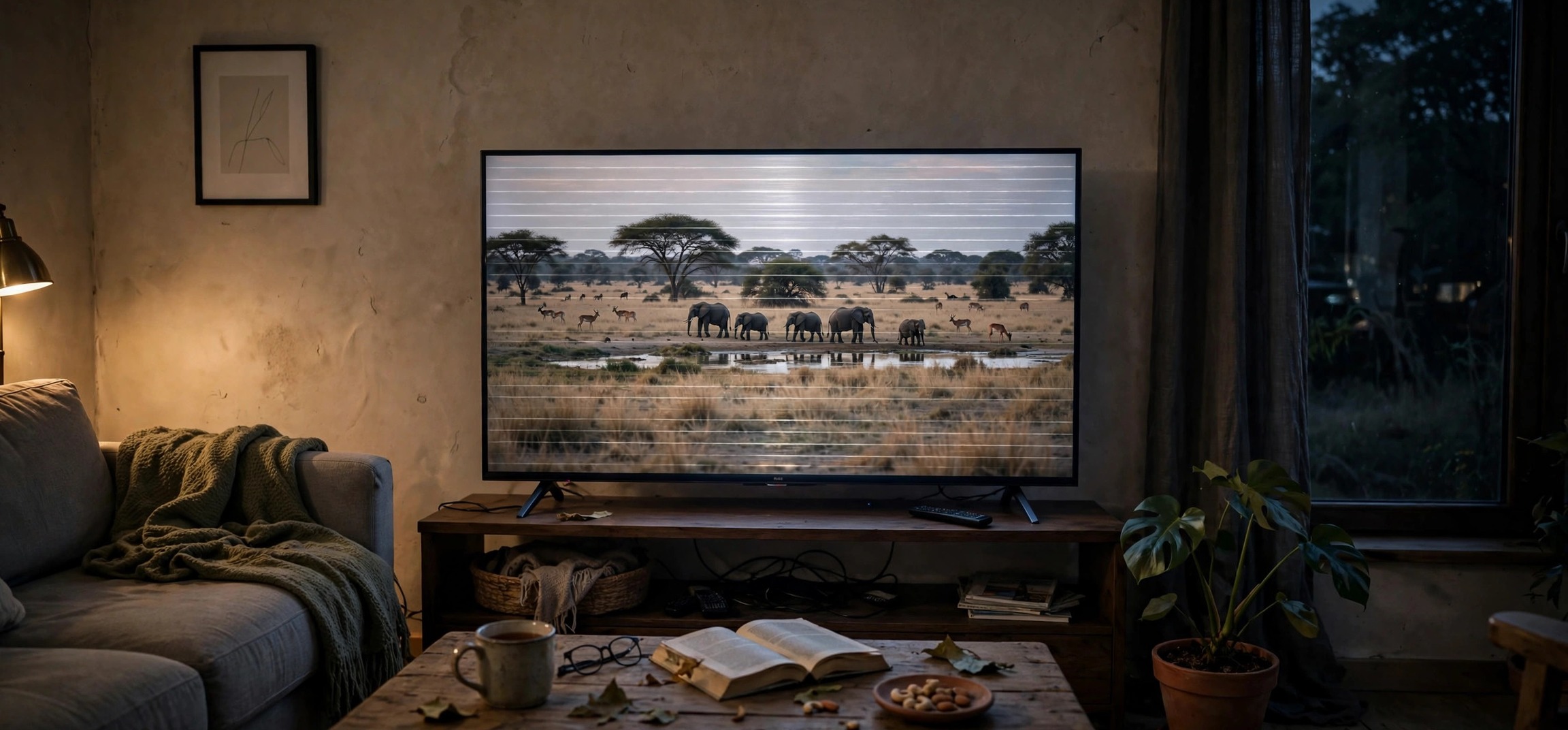
Nothing kills a movie night faster than the smart TV keeps disconnecting from WiFi again mid-show. The show buffers, the screen drops back to the home menu, and you have to reconnect — only for it to happen again twenty minutes later. Before you blame your internet provider, know this: when a smart TV keeps disconnecting from WiFi, in most cases the TV itself, its settings, or its position in your home is the real culprit, and the fix takes minutes.
This guide walks you through nine proven fixes for a smart TV that keeps dropping its WiFi connection, covering Samsung, LG, Sony, TCL, Hisense, and other popular brands. Start at the top and work down — most disconnect issues are solved by fix four or five.
- Why Your Smart TV Keeps Disconnecting From WiFi
- Fix 1: Restart the TV and the Router Properly
- Fix 2: Improve the WiFi Signal Reaching Your TV
- Fix 3: Switch Between the 2.4 GHz and 5 GHz Bands
- Fix 4: Forget the Network and Reconnect From Scratch
- Fix 5: Update the TV’s Firmware
- Fix 6: Change the DNS Settings on Your TV
- Fix 7: Switch From DHCP to a Static IP Address
- Fix 8: Reset the TV’s Network Settings
- Fix 9: Go Wired With an Ethernet Connection
- Frequently Asked Questions
Why Your Smart TV Keeps Disconnecting From WiFi
A smart TV keeps disconnecting from WiFi for a handful of repeatable reasons. The most common is a weak or unstable wireless signal — TVs often sit far from the router, behind walls and furniture, with small internal antennas that are weaker than your phone’s. A signal that is fine for browsing can still drop a 4K stream.
Other frequent causes include the TV hopping between the 2.4 GHz and 5 GHz bands of your router, outdated TV firmware with buggy networking code, IP address conflicts on your home network, DNS servers that respond too slowly for the TV’s streaming apps, and power-saving features that put the WiFi radio to sleep. Understanding which one is hitting you makes the fix obvious — the steps below help you identify and eliminate each in turn.
Fix 1: Restart the TV and the Router Properly
Start with the classic, because it genuinely works more often than people expect. Turn the TV fully off — not standby — by unplugging it from the wall for 60 seconds. Many smart TVs keep their network stack running in standby, so a soft power-off does not actually reset the WiFi connection.
While the TV is unplugged, restart your router too. Unplug it for 30 seconds, then plug it back in and wait for all its lights to settle. This clears the router’s device table and forces it to reassign a fresh connection to the TV. Once the router is fully back online, plug in the TV and reconnect to WiFi. If the disconnects stop, a stale network session was the problem.
Fix 2: Improve the WiFi Signal Reaching Your TV
Check the signal strength your TV actually receives. On most smart TVs you can find this under Settings → Network → WiFi → your network name, where it shows a signal meter or a dBm value. Anything below about -70 dBm is marginal and will cause drops during streaming.
If the signal is weak, the cheapest fix is often repositioning. Move the router to a higher, more central spot — WiFi radiates outward and downward, so a router on the floor behind the TV cabinet is the worst possible placement. Keep it away from microwaves, baby monitors, and thick concrete or metal obstructions.
If repositioning is not enough, consider a mesh WiFi node or access point near the TV room. You can find detailed room-by-room tactics in our guide on how to improve your WiFi signal in a bedroom without an extender — the same principles apply to any room with a TV. A TV that stops seeing a borderline signal stops disconnecting from it.
Fix 3: Switch Between the 2.4 GHz and 5 GHz Bands
Most modern routers broadcast two networks: a 2.4 GHz band that travels farther but is slower, and a 5 GHz band that is faster but has shorter range and struggles with walls. If your smart TV keeps disconnecting from WiFi, it may be clinging to the wrong band.
If the TV is in the same room as the router, connect it to the 5 GHz network for maximum speed and stability — 5 GHz also suffers less interference from neighbors’ networks. If the TV is far from the router or separated by multiple walls, switch to the 2.4 GHz band instead; its longer range gives a more stable connection even though the top speed is lower.
The key detail: on many routers the two bands share one network name, and the TV may keep hopping between them. Splitting the bands into separate network names in your router settings (for example, “HomeWiFi” and “HomeWiFi_5G”) lets you lock the TV to whichever band works better. This single change fixes a surprising number of repeat disconnects.
Fix 4: Forget the Network and Reconnect From Scratch
Saved WiFi profiles can go stale. A corrupted saved password, a changed router setting, or a half-applied update can leave the TV trying to connect with bad credentials — connecting briefly, then dropping.
Go to your TV’s network settings, select your WiFi network, and choose “Forget” or “Delete.” Then restart the TV, scan for networks again, and re-enter your WiFi password carefully. This forces a completely fresh handshake with the router, including a new encryption key exchange.
While you are at it, double-check that the password is exactly right — a single wrong character can produce exactly this symptom: brief connection, then repeated drops. If your router recently had its password or security mode changed, every device needs the updated credentials, and the TV is often the one that gets forgotten.
Fix 5: Update the TV’s Firmware
TV manufacturers regularly fix networking bugs in firmware updates, and a smart TV that keeps disconnecting from WiFi is sometimes running a version with a known wireless bug. Check for updates in Settings → Support → Software Update (the exact path varies by brand).
If the TV cannot stay connected long enough to download the update over WiFi, most brands let you update via USB. Download the firmware file from the manufacturer’s support site onto a computer, copy it to a USB drive, plug it into the TV, and follow the on-screen update process. Samsung, LG, and Sony all publish clear USB update instructions for their models.
After updating, restart the TV and reconnect to WiFi. Firmware updates also patch the streaming apps themselves, so you may find that apps which crashed on disconnects now recover gracefully even if the network hiccups.
Fix 6: Change the DNS Settings on Your TV
DNS is the system that turns website names into network addresses, and your TV uses it constantly while streaming. Some ISP-provided DNS servers are slow or flaky, which can make apps time out and appear to “disconnect” even though the WiFi link itself is fine.
In your TV’s network settings, look for an advanced or manual IP/DNS option. Change the DNS server to a fast public one: Google’s 8.8.8.8 (secondary 8.8.4.4) or Cloudflare’s 1.1.1.1 are both reliable choices. Save the settings and restart the streaming app.
This fix is especially effective when the TV shows as “connected” to WiFi but apps report no internet or keep kicking you out. The WiFi was never the problem — name resolution was. For background on how DNS fits into home networking, see Wikipedia’s overview of the Domain Name System.
Fix 7: Switch From DHCP to a Static IP Address
By default, your router assigns the TV an IP address automatically (DHCP), and that address can change or conflict with another device. An IP conflict produces exactly the maddening pattern of connecting, working briefly, then dropping.
To fix it, assign the TV a static IP outside your router’s DHCP range. First, check your router’s admin page to see the DHCP range — commonly 192.168.1.100 through 192.168.1.200. Pick an address outside that range but on the same network, like 192.168.1.50.
On the TV, go to the manual network setup, enter the static IP, the subnet mask (usually 255.255.255.0), the gateway (your router’s address, often 192.168.1.1), and your DNS servers. Save and reconnect. With a fixed address, the TV never has to renegotiate its network identity, which eliminates a whole class of intermittent drops.
Fix 8: Reset the TV’s Network Settings
If individual tweaks have not helped, reset the TV’s entire network stack. Most smart TVs have a “Reset Network Settings” option that wipes all saved WiFi networks, custom DNS entries, and proxy configurations, returning networking to factory state.
This is more targeted than a full factory reset of the TV — your apps, logins, and picture settings stay intact. After the reset, reconnect to your WiFi network from scratch as described in Fix 4. A corrupted network configuration that survived every other fix usually surrenders here.
Note that some brands bury this option: on Samsung it is under Settings → General → Network → Reset Network; on LG look under All Settings → Network → Wi-Fi Connection → Advanced. When in doubt, search your model’s manual for “reset network.”
Fix 9: Go Wired With an Ethernet Connection
If WiFi simply will not behave, the nuclear option is also the best option: plug the TV directly into the router with an Ethernet cable. A wired connection is faster, has effectively zero interference, and never “disconnects” the way WiFi does. For 4K streaming, it is the gold standard.
If running a cable across the house is impractical, powerline adapters are a solid middle ground — they carry the network signal through your home’s electrical wiring, giving you a wired-style connection at the TV without drilling holes. Alternatively, a mesh WiFi system with an Ethernet port on the satellite node gives you the best of both worlds.
Streaming over a wire also removes the TV’s WiFi radio from the equation entirely, which is useful diagnostically: if the TV is rock-solid on Ethernet, you know for certain the problem was wireless all along.
Your Smart TV Keeps Disconnecting From WiFi Despite Everything: What Next
If you have worked through all nine fixes and your smart TV keeps disconnecting from WiFi, the problem may sit outside the TV entirely. Ask your ISP to check the line quality to your home — degraded coaxial or DSL lines cause intermittent drops that present as WiFi problems on every device, with the TV simply noticing first.
It is also worth testing the TV on a completely different network, such as a mobile hotspot, for an evening. If the smart TV keeps disconnecting from WiFi even on the hotspot, the TV’s wireless module itself may be failing, and a warranty claim or a USB WiFi adapter (on models that support one) is the next step. If it is stable on the hotspot, your home network needs the attention — consider replacing an aging router.
Frequently Asked Questions
Why does my smart TV keep disconnecting from WiFi but my phone doesn’t?
TVs have smaller, weaker WiFi antennas than phones and often sit farther from the router, behind furniture that blocks the signal. Your phone may also be hopping between bands or using mobile data without you noticing. The TV is usually the canary in the coal mine for a marginal WiFi signal.
Should I use 2.4 GHz or 5 GHz for my smart TV?
Use 5 GHz if the TV is in the same room as the router or one room away — it is faster and less congested. Use 2.4 GHz if the TV is far from the router or separated by thick walls — its longer range gives a more stable connection. If your router merges both bands under one name, split them so you can lock the TV to the better band.
Can outdated firmware cause WiFi disconnects on a smart TV?
Yes. When a smart TV keeps disconnecting from WiFi, outdated firmware with a known wireless bug is a real possibility. Manufacturers regularly patch these bugs in firmware updates. If your TV disconnects constantly and nothing else helps, check for a software update — and if WiFi is too unstable to download it, use the USB update method from the manufacturer’s support site.
Why does my TV say connected to WiFi but apps say no internet?
This usually means the WiFi link is fine but something upstream is broken — typically DNS resolution or an IP address problem. Changing the TV’s DNS to 8.8.8.8 or assigning a static IP address (Fixes 6 and 7 above) resolves this in most cases.
Will a factory reset fix my TV’s WiFi problems?
A network settings reset (which keeps your apps and logins) fixes most software-side issues. A full factory reset is the last resort — it wipes everything and forces you to set the TV up again. Try the network reset first; escalate to a full reset only if the problem survives it.
Is Ethernet really better than WiFi for a smart TV?
For streaming, yes. Ethernet delivers consistent speed with no interference, no band-hopping, and no signal fade through walls. If you watch a lot of 4K content and your WiFi is marginal, a cable (or a powerline adapter) is the single most reliable upgrade you can make.
When a smart TV keeps disconnecting from WiFi, it is almost never a lost cause. Work through the signal, band, and settings fixes above, and you will find the culprit — and if the TV lives far from the router, remember that placement and band choice matter more than raw internet speed. For a related annoyance on the display side, check out our guide to fixing a flickering TV screen once your connection is stable.