WiFi slow on one device only is one of the most confusing network problems: your WiFi is blazing fast on every device in the house — except one. That one phone, laptop, or tablet crawls while everything else flies, and it is infuriating because the router is clearly fine. When WiFi is slow on one device only, the problem lives inside that device: its settings, its hardware, or its software — not your internet plan and not your router. That is actually good news, because device-side problems are fixable without spending money. Here are eight proven fixes, from the obvious to the overlooked.
Table of Contents
- WiFi Slow on One Device Only: Why It Happens
- Fix 1: Measure the Problem Properly
- Fix 2: Switch to the 5 GHz Band
- Fix 3: Check Distance and Interference for That Device
- Fix 4: Restart the Device’s Network Stack
- Fix 5: Stop Background Bandwidth Hogs
- Fix 6: Disable Power Saving on the WiFi Adapter
- Fix 7: Change DNS and Flush the Cache
- Fix 8: Reset Network Settings / Reinstall the Driver
- WiFi Slow on One Device Only: When It’s the Hardware
- Frequently Asked Questions
WiFi Slow on One Device Only: Why It Happens
When every device except one gets full speed, you have already ruled out the usual suspects: the internet plan, the router, and ISP congestion are all fine. What remains is something specific to the slow device. The most common causes fall into four buckets: the device is on the wrong WiFi band, something on the device is consuming bandwidth in the background, the device’s WiFi adapter is misconfigured or power-limited, or the device’s wireless hardware is simply older and slower than everything else.
Band issues are the number one cause. Most routers broadcast two networks — 2.4 GHz (longer range, slower) and 5 GHz (shorter range, much faster). A device that latched onto the 2.4 GHz band will be dramatically slower than a device on 5 GHz, even sitting side by side. Devices also “stick” to bands: once connected to 2.4 GHz, many phones and laptops will not switch to 5 GHz on their own.
Background consumption is the sneaky second cause. Cloud photo backups, OS updates, app updates, and cloud drive syncs can saturate a device’s connection invisibly. The device feels slow, but it is actually busy — just not with what you asked it to do. The fixes below address each cause systematically.
Fix 1: Measure the Problem Properly
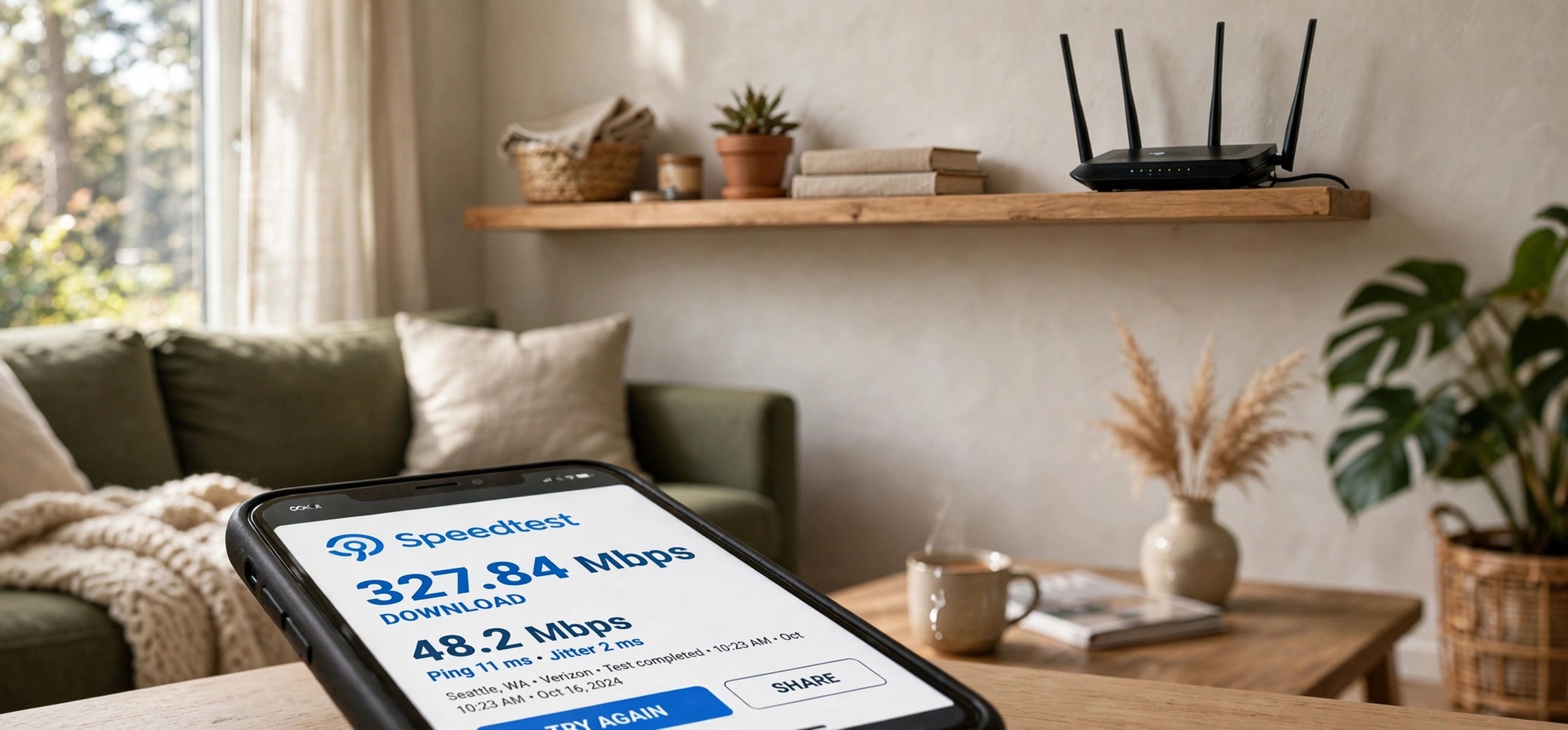
Before fixing anything, quantify the gap. Run a speed test on the slow device and on a fast device, in the same spot, back to back. Use Speedtest by Ookla or fast.com in the browser — no app install needed.
Note three numbers on each device: download speed, upload speed, and ping. If the slow device gets 15 Mbps while the fast one gets 300 Mbps in the same location, you have a real device problem. If the gap is small (say 250 vs. 300), the “slowness” may be perception — or a specific app misbehaving rather than the WiFi itself.
Also test at different times of day. A device that is slow only in the evening might be competing with neighbors’ networks (interference peaks when everyone is home streaming). Write down your baseline numbers — you will re-test after each fix to see what actually helped.
Fix 2: Switch to the 5 GHz Band
This fix alone resolves more “slow on one device” complaints than everything else combined. The 2.4 GHz band tops out at much lower real-world speeds and suffers far more interference (microwaves, Bluetooth, baby monitors, and every neighbor’s network all live here). The 5 GHz band is dramatically faster over short to medium distances.
Check which band the slow device is on: on Windows, go to Settings > Network & internet > Wi-Fi and click your network — it shows the band. On phones, WiFi analyzer apps or the router’s admin page can tell you. If the device is on 2.4 GHz, the fix is to get it onto 5 GHz.
How you do that depends on your router. If your router broadcasts separate network names for each band (like “HomeWiFi” and “HomeWiFi_5G”), simply connect the slow device to the 5 GHz name. If it uses one combined name (“band steering”), try forgetting the network and reconnecting closer to the router, or check the router settings for a “prefer 5 GHz” option. On Windows, you can also force the preference: in Device Manager > Network adapters > [your WiFi] > Properties > Advanced, look for “Preferred Band” and set it to 5 GHz.
Fix 3: Check Distance and Interference for That Device
WiFi speed drops with distance and obstacles — but the key insight for a one-device problem is that the slow device might live in a worse spot than the others. A laptop used in a far bedroom will always be slower than a phone used next to the router, even on the same network.
Test the slow device right next to the router. If speeds jump to normal there, you have a range problem, not a device problem. Solutions: move the router to a more central location, or reposition where you use the device. Thick walls, metal objects, mirrors, and fish tanks all murder WiFi signals.
Interference is the subtler cousin of distance. Bluetooth devices, microwaves, cordless phones, and neighboring WiFi networks on overlapping channels all slow things down. The 5 GHz band (Fix 2) dodges most of this. If the device must stay far from the router and relocating is not an option, our guide on boosting bedroom WiFi without an extender has placement and channel tricks that help.
Fix 4: Restart the Device’s Network Stack
Devices accumulate stale network state: corrupted DNS caches, hung DHCP leases, confused roaming decisions. A proper network refresh clears all of it and costs nothing.
On the slow device, toggle WiFi off and back on — but do it properly: turn WiFi off, wait 10 seconds, turn it back on. On Windows, also try Settings > Network & internet > Advanced network settings > Network reset for a deeper clean (you will need to re-enter the WiFi password). On phones, “Reset network settings” lives in the general/reset settings area.
Also restart the device itself, not just its WiFi. Phones and laptops that have been running for weeks accumulate background processes and memory pressure that slow everything — including network throughput. A fresh boot is the simplest performance reset available.
Fix 5: Stop Background Bandwidth Hogs
A device that feels slow is often just busy. Before blaming the WiFi hardware, check what the device is doing behind your back.
On Windows, open Task Manager (Ctrl + Shift + Esc), go to the Processes tab, and click the Network column to sort by bandwidth usage. Cloud storage syncs (OneDrive, Dropbox, Google Drive), OS updates, game launchers, and browser tabs with auto-playing video are the usual suspects. Pause or limit them: most cloud apps let you throttle upload/download speeds in their settings.
On phones, check Settings > Network & internet > Data usage (Android) or Settings > Cellular/Wi-Fi usage per app (iPhone) to spot data-hungry apps. Common phone hogs: cloud photo backup running for the first time, podcast apps auto-downloading episodes, and app store auto-updates. Pause the backup or updates, re-run your speed test, and watch the numbers recover. If one device is fully offline rather than slow, see our guide on WiFi connected but no internet on laptop.
Fix 6: Disable Power Saving on the WiFi Adapter
Laptops aggressively throttle their WiFi adapters to save battery — and “power saving” on a wireless card directly translates to slower speeds and higher latency. This is a particularly common cause of WiFi slow on one device only when that device is a laptop running on battery.
On Windows 11, go to Device Manager > Network adapters, right-click your WiFi adapter, choose Properties > Power Management, and uncheck “Allow the computer to turn off this device to save power.” Then check the Advanced tab for power-related properties like “Power Saving Mode” or “Transmit Power” and set them to Maximum Performance.
Also check Settings > System > Power & battery: if Power mode is set to “Best power efficiency,” try “Balanced” or “Best performance” and re-test. On phones, disable any “WiFi power saving” or adaptive battery restrictions affecting network performance. Re-test on battery vs. plugged in — if speeds differ dramatically, power management was your culprit.
Fix 7: Change DNS and Flush the Cache
Sometimes the connection is fast but name resolution is slow — pages hang on “resolving host” before loading. This feels like slow WiFi but is actually slow DNS, and it can affect one device while others (using different DNS settings) fly.
On Windows, go to your WiFi network’s properties, set DNS to Manual, and enter 8.8.8.8 and 8.8.4.4 (Google DNS) or 1.1.1.1 and 1.0.0.1 (Cloudflare). On phones, you can set private DNS (Android: Settings > Network > Private DNS, enter one.one.one.one) for the same effect.
Then flush the local DNS cache: on Windows, run ipconfig /flushdns in an admin Command Prompt. Re-test browsing specifically — DNS changes show up in page-load feel more than in raw speed test numbers, so judge by real browsing, not just the Mbps figure.
Fix 8: Reset Network Settings / Reinstall the Driver
When targeted fixes fail, go nuclear on the device’s network configuration. Corrupted network profiles, bad driver states, and tangled settings all surrender to a full reset.
On Windows: Settings > Network & internet > Advanced network settings > Network reset > Reset now. The PC restarts; reconnect to WiFi fresh. If that does not help, reinstall the WiFi driver: in Device Manager, uninstall the WiFi adapter (checking “delete driver software” if offered), restart, and let Windows install a fresh copy — or better, download the latest driver from your laptop manufacturer’s support site.
On phones: use the “Reset network settings” option (it wipes saved WiFi networks and Bluetooth pairings, so have passwords handy). Also check for OS updates — manufacturers regularly ship WiFi performance and stability fixes. If the device is old enough that its WiFi hardware only supports the 802.11n standard while everything else uses WiFi 5 or 6, no software fix will close that gap — which brings us to the hardware question.
WiFi Slow on One Device Only: When It’s the Hardware
Some devices are just slower by design. An eight-year-old laptop with an 802.11n single-antenna card will never match a modern phone with WiFi 6 — its maximum theoretical speed is a fraction of newer hardware. Check the slow device’s WiFi specs: if it lacks 5 GHz support entirely, that alone explains everything.
For laptops, a USB WiFi adapter ($15–30) with modern WiFi 5/6 support is a cheap, effective upgrade — plug it in, disable the internal adapter, and enjoy modern speeds. For phones and tablets, there is no hardware upgrade path; the realistic options are keeping the device on 5 GHz, close to the router, and free of background hogs.
Also consider the router side of “one device”: if your router is very old, its ability to serve many modern devices simultaneously is limited, and the oldest device often suffers most. But when WiFi is slow on one device only and everything else flies, the device is where your effort belongs — and these eight fixes cover every device-side cause worth checking. For devices that keep dropping the connection entirely, our guide on WiFi keeps disconnecting on Windows 11 picks up where this one leaves off.
Frequently Asked Questions
Why is my phone slow on WiFi but my laptop is fast?
The most likely reasons: the phone is on the 2.4 GHz band while the laptop is on 5 GHz, the phone is running background uploads (photo backup, app updates), or the phone is farther from the router. Check the band first — it is the culprit more often than not.
Can too many devices slow down one device?
Congestion affects all devices, not just one — so if only one device is slow, congestion is not the cause. However, an old router struggling with many connections may deprioritize or mishandle the weakest device. The fixes here still apply first.
Does a VPN slow down WiFi on one device?
Yes. A VPN adds encryption overhead and routing distance, typically cutting speed by 10–50%. If the slow device runs a VPN and others do not, disconnect it and re-test — the difference is often dramatic.
Why is WiFi slow on my device only at night?
Evening slowdowns on one device usually mean interference: neighbors’ networks all become active in the evening, and the 2.4 GHz band gets crowded. Moving the device to 5 GHz typically fixes it, since 5 GHz has more channels and shorter range (less neighbor overlap).
Will a WiFi extender help one slow device?
Only if the problem is distance from the router. If the device is slow even next to the router, an extender will not help — the issue is in the device. Diagnose with the next-to-router test in Fix 3 before buying anything.
How do I check my device’s WiFi standard?
On Windows, run netsh wlan show interfaces in Command Prompt — it shows the radio type (802.11n/ac/ax). On phones, check the specs page for your model. 802.11ac (WiFi 5) or 802.11ax (WiFi 6) is modern; 802.11n-only hardware is the likely bottleneck on old devices.
When you face wifi slow on one device only, resist the urge to blame the router or upgrade your internet plan — the evidence already exonerates them. Work through these eight fixes in order: confirm the gap with a speed test, get the device onto 5 GHz, clear the background hogs, and tame the power settings. One of them is almost always the answer, and your slow device will be keeping up with the rest of the house in no time.