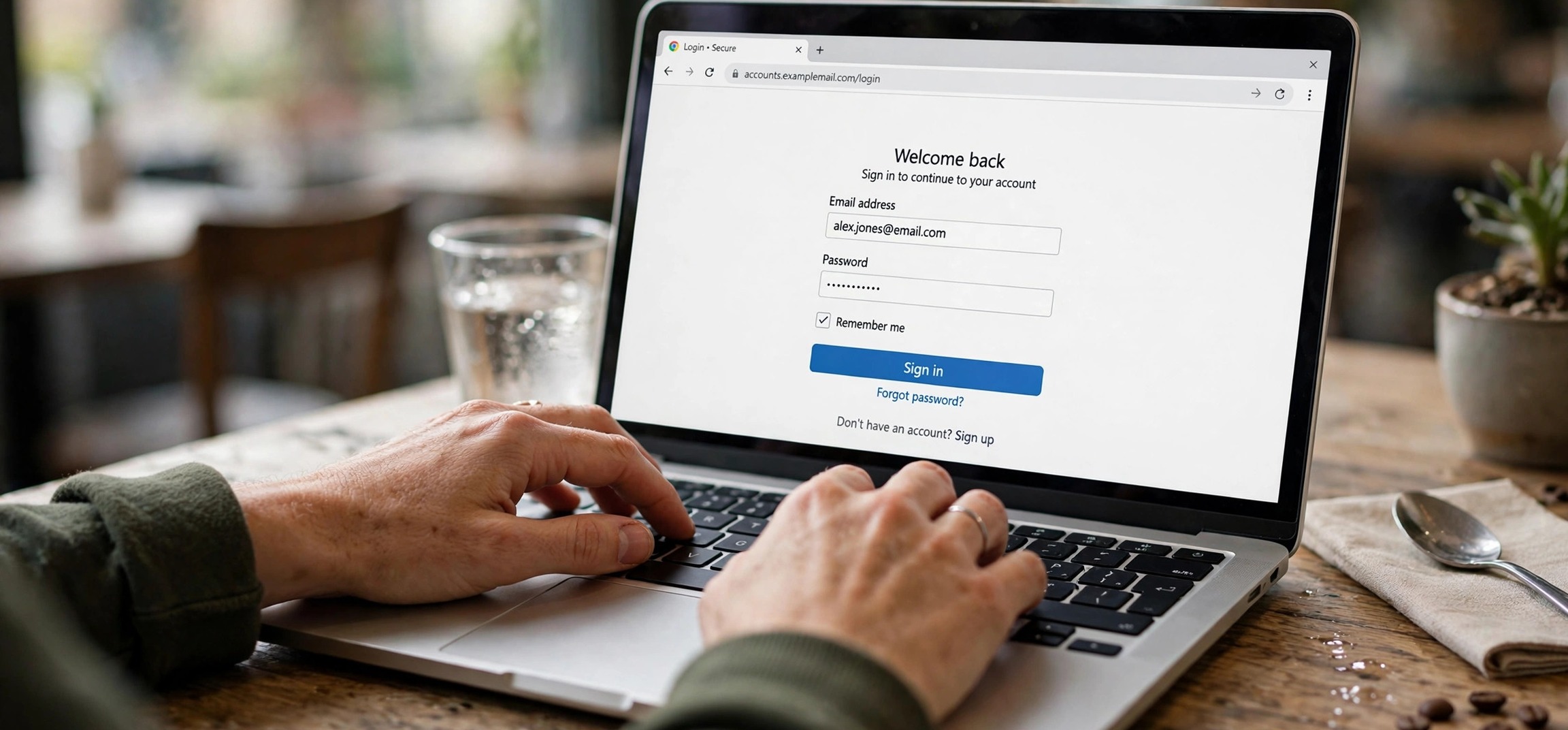
You click a login field, expecting Chrome to offer your saved password — and nothing happens. Or you start typing your address at checkout and the familiar autofill suggestions never appear. When chrome autofill not working disrupts your day, every form becomes manual typing, and every login becomes a trip to your password manager. The feature rarely breaks for just one reason: settings get toggled by updates, extensions interfere, profiles corrupt, or sync stalls. Work through these nine proven fixes in order, and autofill will be back to saving you keystrokes.
- How Chrome Autofill Is Supposed to Work
- Fix 1: Check That Autofill Is Actually Enabled
- Fix 2: Disable Interfering Extensions
- Fix 3: Check Chrome Sync Status
- Fix 4: Clear Browsing Data (Selectively)
- Fix 5: Update Chrome
- Fix 6: Check for Password Manager Conflicts
- Fix 7: Check Per-Site Settings and Flags
- Fix 8: Test With a Fresh Chrome Profile
- Fix 9: Reset Settings or Reinstall Chrome
- Frequently Asked Questions
How Chrome Autofill Is Supposed to Work
Chrome’s autofill has three separate systems that people lump together: passwords (usernames and passwords, offered on login forms), payment methods (credit cards at checkout), and addresses and more (names, emails, phone numbers, street addresses). Each has its own toggle in Chrome’s settings, which means one type can break while the others work fine. When diagnosing chrome autofill not working, the first question is always: which type stopped?
Autofill data lives in your Chrome profile and, if you are signed in, syncs through your Google account. Suggestions appear when Chrome recognizes a form field’s type — either from the site’s HTML autocomplete attributes or from its own field-type guessing. Anything that disrupts this chain — a disabled toggle, a corrupted profile database, an extension rewriting page content, or a site deliberately blocking autofill — kills the suggestions.
Fix 1: Check That Autofill Is Actually Enabled
Chrome updates and enterprise policies occasionally flip these toggles. Type chrome://settings/autofill in the address bar and check all three sections:
- Passwords: “Offer to save passwords” and “Auto sign-in” should be on.
- Payment methods: “Save and fill payment methods” should be on.
- Addresses and more: “Save and fill addresses” should be on.
Also verify your data is still there. Under Passwords, click into Google Password Manager and confirm your saved logins exist. Under Addresses, confirm your address entries are present. If the lists are empty, the data itself was deleted (possibly by an overzealous “clear browsing data” run with the wrong boxes checked) — in that case autofill is not broken, it just has nothing to fill. Re-save a login and test again.
Fix 2: Disable Interfering Extensions
Extensions are the number one cause of chrome autofill not working. Password managers, form fillers, ad blockers, privacy tools, and even some coupon extensions inject scripts into pages that can suppress or replace Chrome’s native autofill dropdown.
Type chrome://extensions and toggle everything off. Test autofill on a login page. If it works, re-enable extensions one by one, testing after each, until autofill breaks again — you have found your culprit. The most common offenders are third-party password managers running alongside Chrome’s built-in one (see Fix 6), aggressive script blockers, and “form filler” extensions that fight Chrome for control of the fields.
Once identified, you have options: keep the extension disabled on sites where you need autofill (click the extension icon > “This can read and change site data” > limit to specific sites), look for a setting inside the extension to stop it intercepting forms, or replace it with an alternative that plays nicely.
Fix 3: Check Chrome Sync Status
If you rely on the same passwords and addresses across devices, a stalled sync can look exactly like broken autofill — your data is fine on your phone but missing on your desktop. Click your profile icon in the top-right corner of Chrome. If you see a “Sync is off” or error message, click Turn on sync and sign back in.
Even when sync claims to be on, it can wedge. Go to chrome://settings/syncSetup and confirm that Passwords and Addresses are included in synced data types. If everything looks right but data is still missing, click Sign out under your profile, restart Chrome, and sign back in to force a fresh sync pull. Give it a minute — large password vaults take a moment to download.
Note that sync requires a stable connection; if your network itself is flaky, also see our guide to fixing WiFi connected but no internet on a laptop.
Fix 4: Clear Browsing Data (Selectively)
Corrupted cache or cookies can break the page scripts that cooperate with autofill. Press Ctrl + Shift + Delete to open the clear browsing data dialog. Set the time range to All time, check Cached images and files and Cookies and other site data — and uncheck Passwords and other sign-in data and Autofill form data unless you genuinely want to wipe your saved entries.
This distinction matters enormously. Clearing “autofill form data” deletes the very suggestions you are trying to restore, turning a fix attempt into data loss. The safe targets are cache and cookies only. After clearing, restart Chrome completely (close every window, not just the tab) and test.
Fix 5: Update Chrome
Autofill bugs are regularly introduced — and fixed — by Chrome updates. An outdated browser may carry a known autofill bug that was patched months ago. Go to chrome://settings/help; Chrome checks for updates automatically and shows your version. If an update is available, let it install and click Relaunch.
Conversely, if chrome autofill not working started immediately after an update, you may be dealing with a fresh regression. In that case, check Chrome’s release notes and community forums for reports, and consider the profile test in Fix 8 while waiting for a patch. Regressions in autofill are usually fixed within a release or two.
You can verify you are on a current build against Google’s support pages, which document the latest stable version behavior.
Fix 6: Check for Password Manager Conflicts
Running a third-party password manager (Bitwarden, 1Password, Dashlane, or similar) alongside Chrome’s built-in password manager is a classic conflict. Both try to fill the same fields; the result is often that neither works reliably, or the third-party tool suppresses Chrome’s dropdown entirely.
Decide which manager you actually want. If you prefer the third-party tool, disable Chrome’s password autofill at chrome://settings/autofill (turn off “Offer to save passwords” and “Auto sign-in”) and let the extension handle everything. If you prefer Chrome’s built-in manager, disable or remove the third-party extension and re-enable Chrome’s toggles.
Also check the third-party manager’s own settings — many have an option like “make this my default password manager” or “disable browser’s built-in autofill” that actively suppresses Chrome’s UI. Either commit to one manager or the other; running both half-configured is the worst of both worlds.
Fix 7: Check Per-Site Settings and Flags
Sometimes autofill fails on one specific site while working everywhere else. Sites can discourage autofill with autocomplete="off" attributes or unusual form markup. Click the lock/tune icon in the address bar, open Site settings, and check nothing relevant is blocked. Clearing that site’s cookies (Fix 4, scoped to one site via chrome://settings/siteData) often helps.
Chrome also has experimental flags that affect form behavior. Type chrome://flags and search for “autofill.” If any autofill-related flag is set to Enabled or Disabled (non-default), reset it to Default and relaunch. Flags are experimental by nature and can break autofill in subtle ways that survive updates.
And be aware: some banking and government sites deliberately suppress autofill as a security policy. If a single high-security site refuses to autofill while every other site works, that is the site’s choice, not a Chrome malfunction — copy-paste from your password manager is the intended workflow there.
If you are unsure whether a site asking for your details is legitimate in the first place, read our guide on how to check if a link is safe before clicking.
Fix 8: Test With a Fresh Chrome Profile
Chrome profiles can corrupt — the local database holding your autofill entries develops errors, and no settings toggle will fix it. Testing with a fresh profile isolates the problem in seconds. Click your profile icon, choose Add, and create a new profile without signing in. Save a dummy login on a test site (or let Chrome offer to save one) and check whether autofill suggestions appear.
If autofill works in the fresh profile, your original profile is corrupt. The cleanest fix is to migrate: sign the new profile into your Google account, let sync pull down your passwords and addresses from the cloud, reinstall only the extensions you need, and abandon the old profile (delete it via the profile manager once you are confident everything migrated).
If autofill fails even in the fresh profile, the problem is system-wide — a broken Chrome installation, OS-level interference, or security software hooking the browser. That points to Fix 9.
Fix 9: Reset Settings or Reinstall Chrome
When nothing else works, reset Chrome’s settings: go to chrome://settings/reset and click “Restore settings to their original defaults.” This disables all extensions, clears temporary data, and resets every toggle — but crucially, it keeps your bookmarks, history, and saved passwords. It is the “factory reset that preserves your stuff” option.
If the reset does not help, do a full reinstall. First, make sure sync is on so your passwords are backed up to your Google account (or export them from Google Password Manager as a backup). Then uninstall Chrome, delete the leftover profile folder (%LOCALAPPDATA%\Google\Chrome\User Data on Windows), download a fresh installer from Google, and sign back in. A corrupted installation binary or a poisoned profile folder cannot survive this.
For users who block distracting sites to stay focused, our guide to blocking websites with the hosts file on Windows 11 is a useful companion — note that some aggressive blocking setups can interfere with the Google domains Chrome uses for sync.
Frequently Asked Questions
Why did Chrome autofill suddenly stop working?
The most common triggers are a Chrome update that changed a setting or introduced a bug, a newly installed or updated extension interfering with forms, sync stalling or signing you out, or profile data corruption. The suddenness usually points to an update or a new extension — check those first.
How do I get Chrome to suggest passwords again?
Verify “Offer to save passwords” and “Auto sign-in” are enabled at chrome://settings/autofill, confirm your passwords still exist in Google Password Manager, disable extensions to rule out interference, and check that sync is working. If all else fails, test a fresh profile — corruption is the usual culprit when settings look correct.
Why does autofill work on some sites but not others?
Different sites use different form markup. Sites with non-standard fields, heavy JavaScript frameworks, or deliberate autocomplete=”off” attributes defeat Chrome’s field detection. Per-site cookie corruption can also break it. If it is truly one site, the problem is almost certainly on the site’s side.
Does clearing browsing data delete my saved passwords?
Only if you check the “Passwords and other sign-in data” box. The default clear-data dialog lets you choose; uncheck password and autofill-data boxes to preserve them while clearing cache and cookies. When in doubt, verify sync is on first so everything is backed up to your Google account.
Can antivirus software break Chrome autofill?
Yes. Some security suites inject their own form-handling or “secure keyboard” features into browsers, which can suppress autofill dropdowns. If autofill broke after a security software update, check its browser-integration settings or temporarily disable its browser protection to test.
Is Chrome autofill safe to use?
For most people, yes — saved passwords are encrypted on your device and in your Google account. Use a strong Google account password with two-factor authentication, keep “Auto sign-in” off on shared computers, and never save passwords on a device you do not trust. For maximum security, a dedicated password manager with its own master password remains the gold standard.
Chrome autofill not working is frustrating precisely because the feature is invisible when it works — you only notice it when it is gone. The good news is that the fix is almost always in this list: a flipped toggle, a meddling extension, a stalled sync, or a tired profile. Work through the nine fixes in order, testing after each one, and you will find the culprit long before you reach the reinstall. Your keystrokes will thank you.