That link in your inbox promises a refund, a prize, or an urgent security alert — but is it safe? Learning how to tell if a link is safe before clicking is one of the most valuable digital skills you can build, because a single careless click can hand your passwords, bank details, or entire identity to a scammer. Phishing links now arrive by email, text message, social media, and even QR codes, and the fakes keep getting more convincing.
The good news: you do not need special software to stay safe. These seven checks take seconds each, work on any device, and will catch the vast majority of malicious links before your finger ever taps them. Make them a habit, and the question of how to tell if a link is safe before clicking answers itself — phishing loses its power over you.
- Tip 1: Inspect the Actual URL Before You Tap
- Tip 2: Learn the Domain Tricks Phishers Use
- Tip 3: Hover or Long-Press to Preview the Destination
- Tip 4: Check for HTTPS — but Don’t Trust the Padlock Alone
- Tip 5: Scan the Link With a Free URL Checker
- Tip 6: Interrogate the Context Around the Link
- Tip 7: Expand Shortened Links Before Clicking
- Frequently Asked Questions
Tip 1: How to Tell If a Link Is Safe Before Clicking — Inspect the Actual URL
The first step in how to tell if a link is safe before clicking is also the most powerful: look at the real address. On a computer, hover your mouse over the link and read the destination shown in the browser’s status bar (bottom-left corner). On a phone, long-press the link and choose preview or copy, then examine the URL without opening it.
What you are looking for is the domain — the core part of the address between the protocol and the first slash. In https://secure-paypal.com.login.verify.example.ru/refund, the real domain is example.ru, not PayPal. Everything before it is just decoration designed to fool a quick glance.
Read domains from right to left: the true domain sits immediately to the left of the first single slash after the protocol. Train yourself to check this one spot, and most phishing attempts fall apart instantly. If the domain does not belong to the company the message claims to be from, do not click — visit the company’s site directly by typing the address yourself instead.
Tip 2: Learn the Domain Tricks Phishers Use
Scammers rely on a small set of domain deceptions. Once you recognize them, they stop working on you. The most common is the lookalike domain: micorsoft.com (missing a letter), app1e.com (number one instead of L), or paypa1.com. Your brain auto-corrects these at a glance, which is exactly the point.
Next is the subdomain trick: paypal.security-check.com looks official, but the real domain is security-check.com — “paypal” is just a subdomain anyone can create. Then there is the hyphenated imposter: amazon-support-center.com or apple-id-verification.net. Legitimate companies rarely use hyphen-stuffed domains for customer communication.
Finally, watch for wrong top-level domains: your bank emailing from a .ru, .tk, or .xyz address, or a “government” link on a .com instead of .gov. None of these tricks survive ten seconds of scrutiny — which is why phishers count on you not taking those ten seconds.
Tip 3: Hover or Long-Press to Preview the Destination
Link text lies. A button that says “Track your package” or “Reset your password” can point anywhere, and the displayed text tells you nothing about the destination. Never trust what the link says — verify where it goes.
On desktop, hovering reveals the destination in the status bar, and most email clients also show it in a tooltip near your cursor. In Gmail’s web interface, hovering over any link shows the full URL at the bottom of the window. On mobile, a long-press brings up a preview card or an option to copy the link — use it every time a message feels even slightly off.
This habit also protects you against QR code phishing (“quishing”), where the destination is completely hidden until scanned. Many phone cameras now show the URL before opening it — read it before you tap through. If a QR code in the wild leads somewhere unexpected, close it immediately.
Tip 4: Check for HTTPS — but Don’t Trust the Padlock Alone
You have probably heard “look for the padlock.” HTTPS (the padlock icon) means your connection to the site is encrypted — it does not mean the site is legitimate. Scammers can get free HTTPS certificates in minutes, and the majority of phishing sites today show a padlock.
So treat HTTPS as a minimum requirement, not a safety verdict, when deciding how to tell if a link is safe before clicking. A login page without HTTPS is definitely unsafe — never enter credentials there. But a login page with HTTPS still needs every other check on this list, because encryption only protects your data in transit; it says nothing about who is receiving it.
Modern browsers have started hiding the padlock or replacing it with subtler indicators precisely because it was being misread as a trust badge. The real question is never “is it encrypted” but “is this actually my bank” — and only the domain answers that.
Tip 5: How to Tell If a Link Is Safe Before Clicking Using a Free Scanner
When a link looks suspicious but you cannot quite tell why, let a scanner decide. Free tools analyze URLs against databases of known phishing and malware sites and inspect the page’s behavior without you having to visit it.
Google’s Safe Browsing transparency report lets you paste any URL and see whether Google has flagged it as dangerous. VirusTotal goes further, checking the link against dozens of security vendors at once and showing you exactly which ones flagged it and why. Both are free and take seconds.
For an extra layer, paste the link into a sandbox preview service that loads the page in an isolated environment and shows you a screenshot. You get to see what the link leads to without your device ever touching it. Bookmark one of these tools now — in the moment of doubt, having it one click away is what makes you actually use it. Note that scanners are a strong signal but not perfect: a brand-new phishing site may not be flagged yet, so combine this with the other checks rather than relying on it alone.
Tip 6: Interrogate the Context Around the Link
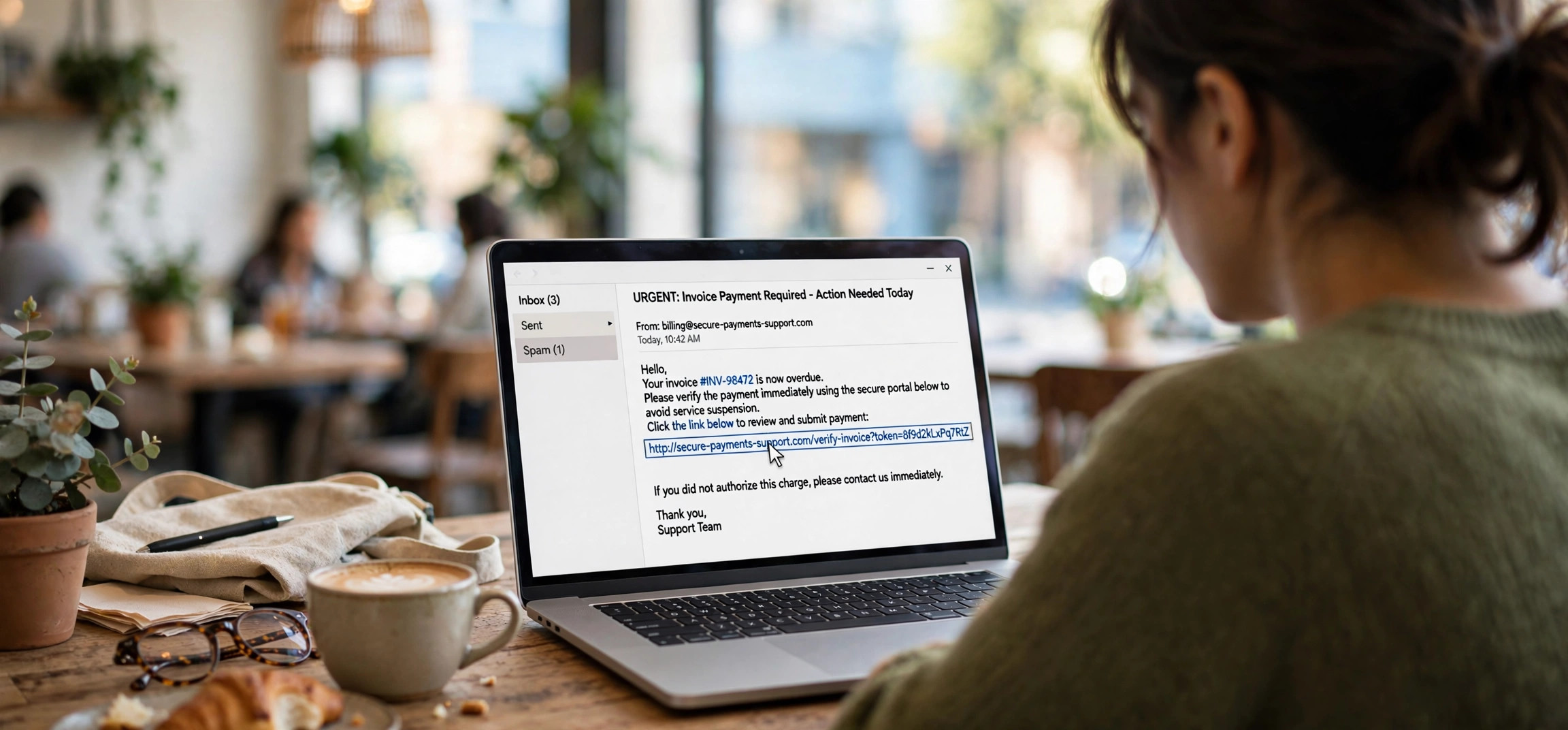
Phishing is psychology as much as technology. Before clicking, read the message itself with a skeptic’s eye. Does it manufacture urgency — “your account will be suspended in 24 hours,” “unauthorized login detected,” “claim your refund now”? Urgency is the phisher’s favorite tool because it short-circuits careful thinking.
Check the sender with the same care you give the link. Display names lie easily: “PayPal Support” can be sent from [email protected]. On mobile, tap the sender name to reveal the full address. Look for generic greetings (“Dear customer” instead of your name), unexpected attachments, and offers that are simply too good to be true.
Ask the golden question: was I expecting this? A delivery text for a package you never ordered, a password reset you never requested, a tax refund from a country you do not live in — the context alone condemns these. When in doubt, contact the company through its official app or website, never through the contact details in the suspicious message. Phone-based scams follow the same playbook, which is why it is worth knowing how to silence unknown callers while allowing your contacts through on iPhone — cutting off the call channel starves the same scammers of another attack route.
Tip 7: Expand Shortened Links Before Clicking
URL shorteners like bit.ly and tinyurl hide the destination by design — which makes them perfect camouflage for malicious links. A shortened link gives you zero information, so your rule should be simple: never click a shortened link from an untrusted source without expanding it first.
Free expander tools reveal the full destination URL without visiting it. Many also show you a safety rating and a preview of the page title. On desktop, some browser extensions expand short links automatically on hover, removing the friction entirely.
Knowing how to tell if a link is safe before clicking matters most with shortened links in contexts where trust is already low: unsolicited texts, social media comments, forum posts, and DMs from strangers. Legitimate businesses do use shorteners in marketing, but a bank or government agency will essentially never send you account-related links through one. When the stakes are high — logins, payments, personal data — type the address manually instead.
Frequently Asked Questions
How can I check if a link is safe without clicking it?
To tell if a link is safe before clicking, hover over it (desktop) or long-press it (mobile) to reveal the true destination URL, inspect the domain for lookalike tricks, and paste it into a free scanner like Google Safe Browsing or VirusTotal. These three steps catch the overwhelming majority of malicious links without your device ever touching them.
Does the padlock icon mean a link is safe?
No. The padlock only means the connection is encrypted — scammers get HTTPS certificates for phishing sites routinely. Treat a missing padlock on a login page as a definite red flag, but never treat a present padlock as proof of legitimacy. The domain name is what actually identifies the site.
What is the safest way to open a suspicious link?
Do not open it directly. Paste it into a URL scanner or sandbox preview tool first. If you must visit it, use your browser’s private/incognito mode, do not enter any credentials or personal information, and do not download anything. Better still, navigate to the company’s official site manually and find the page there.
Can I get hacked just by clicking a link?
Simply clicking — without entering information or downloading anything — rarely compromises a fully updated device, though “drive-by” attacks on unpatched browsers do exist. The real danger is what the link leads to: fake login pages that harvest your credentials, or downloads that install malware. Keep your browser and OS updated to close the drive-by window.
Are shortened links always dangerous?
No, but they are opaque by design, which makes them a favorite hiding place for malicious URLs. Expand any shortened link from an untrusted source before clicking, and be especially wary of them in unsolicited messages. Trusted senders’ short links are generally fine, but verification costs you five seconds.
What should I do if I already clicked a phishing link?
Do not enter any information or download anything. Close the tab, run a security scan, and if you entered credentials, change that password immediately — plus anywhere else you reused it — and enable two-factor authentication. If you entered payment details, contact your bank. Then report the phishing message to your email provider.
Learning how to tell if a link is safe before clicking comes down to one habit: pause and inspect. Check the real domain, preview before you tap, scan what looks off, and question the urgency. Phishing works by rushing you — ten seconds of scrutiny defeats it. For another layer of defense on Windows, consider learning how to block malicious websites using the hosts file on Windows 11, so even an accidental click on a known-bad domain goes nowhere.