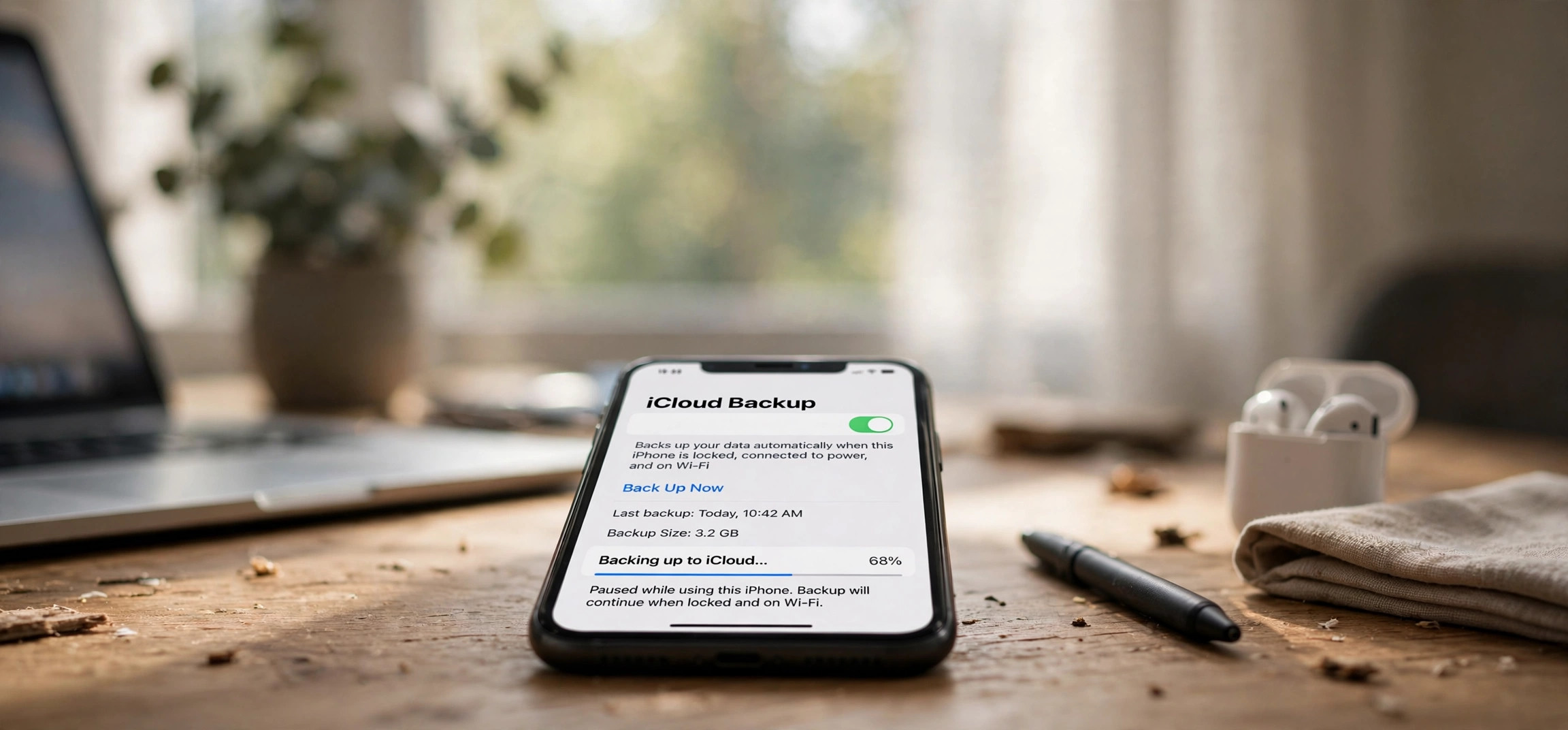
You open the Photos app and see “Waiting to upload” under hundreds of pictures — for days. When you are dealing with iPhone photos not backing up to iCloud, your memories sit on a single device with no safety net, and one lost or broken phone means losing them forever. The causes range from a full iCloud plan to a single toggled-off setting, and nearly all of them are fixable in minutes.
This guide walks through eight fixes for iPhone photos stuck and refusing to back up to iCloud, in the order you should try them. By the end, your photo library will be syncing again — and you will know how to keep it that way.
- How iCloud Photos Backup Actually Works
- Fix 1: Make Sure iCloud Photos Is Actually Turned On
- Fix 2: Check Your iCloud Storage (the #1 Culprit)
- Fix 3: Connect to WiFi and Plug Into Power
- Fix 4: Verify Your Apple ID and iCloud Sign-In
- Fix 5: Turn Off Low Power Mode and Check Battery Settings
- Fix 6: Update iOS to the Latest Version
- Fix 7: Sign Out of iCloud and Back In
- Fix 8: Use Optimize Storage and Clear Stuck Uploads
- Frequently Asked Questions
iPhone Photos Not Backing Up to iCloud: How the Backup Works
Understanding the mechanism makes the fixes obvious. When iCloud Photos is enabled, every photo and video you take uploads to Apple’s servers, then syncs to your other Apple devices. The upload does not happen instantly or constantly — iOS schedules it for moments when conditions are ideal: the phone is connected to WiFi, plugged into power, and the screen is locked.
This scheduling is why iPhone photos not backing up to iCloud often looks like nothing is wrong — the phone is simply waiting for its preferred conditions, or one of the requirements is silently failing. iOS is also conservative about large videos and will pause uploads when storage, battery, or network conditions are marginal. The fixes below address each of these gates in turn.
Fix 1: Make Sure iCloud Photos Is Actually Turned On
It sounds too simple, but this is worth checking first — especially after an iOS update, a device restore, or switching Apple IDs, all of which can silently flip the setting. Open Settings → [your name] → iCloud → Photos and confirm that Sync this iPhone (labeled “iCloud Photos” on older iOS versions) is toggled on.
While you are here, note the storage bar at the top of the iCloud screen. If it shows your plan is full, uploads stop immediately — which leads directly to the next fix. Also confirm you are signed into the Apple ID you expect; families sharing devices sometimes find photos syncing to the wrong account, which looks exactly like a backup failure. If the toggle itself is off, that alone explains the iPhone photos not backing up to iCloud problem.
Fix 2: iPhone Photos Not Backing Up to iCloud? Check Your Storage First
A full iCloud plan is the single most common reason iPhone photos stop backing up to iCloud. Apple gives every account 5 GB free, and a modern photo library eats through that almost immediately — a few minutes of 4K video can finish it off.
Check your usage at Settings → [your name] → iCloud, where a color-coded bar shows exactly what is consuming space. If you are at or near the limit, you have three options: upgrade to a larger iCloud+ plan (Apple’s paid tiers start at 50 GB and are inexpensive monthly), delete space hogs like old device backups or large message attachments, or move some photos elsewhere first.
To trim without upgrading, look at iCloud → Manage Account Storage: old iPhone backups from devices you no longer own are frequent space wasters, and the Messages app can hoard gigabytes of videos. Deleting a stale 8 GB backup alone often restarts photo uploads within the hour. If your phone storage is the problem rather than iCloud’s, our guide on iPhone storage being full even though iCloud has space untangles that confusing sibling issue.
Fix 3: Connect to WiFi and Plug Into Power
iCloud Photos strongly prefers WiFi and power. By default, iOS will not upload your library over cellular data at all, and it schedules the heaviest uploading for when the phone is charging with the screen locked — typically overnight.
If your photos have been stuck for days, give the phone an ideal upload window tonight: connect to a stable WiFi network, plug into a charger, leave the Photos app closed, and lock the screen. Many “stuck” libraries simply needed one uninterrupted overnight session to catch up — especially after a vacation or event added hundreds of photos at once.
If you need uploads over cellular in a pinch, go to Settings → Photos → Cellular Data and enable it (plus “Unlimited Updates” if your plan allows). Be warned: a full photo library can burn through a mobile data cap fast, so use this sparingly. Also disable any VPN temporarily while troubleshooting — some VPN configurations interfere with Apple’s upload servers.
Fix 4: Verify Your Apple ID and iCloud Sign-In
An expired Apple ID session silently halts everything iCloud-related, including photo backup. If you recently changed your Apple ID password, iOS may be failing authentication in the background without an obvious alert.
Go to Settings → [your name] and look for any prompt to re-enter your password or verify your account. Red badge alerts on the Settings icon often point here. Complete any pending verification steps — two-factor authentication prompts, updated payment details, or accepted terms — since Apple blocks iCloud services until account issues are resolved.
Also check Settings → General → Date & Time and make sure Set Automatically is on. Like many Apple services, iCloud authentication is sensitive to clock skew; a manually set clock that drifted can cause mysterious sync failures. Apple’s own guidance on iCloud Photos troubleshooting lives on Apple Support if you need model-specific steps.
Fix 5: Turn Off Low Power Mode and Check Battery Settings
Low Power Mode is designed to pause background activity — and iCloud photo uploads are background activity. If the battery icon is yellow, your phone is in Low Power Mode, and photo backup is throttled or stopped entirely until you charge past 80% or toggle it off.
Go to Settings → Battery and turn off Low Power Mode, then plug the phone in. Uploads typically resume within minutes. This also explains the classic pattern of “photos back up at night but never during the day” — the phone spends the day in Low Power Mode and only syncs during the overnight charge.
Relatedly, check that Background App Refresh has not been crippled system-wide. While Photos does not depend on it the way third-party apps do, an extremely aggressive battery configuration can still interfere with iOS background tasks. When in doubt, charge the phone and leave it alone — that is the state iOS uploads best in.
Fix 6: Update iOS to the Latest Version
Apple periodically fixes iCloud sync bugs in iOS updates, and a phone several versions behind can hit server-side incompatibilities. If iPhone photos not backing up to iCloud is your issue and your iOS version is old, updating is a legitimate fix, not just generic advice.
Go to Settings → General → Software Update and install any available update. Connect to WiFi and keep the phone charged during the update. After updating, give the phone another overnight charging session — iOS often re-indexes the photo library after an update, and uploads resume once indexing completes.
If you are already on the latest iOS and the problem started right after updating, the library re-index is the likely explanation: large libraries can take a day or two to re-index before uploads restart. Patience plus an overnight charge resolves most post-update stalls without further intervention.
Fix 7: Sign Out of iCloud and Back In
When the account session itself is corrupted, no setting tweak will help — the sign-in token needs to be rebuilt. Signing out of iCloud and back in forces a completely fresh authentication and re-registers the device with Apple’s photo servers.
Go to Settings → [your name], scroll down, and tap Sign Out. You will be asked whether to keep a copy of your data on the iPhone — choose Keep a Copy for everything, especially photos and contacts. This is important: it ensures nothing is lost during the transition.
Restart the phone, then sign back in with your Apple ID at Settings → Sign in. Re-enable iCloud Photos under iCloud → Photos, and leave the phone on WiFi and charging. The library will re-verify against iCloud — this can take a while for large libraries, but stuck uploads almost always clear once the fresh session is established.
Fix 8: Use Optimize Storage and Clear Stuck Uploads
Sometimes individual photos get wedged in the upload queue — a corrupted video file, for instance — and block everything behind them. The Optimize iPhone Storage setting can help by replacing full-resolution originals on the device with lightweight versions once they are safely in iCloud.
Enable it at Settings → [your name] → iCloud → Photos → Optimize iPhone Storage. This is also simply the right setting for most people: it keeps your phone storage lean while the full originals live safely in iCloud. (The alternative, “Download and Keep Originals,” stores everything locally and fills phones fast.)
For a genuinely wedged queue, find the offending item: open Photos → Library → scroll to the very bottom, where iOS sometimes names the stuck photo or shows an upload error. Deleting or re-saving that single item — a half-recorded video is the usual suspect — unblocks the queue behind it. After clearing it, leave the phone charging on WiFi overnight and watch the backlog drain.
Frequently Asked Questions
Why are my iPhone photos not uploading to iCloud?
The most common reasons for iPhone photos not backing up to iCloud are full iCloud storage, iCloud Photos being toggled off, no WiFi connection, Low Power Mode throttling background uploads, or an expired Apple ID session. Work through the fixes above in order — storage and the WiFi-plus-power combination resolve the majority of cases.
How long does it take for iPhone photos to back up to iCloud?
It depends on the backlog size and your upload speed. A few dozen photos typically finish within an hour on WiFi; a multi-thousand-photo library after a trip can take several overnight charging sessions. iOS uploads fastest when the phone is locked, charging, and on WiFi — leave it alone overnight for best results.
Do iPhone photos back up to iCloud over cellular data?
Not by default. You can allow it at Settings → Photos → Cellular Data, but a photo library can consume gigabytes quickly. Unless you have an unlimited plan, keep cellular uploads off and let the phone sync on WiFi.
Will I lose photos if I sign out of iCloud?
Not if you choose “Keep a Copy” when signing out — your photos stay on the iPhone. The risk comes from choosing to delete the local copies. Always keep a copy, verify your photos are intact after signing back in, and ideally have a second backup (like a computer import) before doing this.
Why does iCloud say my storage is full when I barely have photos?
Photos are often not the culprit — old device backups, large Messages attachments, and app data in iCloud Drive consume the 5 GB free tier fast. Check Settings → [your name] → iCloud → Manage Account Storage to see the real breakdown before buying more space.
Can I back up iPhone photos without iCloud?
Yes. Connect the iPhone to a computer and import photos directly — on Windows, the Photos app or File Explorer can copy them off (see our guide if your iPhone is not showing up in Windows File Explorer), and on Mac the Photos app or Image Capture handles it. Google Photos and other cloud services are also solid alternatives.
When iPhone photos not backing up to iCloud is the problem, the fix is almost always unglamorous: free up iCloud space, confirm the setting is on, and give the phone a proper overnight session on WiFi and power. Do those three and the backlog usually clears itself while you sleep. And once your library is syncing again, consider whether your Android devices need the same storage attention — full storage breaks backups on every platform.


