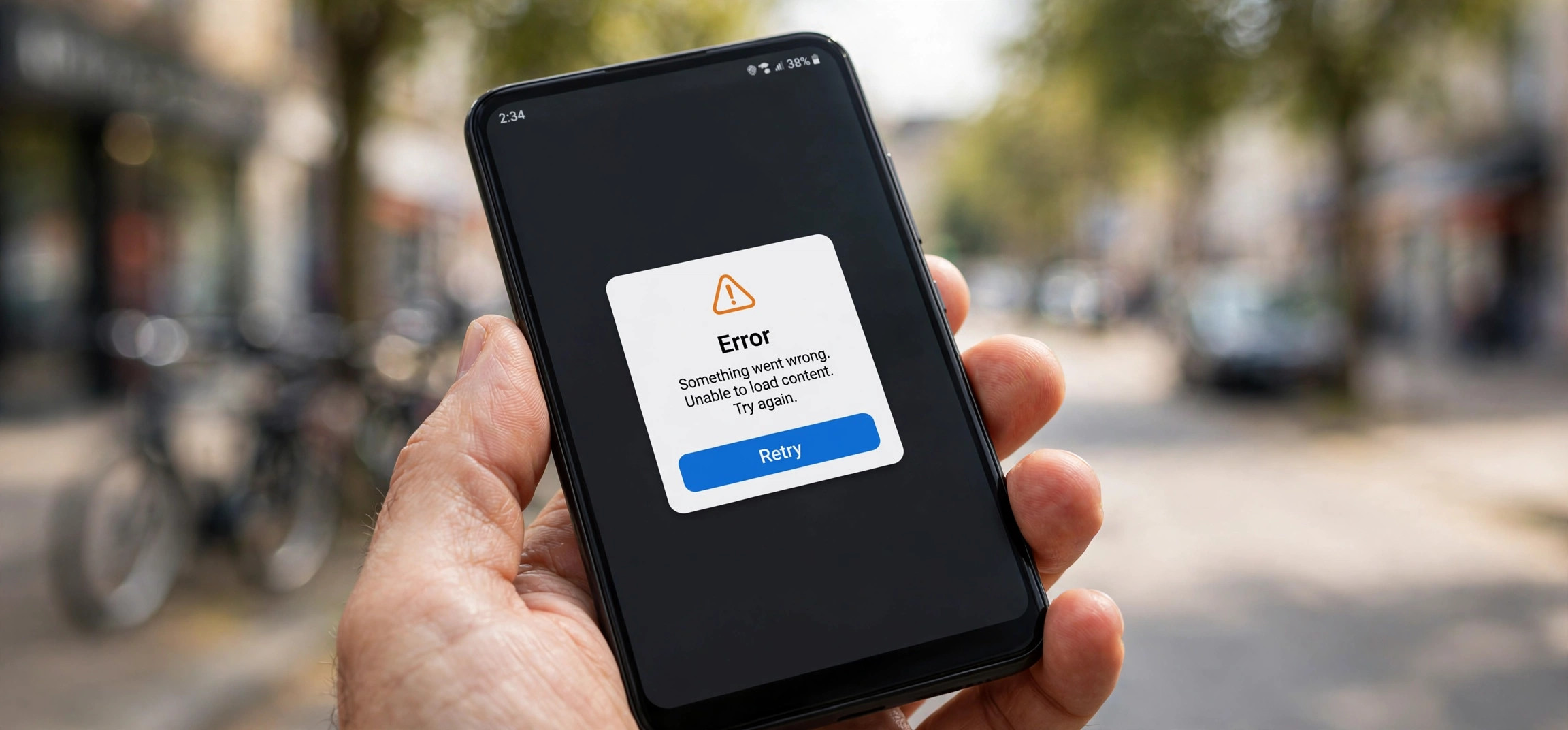
The popup appears out of nowhere: “Google Play Services keeps stopping.” You dismiss it, and seconds later it is back — sometimes dozens of times a day, freezing apps, breaking notifications, and making your Android phone nearly unusable. If Google Play Services keeps stopping on your device, you are dealing with one of Android’s most notorious crash loops, but it is fixable.
Google Play Services is the background engine that powers location, push notifications, Google account sync, and countless third-party apps. When it crashes repeatedly, the whole phone feels broken. This guide gives you eight fixes, ordered from quickest to most thorough, that end the crash loop on Samsung, Pixel, OnePlus, Xiaomi, and other Android phones.
- What Google Play Services Actually Does
- Fix 1: Restart Your Phone (the Right Way)
- Fix 2: Clear the Cache of Google Play Services
- Fix 3: Clear Data (When Cache Alone Is Not Enough)
- Fix 4: Update Google Play Services and the Play Store
- Fix 5: Check Date, Time, and Google Account Sync
- Fix 6: Turn Off Battery Optimization for Play Services
- Fix 7: Boot Into Safe Mode to Find the Conflicting App
- Fix 8: Reset App Preferences (or Factory Reset as a Last Resort)
- Frequently Asked Questions
Google Play Services Keeps Stopping: What It Does and Why It Crashes
Before fixing it, it helps to know what you are fixing. Google Play Services is not an app you open — it is a system-level component that other apps plug into. It handles your Google account sign-in, location services, push notifications through Firebase, Google Pay, Chromecast discovery, and security features like Find My Device.
Because so many apps depend on it, the Google Play Services keeps stopping crash cascades everywhere: your banking app may refuse to open, maps may lose your location, and notifications may stop arriving. When Google Play Services keeps stopping, the popup is just the visible tip of a much deeper dependency failure — which is why the fixes below target the service itself rather than the apps that complain about it.
Fix 1: Restart Your Phone (the Right Way)
A plain restart clears temporary memory corruption that can send Play Services into a crash loop. But do it properly: hold the power button, tap Restart (not just screen-off), and let the phone boot completely before touching anything.
If your phone has been running for weeks without a restart, background processes accumulate corrupted states — and Play Services, which never sleeps, is often the first to show it. A restart takes a minute and resolves a surprising share of crash loops outright. If the popup returns within minutes of rebooting, move on to the cache fixes below.
Fix 2: Clear the Cache of Google Play Services
Corrupted cached data is the single most common cause of the Google Play Services keeps stopping loop. Clearing the cache removes temporary files without touching your accounts, settings, or personal data — it is completely safe.
Here is how: open Settings → Apps → See all apps, then tap the three-dot menu and enable “Show system” (on Samsung: Settings → Apps → Google Play Services directly). Tap Google Play Services → Storage & cache → Clear cache. Do the same for the Google Play Store app while you are there.
Restart your phone after clearing the cache so the service rebuilds its temporary files cleanly. In many cases the crash loop ends here. If your phone is also struggling with space, clearing caches more broadly can help — see our guide on fixing Android storage that claims to be full with nothing to delete, since a starved storage system corrupts caches faster.
Fix 3: Clear Data When Google Play Services Keeps Stopping After a Cache Clear
If clearing the cache did not stop the crashes, the corruption lives in the service’s stored data rather than its temporary files. Clearing data is a bigger step: it resets Google Play Services to a fresh state, which means re-granting permissions and re-syncing your Google account afterward.
Go to Settings → Apps → Google Play Services → Storage & cache → Clear storage (or “Manage space” → “Clear all data” on some phones). Confirm when prompted. Your Google account itself is not deleted — but you may need to re-verify it, re-enable location history, and re-approve permissions the next time apps request them.
After clearing data, open the Play Store and let it sit for a few minutes so Play Services can re-initialize in the background. Do not panic if a couple of apps ask for permissions again — that is the expected aftermath of a data wipe, and it beats an endless crash loop.
Fix 4: Update Google Play Services and the Play Store
An outdated Play Services version can crash on newer Android system components, and a buggy update can crash on everything. Either way, getting to the correct current version matters. The tricky part: Play Services does not update through the normal Play Store app list.
Open the Play Store, tap your profile icon → Manage apps & device, and check for updates to Google Play Services if it appears. Alternatively, go to Settings → Apps → Google Play Services → App details, which opens its Play Store page directly, and tap Update if one is available.
If you suspect a recent update caused the crashes, you can roll back: on the App info screen for Google Play Services, tap the three-dot menu → Uninstall updates. This returns it to the factory version, which is often stable. The phone will offer the update again later — install it only after confirming the crashes have stopped. Google documents the role of Play Services in system updates on Google’s Android support pages.
Fix 5: Check Date, Time, and Google Account Sync
This one sounds odd, but a wrong system clock genuinely breaks Google Play Services. Google’s servers validate security certificates against your phone’s time; if the clock is off by more than a few minutes, authentication fails and the service crashes trying to sync.
Go to Settings → System → Date & time and enable both “Set time automatically” and “Set time zone automatically.” If they were already on but the time is wrong, toggle them off and on again to force a fresh sync with the network clock.
While you are in account territory, check Settings → Passwords & accounts (or Accounts) → your Google account, and make sure sync is enabled without errors. Remove and re-add the Google account if sync shows persistent errors — a corrupted account token is another classic trigger for the Google Play Services keeps stopping message.
Fix 6: Turn Off Battery Optimization for Play Services
Aggressive battery savers — especially on Xiaomi, OnePlus, Huawei, and Samsung phones — can kill Play Services mid-task, which the system then reports as a crash. If the popup appears mostly when the phone has been idle or the battery is low, power management is your prime suspect.
Go to Settings → Apps → Google Play Services → Battery (or App battery usage) and set it to “Unrestricted” / “Don’t optimize.” Do the same for the Google Play Store and Google Services Framework if you see it in the app list.
Also check any manufacturer-specific battery tools — Xiaomi’s Security app, Samsung’s Device Care, OnePlus’s Battery Optimization — and exempt Google Play Services from their background restrictions. Manufacturers tune these tools aggressively, and they are a top cause of Play Services instability on non-Pixel phones.
Fix 7: Boot Into Safe Mode to Find the Conflicting App
Sometimes Play Services is the victim, not the culprit. A misbehaving third-party app — often a recently updated one, a VPN, a “phone cleaner,” or an aggressive antivirus — can interfere with the service and trigger the crash loop.
Boot into Safe Mode: hold the power button, then long-press the “Power off” option until “Reboot to safe mode” appears, and confirm. In Safe Mode, only system apps run. If the Google Play Services keeps stopping popup disappears in Safe Mode, a third-party app is definitely causing it.
Restart normally, then think about what you installed or updated just before the crashes began. Uninstall suspects one at a time, starting with cleaners, boosters, VPNs, and recently updated apps. This detective work takes patience, but it permanently solves crash loops that no amount of cache-clearing will fix.
Fix 8: Reset App Preferences (or Factory Reset as a Last Resort)
Before wiping the whole phone, try resetting app preferences. Go to Settings → System → Reset options → Reset app preferences. This restores default permissions, notification settings, and background restrictions for every app — undoing whatever tangled configuration is crashing Play Services — without deleting any of your data.
If even that fails, a factory reset is the final option. Back up everything first: Settings → System → Backup, plus manually verify your photos, chats, and files. Then Settings → System → Reset options → Erase all data. A fresh system install eliminates any corruption, and Play Services will set itself up cleanly on first boot.
A factory reset is drastic, but for a crash loop that has survived every other fix, it is also definitive. Just make sure you know your Google account password before wiping — you will need it to get past Factory Reset Protection during setup.
Frequently Asked Questions
What happens if I clear data on Google Play Services?
Clearing data resets the service to a fresh state. Your Google account, photos, and files are not deleted, but you will need to re-grant some permissions and let your account re-sync. It is safe and is one of the most effective fixes for persistent crashes.
Can I disable Google Play Services to stop the popups?
You should not. Disabling it breaks push notifications, location services, Google account sync, and a large number of third-party apps that depend on it. Fix the crash loop instead of amputating the service — the fixes above address the root causes.
Why does Google Play Services keep stopping after an update?
Occasionally a buggy Play Services update ships and crashes on certain phone models. If the crashes started right after an update, roll back via App info → three-dot menu → Uninstall updates, then wait for Google to ship a corrected version before updating again.
Does low storage cause Google Play Services to crash?
Yes. When storage runs critically low, Android cannot write the temporary files Play Services needs, and corruption follows. If your phone is nearly full, free up space first — it may resolve the crashes on its own.
Will a factory reset definitely fix it?
In the vast majority of cases, yes — a factory reset eliminates any software corruption, bad configuration, or conflicting app. The rare exceptions are hardware faults (failing storage) or a buggy update that reinstalls itself immediately, which is why rolling back updates first is worth trying.
Is “Google Play Services keeps stopping” a virus?
No. It is a legitimate system component crashing, not malware. That said, if you sideloaded apps from outside the Play Store around the time the crashes started, run a scan with Play Protect (Play Store → profile → Play Protect → Scan) to rule out a malicious app interfering with the system.
When Google Play Services keeps stopping, resist the urge to start uninstalling random apps. Work the list in order — restart, clear cache, clear data, update or roll back, fix the clock, tame battery optimization — and the crash loop almost always breaks. And since Play Services crashes often arrive alongside other Android gremlins, you may also want our fixes for Android notifications that only appear when you open the app and a phone that overheats while charging, two issues that share several of the same root causes.


