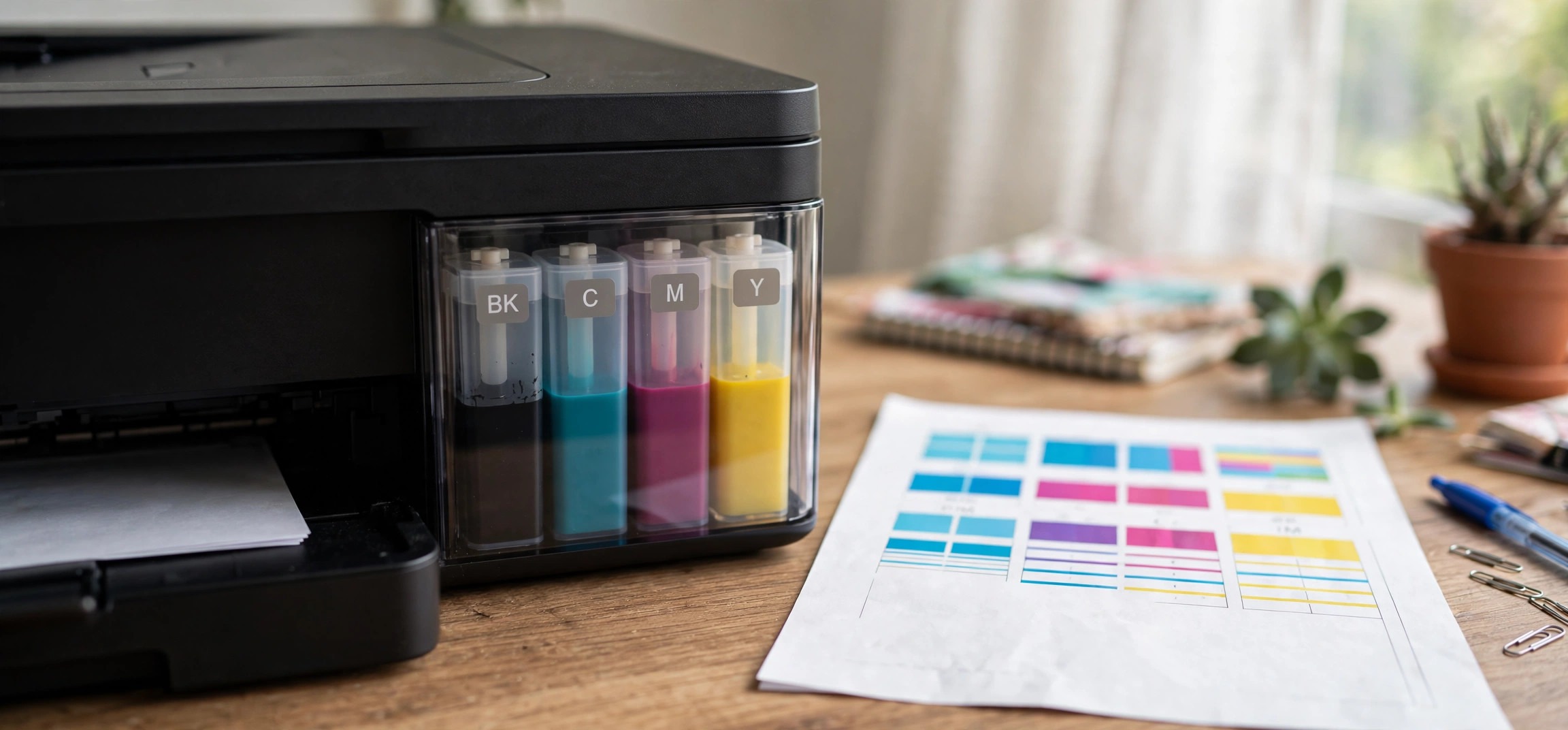
If your Epson printer is not printing black but has ink, you are far from alone — it is one of the most common inkjet problems in home offices. You check the ink tanks, the levels look fine, yet pages come out blank, faded, or missing all black text. The good news is that this almost never means your printer is dead. In most cases, the cause is a clogged black nozzle in the printhead, an airlock in the ink line, or a cartridge issue — and all of these have practical fixes you can try at home. This guide walks you through seven proven solutions, starting with the quickest checks and moving up to the deeper repairs.
Table of Contents
- Why Your Epson Printer Is Not Printing Black Even With Ink
- 1. Run a Nozzle Check to Diagnose the Problem
- 2. Run the Printhead Cleaning Cycle
- 3. Run a Power Cleaning (Deep Flush)
- 4. Check Cartridges, Tanks, and Vent Tapes
- 5. Align the Printhead
- 6. Update or Reinstall the Printer Driver
- 7. Manual Nozzle Soak and Last-Resort Options
- Frequently Asked Questions
Why Your Epson Printer Is Not Printing Black Even With Ink
When an Epson printer is not printing black but has ink, the ink supply is almost never the real problem — delivery is. Epson inkjets push ink through microscopic nozzles in a fixed printhead, and black is used the most, so its nozzles clog first. If the printer sat unused for weeks or months, dried ink can block those tiny openings completely.
Another common culprit is an airlock: a small bubble of air trapped in the ink line stops the flow even though the tank is full. On cartridge-based models, a cartridge that was refilled or replaced may have a blocked air vent (the small hole that lets air in as ink flows out). And on EcoTank models, ink can settle or sediment after long idle periods.
Less common causes include a misaligned printhead, a corrupted printer driver telling the printer to substitute colors for black, or a genuinely failed black channel in the printhead. The steps below are ordered so you try the harmless fixes first. Start at the top and work down — most people fix the problem in the first three steps.
1. Run a Nozzle Check to Diagnose the Problem
Before changing anything, print a nozzle check pattern. This is a diagnostic page your Epson printer can produce on its own, and it shows exactly which ink channels are flowing. On most Epson printers, go to Settings or Maintenance on the printer’s control panel, choose Nozzle Check, and press Start. If your model has no screen, open the printer settings on your computer, go to the Maintenance tab, and click Nozzle Check.
The pattern prints a set of lines for each color. Look specifically at the black section: if lines are missing, broken, or completely absent while the colors look fine, you have confirmed a black-nozzle clog or delivery problem. Keep this test page — you will print the same pattern after each fix so you can see the improvement.
If the black section is faint but visible, one standard cleaning cycle will probably fix it. If it is entirely blank, you may need two or three cycles or a power cleaning. Either way, do not skip this diagnostic step — it saves you from guessing.
2. Run the Printhead Cleaning Cycle
The standard head-cleaning cycle forces ink through the nozzles to dissolve dried ink. On the printer panel, find Maintenance > Head Cleaning (some models call it “Print Head Cleaning”), and run it. On a computer, it is in the printer’s Maintenance tab. The process takes a couple of minutes and uses a small amount of ink from every color, so avoid running it ten times in a row.
After the cleaning finishes, print another nozzle check and compare it to your first one. If the black lines are improving, run the cleaning a second time, then check again. Most Epson manuals suggest running up to three consecutive cleaning cycles with nozzle checks in between. If you see steady improvement each time, keep going until the pattern is solid.
If three cycles produce no change at all, stop — further standard cleanings will just waste ink. Move on to the power cleaning step below. And a word of caution: never run cleaning cycles back-to-back on an EcoTank with visibly low black ink, since running a printhead dry can overheat it.
3. Run a Power Cleaning (Deep Flush)
Power Cleaning (also labeled “Flush” on some models) is Epson’s heavy-duty routine for stubborn clogs that survive normal cleaning. It pushes a much larger volume of ink through the nozzles and can clear blockages that standard cycles cannot. Find it under Maintenance > Power Cleaning on the printer or in the computer’s Maintenance tab.
Before you start, check that the ink levels are reasonably high — power cleaning consumes noticeably more ink than a standard cycle, and some printers refuse to run it below a threshold. The process takes several minutes, and the printer should not be interrupted while it runs. Many Epson models ask you to wait about 12 hours after a power cleaning before evaluating the result, because dissolved ink residue needs time to flush fully through the system.
Use power cleaning sparingly: Epson generally recommends it only after the standard cleaning has failed, and not more than once or twice in a row. If one power cleaning plus the waiting period does not restore black, the clog may need the manual approach in step 7.
4. Check Cartridges, Tanks, and Vent Tapes
Hardware mistakes cause a surprising number of “no black ink” cases. If your Epson uses cartridges, remove the black one and inspect it. Check that any protective tape or vent sticker was fully removed when the cartridge was installed — a leftover seal over the air vent stops ink from flowing and is a classic cause of blank black pages.
Make sure the cartridge clicks firmly into place; a cartridge that is seated loosely may not open its outlet valve. If you recently installed a third-party or refilled cartridge and black stopped working at the same time, try the original Epson cartridge if you still have one. Epson printers are known to be picky about non-genuine cartridges, and a bad chip can make the printer refuse to draw ink.
On EcoTank models, verify the black tank is genuinely filled above the minimum line — the level window can be hard to read in dim light. Also check the ink lines for air bubbles: a long visible gap of air in the black tube is an airlock, which a power cleaning usually clears. Look for any kinked or pinched tubes running from the tank to the carriage as well.
For more on general printer weirdness, see our guide on fixing a printer that prints blank pages despite having ink — many of the same checks apply beyond just the black channel.
5. Align the Printhead
If black text prints but looks smeared, doubled, or streaky rather than missing entirely, the printhead may be misaligned. Run Print Head Alignment from the Maintenance menu. The printer prints a test sheet of numbered patterns and asks you to select the best-looking options (on models with screens) or does it automatically with a sensor (on newer models).
Alignment alone will not fix an Epson printer that is not printing black at all — it only corrects placement, not flow. But it is worth running after cleaning cycles, because heavy cleaning can leave the head slightly off, and a quick alignment removes any lingering banding or ghosting from your pages.
6. Update or Reinstall the Printer Driver
Sometimes the printer hardware is fine and the software is the problem. A corrupted driver can send documents with the wrong color settings — for example, telling the printer to composite “black” from color inks, or to skip the black channel entirely. If the nozzle check prints black perfectly but your documents do not, suspect the driver.
First, check your print settings for anything unusual: open the print dialog, confirm the paper type matches what you loaded, and make sure “Grayscale” or “Black & White” is selected (ironically, on Epson printers this setting often works better when the black channel is weak, because it can use composite black). Then visit the Epson support site to download the latest full driver for your exact model rather than relying on the basic Windows driver.
If updating does not help, fully uninstall the printer from your system, restart, and reinstall the fresh driver from Epson. This clears corrupted spooler settings and restores defaults. Windows users can also try printing the same document from a different app — if one app prints black fine and another does not, the problem is in the app’s settings, not the printer.
7. Manual Nozzle Soak and Last-Resort Options
If automatic cleaning has failed, you can clean the printhead manually — but only on Epson models where the printhead sits in the printer (not on the cartridge). With the printer on, start a cartridge-change so the carriage moves to the middle, then unplug the power cord so the carriage stays put. Dampen a lint-free cloth or folded paper towel with distilled water (never tap water, which leaves minerals), place it under the printhead where it parks, and let the head rest on it for a few hours. The moisture softens dried ink so a subsequent cleaning cycle can flush it out.
For EcoTanks with severe airlocks, some users gently tilt the printer to coax bubbles toward the tank — do this slowly and keep the printer level afterward; never shake an inkjet. If black still will not print after all of this, the printhead’s black channel may have failed electrically, which means professional service or a printhead replacement.
Our step-by-step walkthrough on how to clean printer heads without a computer covers the manual soak method in detail if you want to try it without touching any software. And if your printer also throws phantom errors, check how to clear a false paper jam error — the sensor-cleaning tips there often help during a deep maintenance session.
Frequently Asked Questions
Why is my Epson printer not printing black even though the ink tank is full?
The most common reason is a clogged black nozzle in the printhead. Ink can dry in the microscopic nozzles if the printer sits unused, especially the black channel, which gets the heaviest use. An air bubble in the ink line, a blocked cartridge vent, or a cartridge that is not seated properly can also stop black ink from flowing while the tank reads full. Run a nozzle check first to confirm the diagnosis, then try a head cleaning cycle.
How do I clean the printhead on an Epson printer?
Use the built-in routine: on the printer’s control panel go to Settings or Maintenance and choose Head Cleaning, or find it on the Maintenance tab of the printer properties on your computer. Print a nozzle check before and after so you can see the improvement. Run up to three standard cleanings, and if those fail, use Power Cleaning once and wait several hours before checking the result.
Will power cleaning fix black ink not printing?
Often, yes. Power Cleaning pushes far more ink through the nozzles than a standard cleaning and is designed for clogs that survive the normal cycle. It uses noticeably more ink, so make sure the tanks are reasonably full first, and give the printer several hours (some models suggest 12) before judging the result. Use it sparingly — it is a deep-flush tool, not a routine one.
Can third-party ink cause black printing problems on Epson printers?
It can. Epson printers check cartridge chips, and some third-party cartridges report full while delivering ink inconsistently, or have sealed vents that block flow. If black stopped printing right after you installed a non-Epson cartridge, reinstall an original Epson cartridge as a test. On EcoTanks, third-party bottled ink of the wrong viscosity can also clog nozzles faster than genuine ink.
How do I unclog an Epson printhead manually?
Move the carriage to the center by starting a cartridge change, then unplug the printer so it stays there. Place a lint-free cloth dampened with distilled water under the printhead’s parking position and let it sit for a few hours. The moisture softens dried ink; afterward, run a normal head cleaning to flush it out. Never use tap water or alcohol on the nozzles, and do not touch the nozzle plate with hard tools.
When should I replace the printer instead of repairing it?
If you have tried standard cleaning, power cleaning, new genuine cartridges, and a manual soak with no improvement, the printhead’s black channel has likely failed electrically. At that point, compare the cost of a printhead replacement or professional service against a new printer — on budget Epson models, a new printer is often cheaper than the repair. Also consider replacement if the printer is more than five years old and other parts are wearing out.
An Epson printer not printing black when it has ink is frustrating, but it is one of the most fixable printer problems there is. Work through the nozzle check, cleaning cycles, and cartridge checks in order, and give each step time to work — especially power cleaning. In the great majority of cases, black printing comes back without spending a rupee on repairs.


