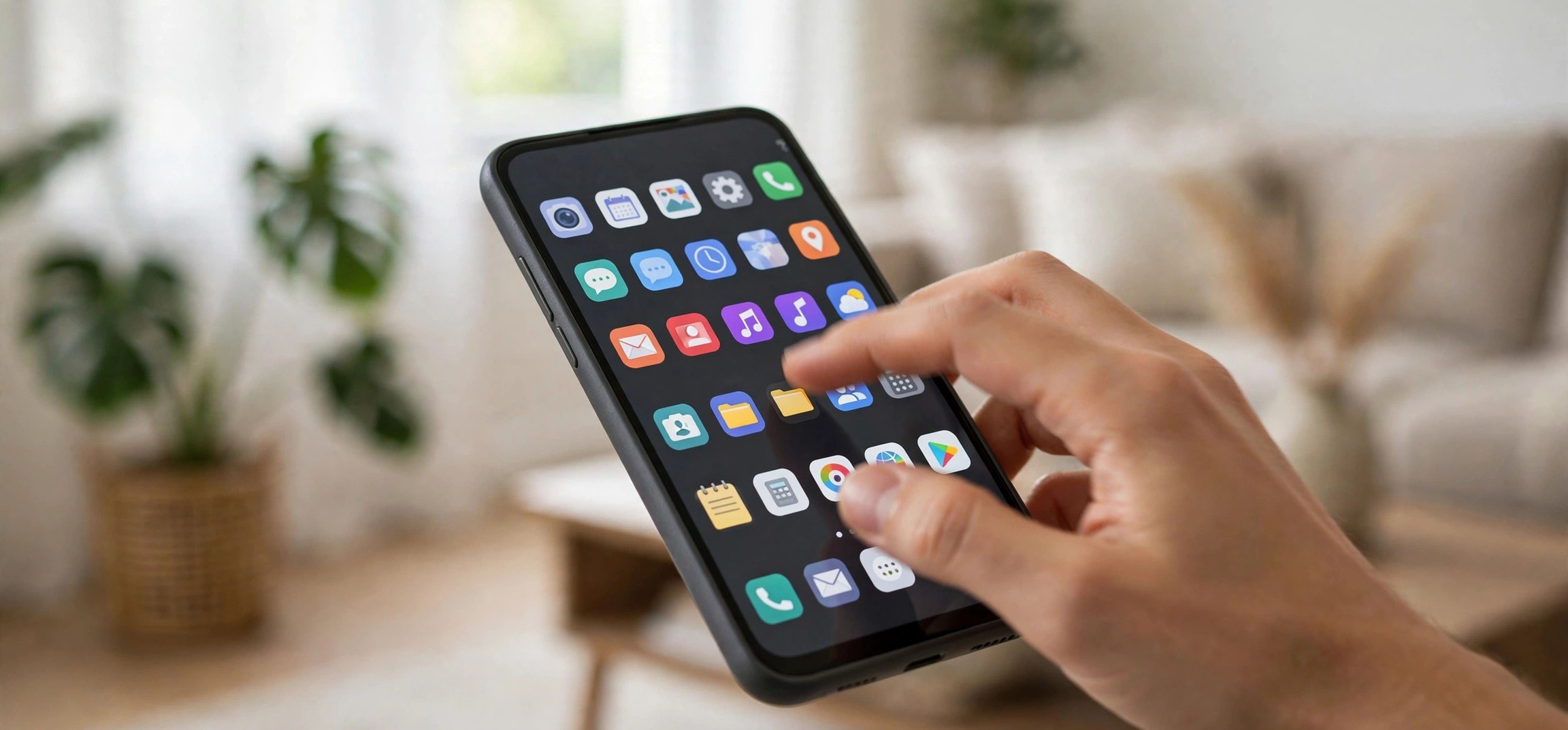
Maybe you want banking apps out of sight when handing your phone to a child, or you simply want a cleaner app drawer without deleting anything. Whatever the reason, learning how to hide apps on android without launcher replacements is entirely possible — most major Android brands ship built-in hiding features, and stock Android has privacy tools that achieve the same result. These six methods use only what is already on your phone: no third-party launcher, no extra downloads, no root.
- Method 1: Samsung Secure Folder & Home Screen Settings
- Method 2: OnePlus / Oppo Hidden Space
- Method 3: Xiaomi Hidden Apps & Second Space
- Method 4: Vivo, Realme & Other Brands’ Built-in Hiding
- Method 5: Disable Preinstalled Apps You Can’t Uninstall
- Method 6: Use a Separate User Profile (Stock Android)
- What Hiding Can’t Do: Know the Limits
- Frequently Asked Questions
Method 1: Samsung Secure Folder & Home Screen Settings
Samsung offers two built-in options. The lighter one: open Settings > Home screen and tap Hide apps on Home and Apps screens. Select the apps to hide, tap Done, and they vanish from both the home screen and the app drawer — while remaining installed, updated, and fully functional. To unhide, return to the same screen and deselect them. Hidden apps do not appear in search results either, which is the level of discretion most people want.
The heavier option is Secure Folder (Settings > Security and privacy > Secure Folder), a Knox-encrypted vault with its own lock (PIN, pattern, or biometrics). Move sensitive apps into it and they disappear from the main profile entirely — notifications from Secure Folder apps are also silenced outside the folder. This is the strongest built-in hiding on any Android phone: even someone browsing your Settings cannot see what is inside without the lock credential.
Note that Secure Folder requires a Samsung account to set up, and apps inside it are separate installations — you will sign into them again, and they consume a little extra storage.
Method 2: OnePlus / Oppo Hidden Space
OnePlus and Oppo phones include Hidden Space, accessed by swiping right on the app drawer (or pinching out, depending on the OxygenOS/ColorOS version). The first time you open it, you set a privacy password. Then long-press any app in the drawer and choose Move to Hidden Space — or open Hidden Space and tap the + to add apps.
Apps in Hidden Space disappear from the regular drawer, home screen, and recent-apps overview. You can additionally require the privacy password just to open Hidden Space itself, so its very existence is deniable to a casual snooper. Notifications from hidden apps are suppressed on the lock screen, though you can fine-tune this per app.
To unhide, open Hidden Space, long-press the app, and choose Unhide. The app returns to the drawer with its data intact — hiding never deletes anything.
Method 3: Xiaomi Hidden Apps & Second Space
Xiaomi’s MIUI/HyperOS has the most elaborate built-in system. Go to Settings > Apps > Hidden apps (on some versions: Settings > Privacy protection > Hidden apps), enable the feature, set a privacy password or pattern, and select apps to hide. Hidden apps vanish from the home screen, drawer, and search.
The clever part is the access gesture: with hiding enabled, spreading two fingers apart on the home screen (a reverse pinch) opens a password prompt that reveals the hidden apps. It is fast for you and invisible to anyone who does not know the gesture exists.
For maximum separation, Xiaomi also offers Second Space (Settings > Special features > Second Space) — effectively a second phone inside your phone, with its own apps, files, and even a different unlock password or fingerprint that boots directly into it. Switch between spaces from the lock screen. This is overkill for hiding a single app, but ideal if you want a genuinely separate private environment.
Method 4: Vivo, Realme & Other Brands’ Built-in Hiding
Most other major brands have equivalents under slightly different names. Vivo/iQOO: Settings > Privacy > App hiding (called “App clone and hiding” on some versions) — set a privacy password and choose apps. Realme (ColorOS-based): Settings > Privacy > App lock / Hide apps with an access-number passcode dialed in the Phone app to reveal them. Motorola and Nokia (near-stock Android): no dedicated hide feature, so use Method 5 or 6 below.
The pattern is consistent: a privacy password gates the feature, hidden apps leave the drawer and search, and unhiding restores everything with data intact. If your brand is not listed, search Settings for “hide” — Android’s settings search surfaces these features even when buried three menus deep.
A related privacy move: check which apps can appear over your lock screen. Our guide to fixing delayed Android notifications explains notification channels, which also control what hidden apps can reveal on the lock screen.
Method 5: Disable Preinstalled Apps You Can’t Uninstall
For bloatware and preinstalled apps that you neither use nor can uninstall, disabling is the built-in answer. Go to Settings > Apps, tap the app, and choose Disable. The app vanishes from the drawer and home screen, stops running entirely (no background processes, no updates, no notifications), and frees its updates’ storage space.
Disabled apps are not deleted — the factory version remains in system storage — so you can re-enable them anytime from the same screen (scroll to the bottom of the app list, where disabled apps are grouped). This is the correct method for carrier bloat, duplicate manufacturer apps, and anything you want gone rather than merely hidden.
Be cautious with system-critical entries: disabling the wrong system component (anything with “System,” “Provider,” or “Service” in the name that you do not recognize) can break features. When in doubt, only disable apps you recognize as optional — games, shopping apps, duplicate browsers, carrier utilities. If something breaks, re-enabling restores it instantly.
Method 6: Use a Separate User Profile (Stock Android)
Stock Android (Pixels, Motorolas, Nokias) lacks an app-hiding toggle, but it has something arguably better: multiple user profiles. Go to Settings > System > Multiple users and enable it, then add a user. Each profile is a fully isolated environment — its own apps, its own app drawer, its own lock.
Install your private apps only in the second profile. When someone uses your phone, switch to the main profile (or better, the Guest profile, which wipes itself on exit) and the private apps simply do not exist there — not hidden, but absent. Switch back to your private profile with its own PIN when you need them.
The trade-offs: profiles consume extra storage (apps installed in two profiles are stored twice), switching takes a few seconds, and some phones restrict background activity in inactive profiles (so do not put apps needing real-time notifications there — messaging apps belong in your main profile). For pure privacy, though, nothing built into Android beats it.
Freeing space for that second profile? Our guide to fixing Android storage full with nothing to delete clears the hidden junk first.
What Hiding Can’t Do: Know the Limits
Built-in hiding is privacy from casual observers, not forensic security. Know the boundaries:
- Hidden apps still run. Unless disabled or vaulted (Secure Folder), a hidden app can still send notifications, appear in battery-usage stats, and show up in Settings > Apps as installed. Anyone digging through the full app list will find it.
- Digital Wellbeing and data usage list all apps regardless of hidden status.
- Backups may include hidden apps and their data — check your backup settings if the backup destination is shared.
- Work-profile and parental-control tools on managed devices can see everything; hiding does not defeat device-admin visibility.
For genuinely sensitive material, combine methods: Secure Folder or a separate user profile plus a strong device lock is meaningfully more private than any single toggle. And keep your phone’s overall health in mind — an overheating phone draws attention, so see our overheating-while-charging fixes if heat is an issue.
Frequently Asked Questions
Can I hide apps on Android without installing anything?
Yes — that is exactly what this guide covers. Samsung, OnePlus/Oppo, Xiaomi, Vivo, and Realme all include hiding features out of the box, and every Android phone supports disabling apps and multiple user profiles. No launcher replacement or third-party app is required for any of the six methods.
Do hidden apps still send notifications?
It depends on the method. Samsung’s drawer-hiding leaves notifications active; Secure Folder and user profiles isolate them. OnePlus Hidden Space and Xiaomi hidden apps suppress lock-screen notifications by default. Check each hidden app’s notification settings after hiding to confirm the behavior you want.
Will hiding an app delete its data?
No. Hiding only removes the icon from the drawer and home screen. The app, its data, and its login sessions remain intact. Disabling also preserves the app’s core data. Only uninstalling deletes data.
How do I find hidden apps again?
Use the same feature that hid them: the reverse-pinch gesture (Xiaomi), swiping right in the drawer (OnePlus), the Home screen settings page (Samsung), or the privacy settings screen (Vivo/Realme). For disabled apps, scroll to the bottom of Settings > Apps. For user profiles, switch profiles from the quick-settings user tile.
Can someone tell I am hiding apps?
A determined person checking Settings > Apps can see installed apps regardless of drawer hiding — only Secure Folder and separate user profiles withstand that level of inspection. Against casual glances at your home screen or drawer, all six methods are effective.
Is hiding apps the same as app lock?
No. Hiding removes the icon; app lock (also built into most brands’ privacy settings) keeps the icon visible but requires a password to open the app. Many people use both: hide the app and lock it, so even if discovered, it cannot be opened.
Figuring out how to hide apps on android without launcher swaps is mostly a matter of knowing where your brand buried the feature — it is in Settings, not the Play Store. Samsung owners get the excellent Secure Folder, OnePlus and Xiaomi owners get slick gesture-based vaults, and everyone else gets disabling plus the underrated power of multiple user profiles. Pick the method that matches your phone and your privacy needs, test that notifications behave as you expect, and enjoy a cleaner, more private app drawer.


