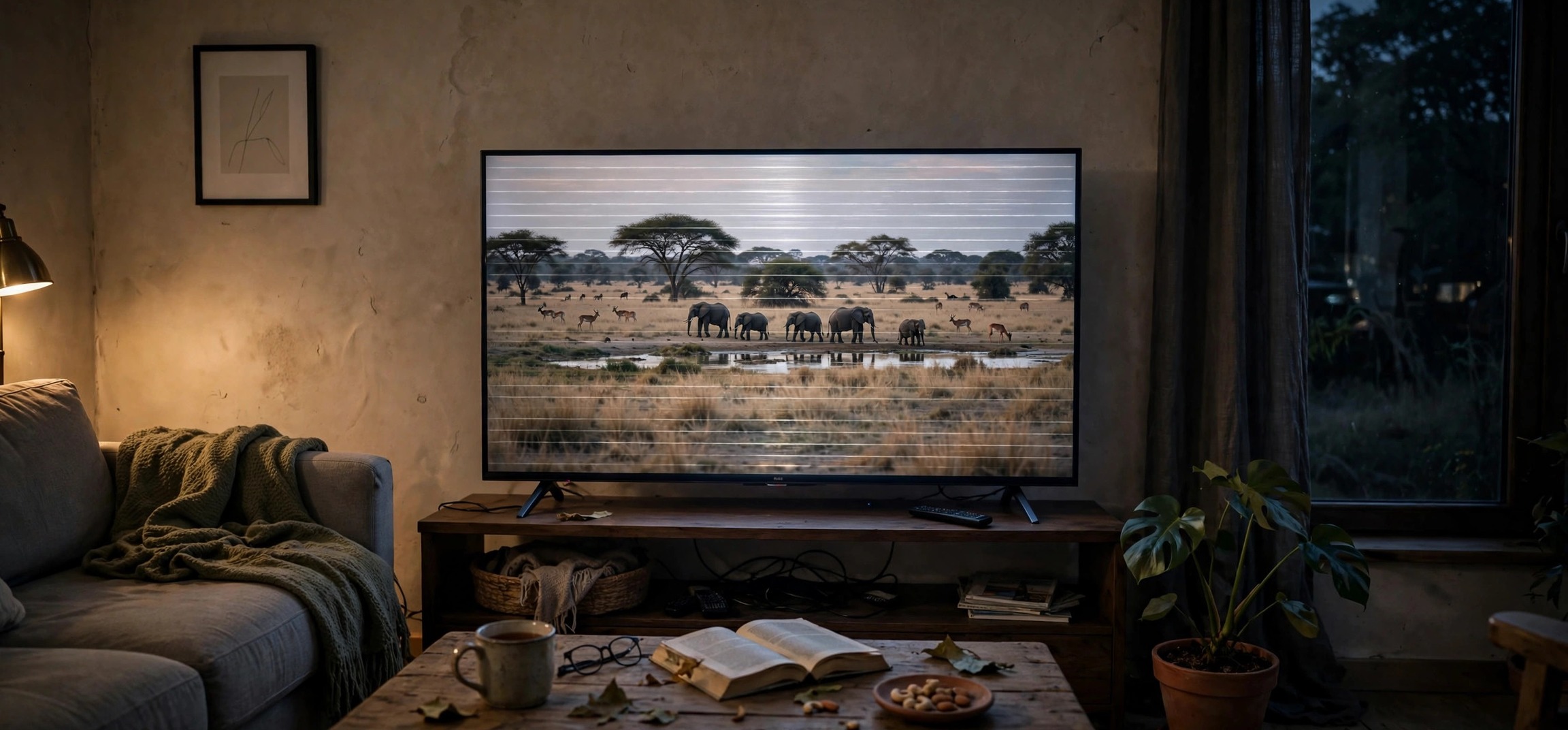
A flickering TV turns movie night into a headache — literally. Whether it is a subtle brightness pulse, horizontal lines dancing across the screen, or a full strobe effect, learning tv screen flickering how to fix starts with good news: most flicker comes from settings, cables, or signal issues, not a dying panel. Only a small minority of cases indicate failing hardware. These eight fixes move from the most common causes to the rarest, so start at the top and stop when the picture goes steady.
- What Causes a TV Screen to Flicker?
- Fix 1: Check and Replace HDMI Cables
- Fix 2: Match the Refresh Rate to the Source
- Fix 3: Turn Off Motion Smoothing and Eco Modes
- Fix 4: Adjust Backlight and Brightness Settings
- Fix 5: Rule Out Power Supply Problems
- Fix 6: Update the TV’s Firmware
- Fix 7: Test the Source Device and Ports
- Fix 8: Factory Reset as a Last Resort
- Frequently Asked Questions
What Causes a TV Screen to Flicker?
Screen flicker falls into a few families. Signal flicker comes from a bad cable, loose connection, or mismatched refresh rate between the TV and the source device — the picture data arrives corrupted or out of sync. Processing flicker comes from the TV’s own picture enhancements: motion interpolation, dynamic contrast, and energy-saving dimming that visibly pulse. Power flicker comes from an unstable power supply — inside the TV or from the wall outlet — starving the backlight. And panel flicker, the rarest, comes from failing backlight LEDs or driver circuitry.
The pattern of the flicker is your best diagnostic clue. Flicker on only one input (say, the cable box but not the built-in apps) points to signal or source. Flicker across everything including the TV’s own menus points to the panel, backlight, or power. Flicker that pulses rhythmically often traces to eco/dimming features; random flicker suggests cables or power.
Fix 1: Check and Replace HDMI Cables
Loose or degraded HDMI cables are the number one cause of tv screen flickering how to fix searches. Unplug each HDMI cable at both ends and plug it back in firmly — you should feel a positive click. While unplugged, inspect the connectors for bent pins, corrosion, or dust.
If reseating does not help, swap the cable entirely. HDMI cables fail internally with age, especially if bent sharply behind a wall-mounted TV. For 4K TVs, make sure the replacement is rated High Speed or Ultra High Speed — an old standard-speed cable carrying a 4K HDR signal is a classic flicker recipe. Keep cable runs as short as practical; runs over 15 feet without an active cable or extender invite signal degradation.
Also try a different HDMI port on the TV. Individual ports can develop faults, and some TVs designate specific ports for full-bandwidth 4K — plugging a 4K source into a limited port causes exactly the sync-flicker people describe. Your TV’s manual (or a quick model search) identifies which ports support what.
Fix 2: Match the Refresh Rate to the Source
When the source device outputs 60Hz and the TV’s processing expects something else — or when frame-rate conversion goes wrong — the result is judder and flicker, especially noticeable in panning shots and sports. Open the source device’s display settings (cable box, streaming stick, game console, or PC) and check its output resolution and refresh rate.
Set the source to match the TV’s native capabilities: typically 4K at 60Hz or 1080p at 60Hz. On a PC connected via HDMI, right-click the desktop, open display settings, and verify the refresh rate under advanced display settings. For gaming consoles, enable the console’s “match content frame rate” style options where available so 24fps movies are not force-converted to 60Hz.
On the TV side, look for a Game Mode or PC Mode — these disable heavy processing and lock the panel to the input’s native timing, which eliminates a whole class of conversion flicker. If flicker appears only while gaming, also check whether variable refresh rate (VRR/FreeSync/G-Sync) settings on both devices agree; a VRR mismatch flickers notoriously.
Fix 3: Turn Off Motion Smoothing and Eco Modes
Modern TVs ship with picture “enhancements” that cause more problems than they solve. The worst offender is motion smoothing — sold as “MotionFlow,” “TruMotion,” “Auto Motion Plus,” or “Motion Clarity” depending on brand. It invents interpolated frames between real ones, and when it guesses wrong, brightness and edges visibly pulse. Turn it Off (not “Auto,” not “Low” — off) in the picture settings.
Next, disable anything with “Eco,” “Energy Saving,” or “Ambient Light Detection” in the name. These features continuously adjust backlight brightness based on room light or screen content, and the adjustment steps are often visible as flicker — particularly the dynamic contrast / local dimming aggressive modes. Set energy saving to Off and dynamic contrast to Off or Low.
Finally, try the Filmmaker Mode or Movie/Cinema picture preset. These presets disable nearly all processing by design, giving you the cleanest signal path. If flicker vanishes in Filmmaker Mode, you have confirmed a processing cause, and you can re-enable individual features one by one to find the specific offender.
Fix 4: Adjust Backlight and Brightness Settings
On LED/LCD TVs, the backlight is often dimmed using PWM (pulse-width modulation) — rapidly switching the LEDs on and off. At low backlight settings, the pulsing can become perceptible, especially to sensitive viewers and often visible when filming the screen with a phone. The fix is counterintuitive: raise the backlight setting.
Go to picture settings and increase Backlight (on some brands called “Brightness” for the backlight specifically — distinct from the “Brightness” that controls black levels) to 70–80% or higher, then lower the room lighting instead if the picture feels too bright. Higher backlight levels use less aggressive PWM dimming, which usually eliminates the pulse.
While here, reset Brightness (black level) and Contrast to their defaults if they have been pushed to extremes — crushed blacks and clipped whites stress the panel driver and can manifest as shimmering in dark or bright scenes respectively.
Fix 5: Rule Out Power Supply Problems
An underpowered or unstable mains supply makes the backlight flicker as voltage sags. First, plug the TV directly into a wall outlet, bypassing power strips, extension cords, and especially cheap multi-plugs shared with high-draw appliances. If the flicker stops, the strip was the problem — replace it with a quality surge protector.
Note whether flicker correlates with other appliances: if the screen pulses every time the air conditioner compressor kicks in or the microwave runs, you are seeing voltage sag on that circuit. An electrician-grade solution is a dedicated circuit, but a UPS (uninterruptible power supply) with voltage regulation smooths sags effectively for most homes.
Inside the TV, failing power-board capacitors cause a distinctive slow brightness breathing. If the TV is several years old, flicker appeared gradually, and it happens on all inputs including the TV’s own menu, aging capacitors are a plausible cause — a repair shop can confirm and replace the board far cheaper than a new TV.
Fix 6: Update the TV’s Firmware
Manufacturers regularly fix flicker bugs in firmware updates — panel driver timing, HDMI handshake, and local-dimming algorithms are all software-controlled on modern TVs. Open Settings > Support > Software Update (menu paths vary by brand) and check for updates. If the TV is connected to WiFi, enable automatic updates so future fixes arrive on their own.
If the built-in updater finds nothing but you suspect a bug, check the manufacturer’s support site for your exact model — updates sometimes appear there before rolling out over the air. USB manual updates are straightforward: download, extract to a FAT32 USB stick, plug it in, and follow the on-screen prompts. Do not power off the TV during the update.
If your TV keeps dropping its internet connection and cannot check for updates, our guide to fixing a smart TV that keeps disconnecting from WiFi will get it back online first.
Fix 7: Test the Source Device and Ports
Isolate the problem with a simple matrix test. Play the TV’s built-in apps (Netflix, YouTube) — if they are steady while the cable box flickers, the cable box or its HDMI chain is at fault, not the TV. Conversely, if the TV’s own menu flickers with nothing connected, the issue is internal.
Test the suspect source on a different TV or monitor if possible, and test a known-good source (a laptop, a different streaming stick) on the flickering TV’s ports. Swap HDMI ports as part of this test. This systematic elimination takes fifteen minutes and prevents the expensive mistake of replacing a TV when the $40 streaming stick was the problem.
For PCs and consoles, also try a different output resolution temporarily — dropping from 4K to 1080p for a test tells you whether bandwidth is the issue. If 1080p is rock solid and 4K flickers, the cable or port bandwidth (Fix 1) is the bottleneck.
Fix 8: Factory Reset as a Last Resort
If flicker persists across all inputs, cables are good, power is clean, and firmware is current, a corrupted settings database may be the cause — particularly after a failed update. A factory reset returns every picture, network, and system setting to day-one defaults.
Find Settings > General > Reset (Samsung), Settings > Device Preferences > Reset (Android TV), or the equivalent on your brand. You will need to re-enter WiFi credentials and sign back into apps afterward, so have passwords handy. Test the picture before restoring your custom picture settings — if the flicker is gone on defaults, reintroduce your tweaks gradually to catch the one that caused it.
If the factory reset does not help and the flicker affects the TV’s own menus with no sources connected, you are likely looking at hardware: backlight LEDs, the panel driver board (T-Con), or the power supply. At that point, compare repair quotes against replacement cost — for budget TVs over five years old, replacement usually wins. For related display troubleshooting on laptops, see our laptop screen flickering fixes, and if you mirror your phone to the TV, our guide to connecting a phone to a TV without WiFi covers the HDMI adapter chain.
Frequently Asked Questions
Why does my TV flicker only when watching certain content?
Content-dependent flicker usually traces to processing: motion smoothing struggling with 24fps film content, or local dimming pumping brightness during dark scenes with bright highlights. Switch to Filmmaker/Movie mode for that content. If it flickers only on one streaming app, reinstall the app — corrupted app caches cause rendering glitches.
Can a bad HDMI cable really cause flickering?
Yes — it is the most common cause. HDMI carries uncompressed digital video at very high bitrates; a marginal cable drops bits, and the TV’s error concealment shows it as sparkles, lines, or full-frame flicker. The cable can work fine for years and then degrade, especially if it has been bent or yanked.
Is screen flickering dangerous for my eyes?
Noticeable flicker causes eye strain and headaches in sensitive people, and it ruins the viewing experience for everyone. There is no evidence of permanent harm from typical TV flicker, but there is no reason to tolerate it either — the fixes above resolve the vast majority of cases.
Why does my new TV flicker out of the box?
New TVs ship with every enhancement maxed out for bright showroom floors — motion smoothing on high, dynamic contrast on, eco modes on. Run through Fix 3 before anything else; showroom settings flicker in dim home living rooms. Also verify the HDMI cable you connected is rated for your TV’s resolution.
Does flickering mean my TV is dying?
Not usually. Dying panels show persistent symptoms: lines that never go away, dark zones, or failure to stay on — not intermittent flicker that comes and goes with inputs or settings. If flicker affects the TV’s own menus with no devices connected and survives a factory reset, then hardware failure enters the picture.
Should I use the TV’s built-in apps or an external streaming device?
For flicker diagnosis, built-in apps are the cleanest test signal because they bypass HDMI entirely. For daily use, either is fine — but each HDMI device in the chain is another potential flicker source, so fewer links generally means fewer problems.
TV screen flickering looks alarming but is overwhelmingly a settings, cable, or signal problem — not a dying TV. Work the list in order: reseat and replace HDMI cables, match refresh rates, kill the motion smoothing and eco modes, stabilize the power, and update the firmware. The pattern of the flicker tells you where to look, the matrix test tells you what is guilty, and the factory reset is your safety net. Steady picture restored, movie night saved.

