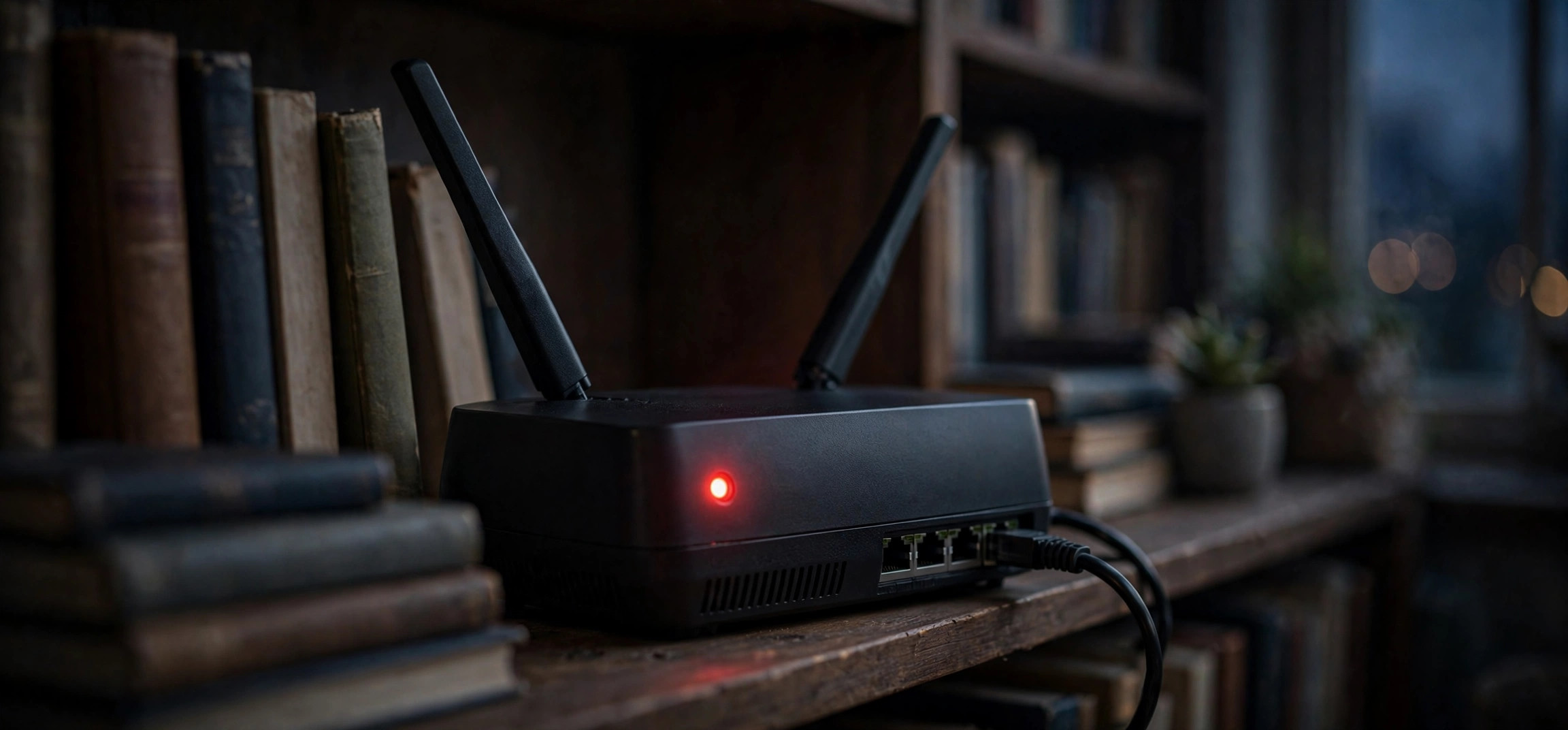
You glance at your router and your stomach drops: the light that is normally green or blue is now blinking red. No internet, no streaming, no work. Before you panic or call your ISP, know this — a router blinking red light is the device’s way of telling you exactly what is wrong, and most of the time the fix is something you can do yourself in minutes.
This guide explains what the red blinking light means on every major router brand, then walks you through seven fixes ordered from quickest to most thorough. By the end, you will know whether the problem is your equipment, your line, or your provider — and what to do about each.
- What a Blinking Red Light on a Router Means
- Red Light Meanings by Brand
- Fix 1: Power-Cycle the Router and Modem
- Fix 2: Check Every Cable and Connection
- Fix 3: Rule Out an ISP Outage
- Fix 4: Cool Down an Overheating Router
- Fix 5: Update Firmware or Reset the Router
- Fix 6: Check WAN and Account Settings
- Fix 7: Test With Different Hardware
- Frequently Asked Questions
Router Blinking Red Light Meaning: What Your Router Is Telling You
Router lights are a diagnostic language. Green or blue generally means “everything is working,” while red means “something needs attention.” The critical distinction is between solid red and blinking red: a solid red light usually indicates a hardware failure or a complete loss of signal, while a router blinking red light most often means the router is trying to establish a connection and failing — it is attempting, not dead.
In practical terms, a blinking red light typically points to one of four things: the router cannot reach your internet provider (line or account issue), the connection between the router and modem is broken, the router’s firmware has crashed, or the device is overheating and throttling itself. The brand-specific guide below narrows it down further, because each manufacturer assigns slightly different meanings to its lights.
Router Blinking Red Light Meanings by Brand
Before troubleshooting, identify what your router is trying to say. A router blinking red light means slightly different things by manufacturer, so check your model’s manual for the definitive answer — but these are the common patterns:
- TP-Link / Archer: A blinking red or orange internet LED usually means no internet connection — the router is connected to the modem but cannot reach the internet. Check the WAN cable and your ISP status.
- Netgear (Nighthawk/Orbi): A blinking red or amber internet light indicates the router is attempting to connect. A solid amber that never turns white/green suggests a failed connection or firmware issue.
- ASUS: A red WAN light typically means the WAN (internet) port has no connection — the cable to the modem is unplugged, faulty, or the modem has no signal.
- Linksys: A blinking red light often signals no internet connection or a firmware problem; some models blink red during a failed firmware update.
- Xfinity / ISP-provided gateways: A blinking red or orange light generally means the gateway cannot connect to the provider’s network — often a line issue or area outage.
- Eero / Google Nest Wifi: These use app-based status rather than red lights, but a red ring (Eero) means no internet connection — check the modem and cables first.
The pattern is consistent: blinking red almost always equals “I cannot get online.” The fixes below address each possible reason in the order of likelihood.
Fix 1: Power-Cycle the Router and Modem
The first fix resolves a remarkable percentage of blinking-red situations: a proper power cycle of both the router and the modem, in the right order. A simple router reboot is not enough when the modem’s session with your ISP is the thing that is stuck.
Unplug the power from both devices. If your modem has a battery backup, remove that too — otherwise it never truly powers down. Wait a full two minutes; this lets your ISP’s equipment clear the old session. Plug the modem back in first and wait until its lights stabilize (online/cable light solid). Only then plug in the router and give it two to three minutes to boot and negotiate its connection.
If the red blinking stops and turns green or blue, a stale session was the culprit. If it returns after a while, note the timing — a connection that works for exactly a few minutes before failing points to an overheating router or a line that drops under load, which the later fixes address.
Fix 2: Check Every Cable and Connection
A surprising number of “router failures” are cable failures. Start with the cable between the modem and the router’s WAN/internet port (usually colored differently or labeled). Unplug it at both ends, inspect for bent pins or damage, then reseat it firmly until it clicks. Try a different Ethernet cable if you have a spare — cables fail internally with no visible damage.
Next, check the modem’s incoming line: the coaxial cable (cable internet) should be finger-tight at both the wall and the modem — use a wrench for a gentle quarter-turn if it is loose, but do not overtighten. For DSL, check the phone-line connection and any filters or splitters; a filter that worked loose produces exactly the intermittent signal loss that causes blinking red lights. For fiber (ONT boxes), verify the fiber cable is not bent sharply and the ONT has power.
While you are behind the equipment, confirm everything is plugged into a working outlet — a power strip that got switched off is an embarrassing but genuinely common cause. If your laptop shows WiFi connected but no internet, the same cable and modem checks apply from the computer’s perspective.
Fix 3: Rule Out an ISP Outage
Before you factory-reset anything, check whether the problem is even yours. ISP outages — area-wide or node-specific — put a router blinking red light on thousands of routers simultaneously, and no amount of home troubleshooting fixes them.
Check your provider’s status page or app first; most major ISPs maintain a real-time outage map. Third-party outage trackers that aggregate user reports are a useful second opinion — a sudden spike of reports in your area confirms it is not your equipment. Your provider’s support social media accounts often post outage acknowledgments faster than their phone lines do.
You can also call your ISP’s automated line from your mobile phone; many providers’ systems detect the outage from your account and tell you immediately, saving a hold queue. If there is a confirmed outage, the only fix is patience — but at least you will stop troubleshooting hardware that was never broken. Note the estimated restoration time and check back rather than repeatedly power-cycling, which can complicate the reconnection when service returns.
Fix 4: Cool Down an Overheating Router
Routers are small computers that run 24/7, and they hate heat. A router stuffed in a closed cabinet, stacked under other electronics, or coated in dust can overheat — and an overheating router drops connections, reboots spontaneously, and yes, blinks red.
Feel the router: if it is uncomfortably hot to the touch, heat is at least a contributor. Move it to an open, ventilated spot — on top of a shelf rather than inside a cabinet, away from direct sunlight and heating vents. Make sure its ventilation slots are not blocked and are free of dust; a can of compressed air through the vents works wonders on a router that has not been cleaned in years.
Do not stack the modem on top of the router or vice versa — each heats the other. If the router sits in an unavoidably warm spot, a small USB fan pointed at it is a legitimate long-term fix. Routers that only misbehave on hot afternoons or after hours of heavy streaming are telling you the problem is thermal.
Fix 5: Update Firmware or Reset the Router
Corrupted or outdated firmware can leave a router blinking red indefinitely — it boots, fails to initialize its WAN connection properly, and retries forever. Most modern routers update automatically, but a failed auto-update is itself a classic cause.
Log into your router’s admin page (usually at an address like 192.168.1.1 or 192.168.0.1 — check the sticker on the router) and look for a firmware update section. If an update is available, install it over a wired connection if possible. If the router is too unstable to stay up long enough, download the firmware file from the manufacturer’s support site onto a computer and use the manual update option.
If firmware is current and the problem persists, perform a factory reset: hold the recessed reset button for 10–30 seconds (check your manual for the exact duration) until the lights change. This wipes all custom settings — WiFi name, password, port forwards — so you will need to set the router up again afterward. But it also clears any corrupted configuration that was blocking the WAN connection, which resolves a large share of stubborn blinking-red cases. For context on keeping home networking gear healthy, see our guide to WiFi that is slow on only one device — the diagnostic mindset is the same.
Fix 6: Check WAN and Account Settings
Sometimes the hardware and line are fine, but the router’s account configuration is wrong. This happens after ISP changes, modem swaps, or factory resets that wiped the connection settings. The router blinks red because it is authenticating incorrectly — or not at all.
Log into the router admin page and check the WAN/internet settings. Many ISPs require specific settings: DHCP (automatic) is most common for cable, PPPoE with a username and password for many DSL and some fiber providers, and some ISPs bind the connection to the modem’s MAC address (in which case you may need to clone the old modem’s MAC or call the ISP to register the new one).
If you recently changed your ISP account password or the provider migrated your account, the PPPoE credentials stored in the router may be stale. Re-enter them carefully. When in doubt, call your ISP’s tech support and ask them to verify the expected WAN configuration for your account — they can also check from their end whether your modem is successfully communicating with their network, which instantly separates “your problem” from “their problem.”
Fix 7: Test With Different Hardware
If every fix has failed, it is time to determine whether the router itself has died. Connect a computer directly to the modem with an Ethernet cable, bypassing the router entirely. If the internet works, the modem and line are fine — the router is the problem.
Try a different router if you can borrow one; if the replacement connects immediately, your old router has a hardware fault (often a failed WAN port or dying capacitors — both common in routers older than four or five years). Consumer routers are not built to last forever, and a unit that has run hot for years owes you nothing.
Conversely, if the direct-to-modem connection also fails, the modem or the line is at fault — call your ISP and report that a wired connection straight to the modem gets no signal. That sentence alone usually escalates you past the scripted troubleshooting to a line technician or a modem replacement. Either way, this test gives you a definitive answer instead of another round of guessing.
Frequently Asked Questions
What does a blinking red light on my router mean?
A router blinking red light almost always means the router cannot establish an internet connection — it is trying and failing. This differs from a solid red light, which more often indicates a hardware failure. The usual causes are a stale modem session, bad cables, an ISP outage, overheating, or wrong WAN settings.
How do I fix a router blinking red light?
Power-cycle both the modem and router (modem first, waiting for its lights to stabilize), check all cables, rule out an ISP outage, and make sure the router is not overheating. If those fail, update the firmware or factory-reset the router, then verify your WAN/account settings with your ISP.
Will a factory reset fix the red light?
Often, yes — if the cause is corrupted configuration or a failed firmware update. But a factory reset wipes your WiFi name, password, and all custom settings, so treat it as a later step, not the first one. Try the power cycle and cable checks first.
Can overheating cause a router to blink red?
Yes. Overheating causes dropped connections, spontaneous reboots, and connection failures that present as a blinking red light. If the router is hot to the touch or only fails on warm days, improve ventilation — move it to open air, clear the vents of dust, and do not stack equipment on it.
How long should I wait after power-cycling?
Unplug both devices for a full two minutes, then plug in the modem first and wait for its lights to go solid (two to five minutes), then plug in the router and give it another two to three minutes. Rushing the sequence is the most common reason power cycles “don’t work.”
When should I replace my router instead of fixing it?
Consider replacement if the router is more than four to five years old, runs hot constantly, needs weekly reboots to stay working, or fails the direct-to-modem test (internet works bypassing the router but not through it). A new mid-range router is often cheaper than the time spent fighting dying hardware.
A router blinking red light feels alarming, but it is really just your network equipment asking for help in the only language it has. Work the list in order — power cycle, cables, outage check, cooling, firmware, account settings — and you will either fix it or know exactly who to call. And if the router recovers but the signal still does not reach every room, our guide on improving WiFi signal without an extender picks up where this one leaves off.


