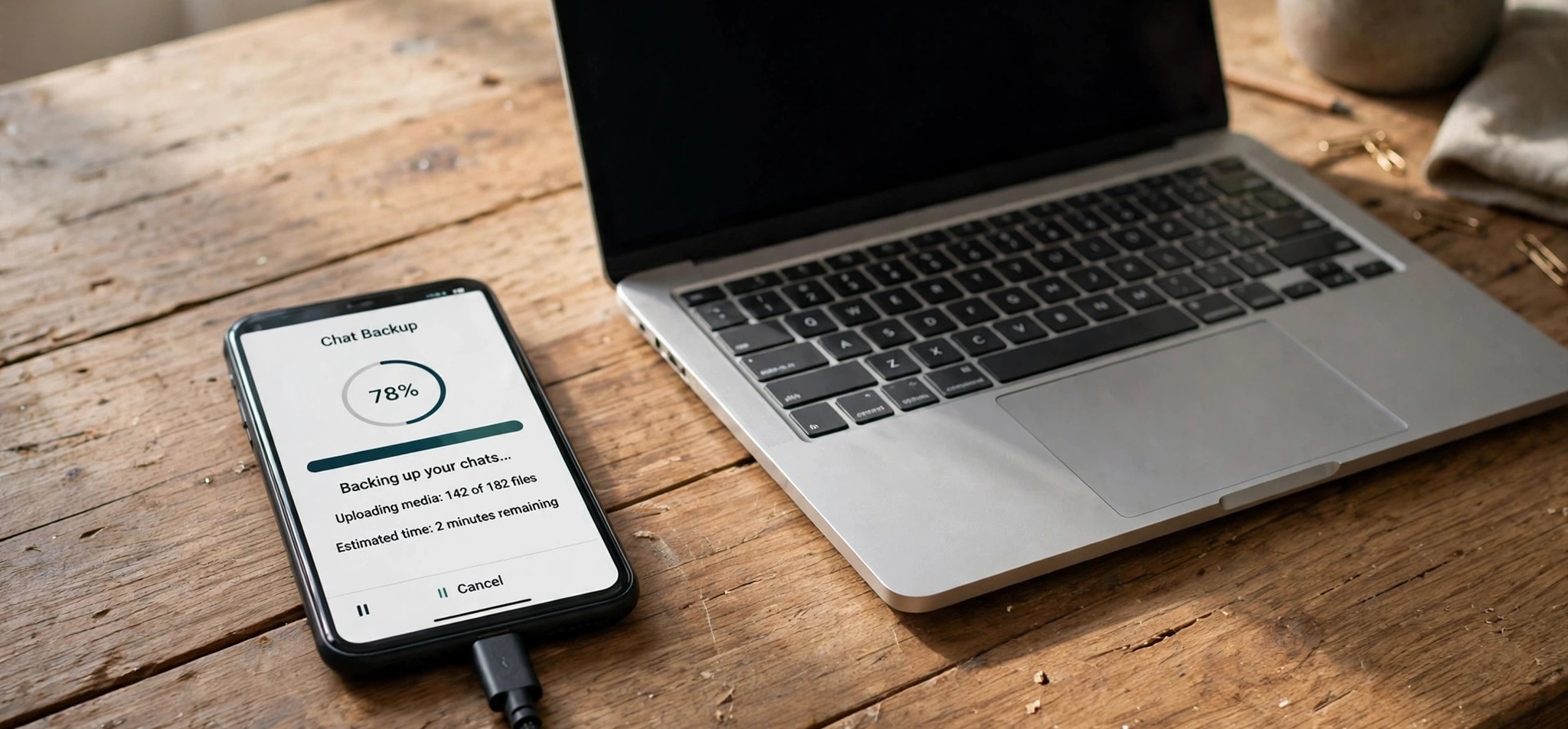
There is nothing more annoying than watching your WhatsApp backup get stuck — at 0%, at 99%, or on “Preparing backup” for hours — especially when you are trying to switch phones or just want the peace of mind that your chats are safe. The good news is that a stuck backup is almost never a lost backup. Your chats stay on your phone while the upload stalls, and in most cases one of the fixes below gets it moving again within minutes.
In this guide, I will walk you through exactly why WhatsApp backups stall on Android and iPhone, the quick checks to run first, and then the full fix list for each platform, including the trickier cases like a backup frozen at 99% or one that never leaves the preparing stage.
Table of Contents
- Why Does a WhatsApp Backup Get Stuck?
- Quick Checks Before You Start Fixing
- How to Fix WhatsApp Backup Stuck on Android
- How to Fix WhatsApp Backup Stuck on iPhone
- What to Do When the Backup Is Stuck at 99% or 100%
- What to Do When It Says “Preparing” Forever
- When Nothing Works: Safe Alternatives
- How to Prevent WhatsApp Backups From Getting Stuck Again
- Frequently Asked Questions
Why Does a WhatsApp Backup Get Stuck?
WhatsApp backs up your chats, photos, videos, and voice messages to Google Drive on Android and to iCloud on iPhone. For that upload to complete, three things must all be true at the same time: a stable internet connection, enough free space in the cloud account, and enough free space on the phone itself to prepare the backup file. When any one of them fails, the backup stalls.
The most common triggers are a full Google Drive or iCloud account, a weak or switching Wi-Fi connection, a very large backup full of videos, battery optimization killing the upload in the background, an outdated version of WhatsApp, and corrupted temporary files in the app’s cache. On Android, backups count against your Google account storage quota, so a full Gmail or Google Photos library can quietly block WhatsApp even when the app itself looks fine. On iPhone, the same thing happens when iCloud storage runs out — and iCloud backups from other devices share that same 5 GB free allowance.
One important reassurance first: a failed or stuck backup does not touch your on-device chats. Deleting an old cloud backup also does not delete anything from your phone. So do not panic, and whatever you do, do not uninstall WhatsApp in frustration while no usable backup exists — that is the one move that can actually put your chat history at risk.
Quick Checks Before You Start Fixing
Run through these five checks before changing any settings. They solve a surprising number of stuck backups on their own.
1. Check your internet connection. Backups need an uninterrupted connection for the whole upload. Switch to a strong, stable Wi-Fi network, stay close to the router, and avoid VPNs during the backup. If Wi-Fi is flaky, try a different network or, as a last resort, allow backup over mobile data — but be warned that a large backup can eat through several gigabytes quickly.
2. Check your cloud storage. On Android, open the Google Drive or Google One app and check free space; on iPhone, go to Settings, tap your name, then iCloud, and check the storage bar. If the account is full, the backup cannot finish, full stop.
3. Check free space on the phone. WhatsApp needs temporary local space while it prepares the backup file. If your phone storage is nearly full, free up a gigabyte or two first.
4. Update WhatsApp. Open the Google Play Store or the App Store, search for WhatsApp, and install any available update. Backup bugs are regularly fixed in new versions.
5. Force-close and restart. Close WhatsApp completely, restart the phone, and tap Back Up Now again. A restart clears temporary network and background-service glitches, and this alone fixes a good share of stuck backups.
If the backup still will not finish, move on to the platform-specific fixes below.
How to Fix WhatsApp Backup Stuck on Android
1. Clear the WhatsApp cache (not data). Go to Settings, then Apps, then WhatsApp, then Storage, and tap Clear Cache. This removes corrupted temporary files that can block the upload. Do not tap Clear Data — that wipes your chats from the phone. Reopen WhatsApp and run the backup again.
2. Confirm the right Google account is selected. In WhatsApp, open Settings, then Chats, then Chat backup, and check the Google account listed there. It must be the account that actually has free Drive storage. If you have several Google accounts on the phone, it is easy for the wrong one to be linked.
3. Turn off battery optimization for WhatsApp and Google Drive. Android’s battery saver can kill long background uploads. Go to Settings, then Apps, then WhatsApp, then Battery, and set it to Unrestricted. Do the same for Google Drive. Then plug the phone into a charger and retry the backup — several users report this is the fix that finally gets a backup past the “Preparing Google Drive” screen.
4. Exclude videos from the backup. In WhatsApp, go to Settings, then Chats, then Chat backup, and turn off Include videos. Videos are by far the biggest part of most backups; one group chat full of forwarded clips can balloon the file beyond your free storage. Get a text-and-photo backup to complete first, then decide whether the videos are worth a separate save.
5. Delete the old WhatsApp backup from Google Drive. A previous incomplete backup can block a new one. In the Google Drive app, open Backups, find the WhatsApp backup for your number, delete it, and create a fresh one. Your on-phone chats are untouched by this.
6. Re-link your Google account. If account sync itself is broken, remove the Google account from the phone and add it back, then re-select it in WhatsApp’s Chat backup settings and retry.
7. Free up Google account storage. Remember that Gmail, Google Photos, and Drive all share the same 15 GB free quota. Deleting old emails with large attachments or clearing backed-up photos can free space fast. If you regularly run out, a Google One plan is cheaper than losing a backup.
How to Fix WhatsApp Backup Stuck on iPhone
1. Check iCloud storage and iCloud Drive. Go to Settings, tap your name, then iCloud, and look at the storage bar. If it is full, free up space or upgrade the plan. Then confirm iCloud Drive is switched on and that WhatsApp is allowed to use it under Settings, then iCloud, then Apps Using iCloud.
2. Sign out of iCloud and sign back in. A stale iCloud session is a classic cause of stuck iPhone backups. Sign out from Settings, restart the phone, sign back in with the same Apple account, and retry the backup.
3. Reset network settings. If connection problems are the culprit, go to Settings, then General, then Transfer or Reset iPhone, then Reset, then Reset Network Settings. This clears saved Wi-Fi networks and cellular settings, so you will need to rejoin your Wi-Fi afterwards — but it fixes most network-related backup failures on iPhone.
4. Check Apple’s system status. Rarely, the problem is on Apple’s side. Check Apple’s System Status page for iCloud Backup and iCloud Drive; if there is an outage, all you can do is wait and retry later.
5. Exclude videos and trim large chats. Just like on Android, turn off Include videos in WhatsApp’s Chat backup settings. Also use WhatsApp’s Manage Storage screen to find your biggest chats — a single group stuffed with years of forwarded media is often the real reason a backup never finishes.
6. Update iOS and WhatsApp together. An old iOS version can clash with a new WhatsApp build and vice versa. Update both, restart, and retry.
7. Delete the old iCloud WhatsApp backup. Go to Settings, tap your name, then iCloud, then Manage Account Storage, then Backups or WhatsApp, and delete the old WhatsApp backup before creating a fresh one. Again, this only removes the cloud copy, not your chats.
What to Do When the Backup Is Stuck at 99% or 100%
A progress bar sitting at 99% does not mean the backup is corrupted. At that point WhatsApp is usually finishing media processing, encryption, or the final cloud handshake, and the percentage display does not track the remaining work very closely. Treat it as a finishing problem, not proof of failure.
First, leave WhatsApp open on stable Wi-Fi for a while longer, especially if this is your first backup or you included videos — large first backups can legitimately take over an hour. If nothing changes for 30 to 60 minutes, restart the phone, force-close WhatsApp, and tap Back Up Now once more. Then retry with videos excluded. If it still hangs at 99%, delete the previous cloud backup and start fresh, and check that the phone itself has free space — a backup can stall at the very end when the device cannot write the final file. A failed backup at 99% still leaves your chats intact on the phone, so you can retry as many times as needed.
What to Do When It Says “Preparing” Forever
The “Preparing” stage is when WhatsApp compresses and catalogs your messages and media before uploading anything. It gets stuck when a conversation contains thousands of media items, when the phone is low on storage, or when background restrictions interrupt the job.
Start by excluding videos, which shrinks the preparation workload dramatically. Then clear the cache on Android or force-close WhatsApp on iPhone, restart the phone, and retry while the phone is charging and on Wi-Fi. If a particular giant group chat seems to be the blocker, archiving or clearing its oldest media can unblock the whole backup. If the progress percentage or processed size does not move at all for 30 to 60 minutes, stop waiting and work through the platform fixes above — something is genuinely blocking it.
When Nothing Works: Safe Alternatives
If cloud backup keeps failing on both platforms, you still have options that do not risk your chats. On Android, you can copy the WhatsApp folder from internal storage to a computer over a USB cable for a local copy. On iPhone, a full device backup through Finder or iTunes includes WhatsApp data. Neither produces a standalone file you can restore independently, but both preserve your chats as part of a device backup.
Exporting individual critical chats from inside WhatsApp is another safety net, though exported chats cannot be imported back as normal conversations — treat exports as archives, not backups. As a last resort, use WhatsApp’s own support: go to Settings, then Help, then Contact Us, and describe the phone model, app version, available storage, and exactly where the progress stops. And remember the golden rule: do not reinstall WhatsApp, clear its storage, or factory-reset the phone until you have a verified backup with a recent date and size — or at least a local copy saved somewhere safe.
How to Prevent WhatsApp Backups From Getting Stuck Again
Once your backup is moving again, a few habits keep it that way. Turn on automatic backups — daily or weekly — instead of waiting months between huge manual ones. Keep videos excluded unless they genuinely need cloud protection, and review WhatsApp’s Manage Storage screen every few months to clear bloated chats. Keep a comfortable margin of free space both on the phone and in the Google or iCloud account, and always run large backups over reliable Wi-Fi with the phone plugged in. Finally, glance at the last successful backup date in WhatsApp’s Chat backup screen before you switch phones or reinstall anything — that one check prevents most backup disasters.
Frequently Asked Questions
How long should a WhatsApp backup normally take?
Text-only backups finish in seconds. With photos and videos, expect anywhere from five minutes to over an hour. If nothing has moved for more than two hours, something is wrong and it is time to troubleshoot.
Will I lose my chats if the backup fails?
No. A failed or stuck backup does not touch the chats stored on your phone. Only uninstalling WhatsApp or clearing its data without a backup puts them at risk.
Does WhatsApp backup use mobile data?
Not by default. It runs over Wi-Fi only, unless you enable backup over cellular in the Chat backup settings. Large backups can use several gigabytes, so think twice before switching that on.
Why does my backup always fail at the same percentage?
A corrupted or oversized file is the likely cause. Delete your largest and oldest group conversations, especially ones packed with forwarded media, and the backup usually succeeds on the next attempt.
Can I move WhatsApp chats between iPhone and Android with a backup?
Not through WhatsApp’s own backup system, because iCloud and Google Drive backups are not cross-compatible. Moving chats between platforms needs the built-in transfer tools during phone setup or a dedicated migration tool.
Does deleting a cloud backup delete my phone chats?
No. Removing a backup from Google Drive or iCloud only erases that cloud copy. Your chats stay on the phone.
Why is my WhatsApp backup not visible in Google Drive?
A WhatsApp backup does not appear as a normal file in My Drive. Check the Backups section of your Google account or the Google One storage manager instead — and make sure you are looking at the same account WhatsApp is set to use.
If your backup is still stuck after working through this guide, start from the top with the quick checks — storage, connection, and updates fix the overwhelming majority of cases — and only then move to the deeper steps for your platform.


